
In this comprehensive article, I will walk you through every professional method for inserting data into a SQL Server database using SSMS. We will cover everything from the basic INSERT statement to high-volume bulk operations and the user-friendly GUI (Graphical User Interface) methods.
How To Insert Data In SSMS
SSMS provides multiple avenues to get data into your tables. Choosing the right one depends on your specific scenario:
- Single Row Entry: For quick fixes or manual testing.
- Batch Scripts: For repeatable deployments across Dev, QA, and Production environments.
- Bulk Imports: For migrating large datasets from external sources like Excel or CSV.
Method 1: The Standard T-SQL INSERT Statement
For most developers, the INSERT INTO statement is the bread and butter of database work. It is precise, scriptable, and provides the most control over the transaction.
The Basic Syntax
The most common way to insert data is by specifying the table name, the columns you wish to populate, and the values themselves.
SQL
INSERT INTO dbo.Employees (FirstName, LastName, Email, HireDate, Salary)
VALUES ('James', 'Miller', 'james.miller@email.com', GETDATE(), 50000);
After executing the query above, I received the expected output, as shown in the screenshot below.

Why You Should Always Specify Column Names
INSERT INTO Customers VALUES (...). Don’t do this. If a colleague adds a new column to the table later, your script will break because the number of values won’t match the table schema. Always explicitly list your columns to make your code “future-proof.”
Method 2: Inserting Multiple Rows Simultaneously
You don’t need to write ten separate INSERT statements to add ten rows.
The Row Value Constructor
Since SQL Server 2008, we have been able to insert multiple rows using a single VALUES clause.
SQL
INSERT INTO dbo.Employees (FirstName, LastName, Email,HireDate, Salary)
VALUES
    ('Smith', 'Miller', 'smith.miller@email.com', GETDATE(), 50000),
    ('grand', 'smith', 'grand.smith@email.com', GETDATE(), 60000),
    ('ley', 'chang', 'ley.chang@email.com', GETDATE(), 30000);
After executing the query above, I received the expected output, as shown in the screenshot below.
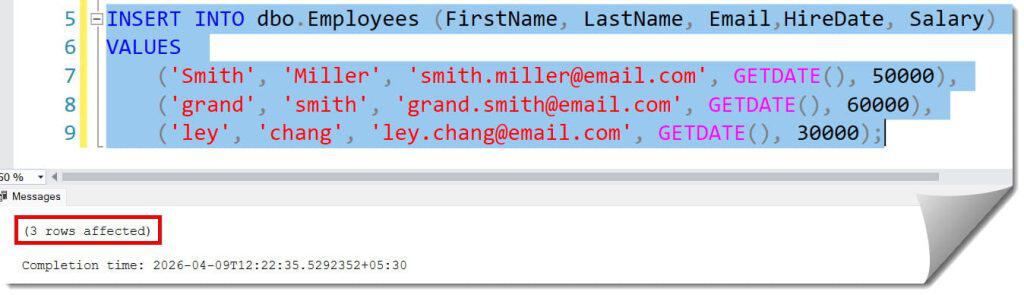
Benefits of Multi-Row Inserts:
- Performance: It reduces the overhead of multiple round-trips between the SSMS client and the SQL Server engine.
- Atomicity: If one row in the batch fails a constraint (like a duplicate primary key), the entire statement fails, ensuring you don’t end up with partial data.
Method 3: The “Edit Top 200 Rows” GUI Method
How to Use the GUI for Insertion:
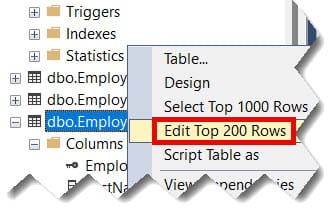
- In the Object Explorer, navigate to your database and expand the Tables folder.
- Right-click on the desired table (e.g.,
dbo.Employees). - Select Edit Top 200 Rows.
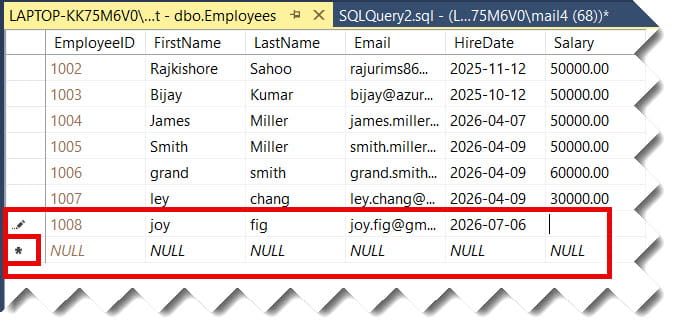
- A grid will open. Scroll to the very bottom to the empty row marked with an asterisk (*).
- Type your data directly into the cells.
- Press Enter or click away to commit the row to the database.
Check out the screenshot below for your reference.
Pro Tip: While convenient, I recommend using this only for small, non-critical updates. For production environments., always use scripts that can be peer-reviewed and saved in version control.
Method 4: Inserting Data from Another Table (INSERT INTO…SELECT)
The Syntax for Table-to-Table Insertion
You can combine an INSERT statement with a SELECT statement to migrate data dynamically.
SQL
INSERT INTO dbo.Archive_Customers (CustomerID, FirstName, LastName, Email)
SELECT CustomerID, FirstName, LastName, Email
FROM dbo.Customers
WHERE LastPurchaseDate < '2024-01-01';
Key Considerations:
- Column Mapping: Ensure the data types in the
SELECTlist match the destination columns in theINSERTlist. - Filtering: Use a
WHEREclause to ensure you are only moving the specific subset of data you need.
Method 5: Handling Identity Columns During Insertion
Most tables in a modern US tech stack use an IDENTITY column (Auto-increment) for the Primary Key. By default, SQL Server prevents you from manually inserting a value into an identity column.
Overriding the Identity Property
If you are performing a data migration for a company and need to keep the original IDs, you must toggle the identity insert setting.
- Turn it on:
SET IDENTITY_INSERT dbo.Customers ON; - Run your insert: Include the ID value in your statement.
- Turn it off:
SET IDENTITY_INSERT dbo.Customers OFF;
Warning: Forgetting to turn this off can cause havoc with your application’s ability to generate new IDs later.
Method 6: Bulk Inserting Data (Importing Files)
When you are tasked with importing 50,000 leads for a marketing firm, typing them out is impossible. SSMS offers the Import and Export Wizard.
Using the Import Wizard:
- Right-click your Database in Object Explorer.
- Select Tasks > Import Data…
- Choose your Data Source (e.g., Microsoft Excel or a Flat File/CSV).
- Choose your Destination (SQL Server Native Client).
- Map the source columns to your destination table columns.
- Run the package immediately or save it as an SSIS package for later use.
Best Practices for Data Insertion in SSMS
1. Use Transactions for Critical Data
If you are running a script for a firm, wrap your insert in a transaction. This allows you to verify the results before “locking them in.”
SQL
BEGIN TRANSACTION;

INSERT INTO dbo.Orders (OrderDate, CustomerID, TotalAmount)
VALUES (GETDATE(), 501, 199.99);

-- Check the results first!
-- ROLLBACK TRANSACTION; -- Use this if it looks wrong
-- COMMIT TRANSACTION;   -- Use this if it looks right
2. Handle Constraints Gracefully
Ensure your data respects:
- Primary Keys: No duplicate IDs.
- Foreign Keys: The Customer must exist before you can add an Order for them.
- Check Constraints: For example, ensuring a
Pricecolumn is never negative.
3. Output Your Inserted Data
Use the OUTPUT clause to immediately see the values that were generated by the server (like the new Identity ID or a default timestamp).
SQL
INSERT INTO dbo.Users (Username, Region)
OUTPUT inserted.UserID, inserted.CreatedAt
VALUES ('jdoe_nyc', 'Northeast');
Troubleshooting Common Insertion Errors
Here is how to fix the “Big Three”:
1. String or binary data would be truncated
- The Cause: You’re trying to put a 100-character name into a
VARCHAR(50)column. - The Fix: Increase the column size or trim the data before inserting.
2. Cannot insert the value NULL into column ‘X’
- The Cause: You missed a column that is marked as
NOT NULL. - The Fix: Provide a value for that column or modify the table to allow NULLs (if appropriate).
3. The INSERT statement conflicted with the FOREIGN KEY constraint
- The Cause: You are trying to reference a record in another table that doesn’t exist.
- The Fix: Insert the parent record first.
Summary of Key Shortcuts for SSMS
- F5 or Ctrl + E: Execute the current script.
- Ctrl + N: Open a new query window.
- Ctrl + Shift + R: Refresh the IntelliSense cache (helps when you’ve just added a new table).
- Ctrl + K, Ctrl + C: Comment out a block of code.
Conclusion
Inserting data in SSMS is more than just a mechanical task; it is the foundation of data management. By mastering the INSERT statement, understanding how to handle identity columns, and using the power of bulk imports, you position yourself as a capable and authoritative database professional.
You may also like the following articles:

After working for more than 15 years in the Software field, especially in Microsoft technologies, I have decided to share my expert knowledge of SQL Server. Check out all the SQL Server and related database tutorials I have shared here. Most of the readers are from countries like the United States of America, the United Kingdom, New Zealand, Australia, Canada, etc. I am also a Microsoft MVP. Check out more here.