
SSMS cannot run when setup is in progress. In this comprehensive article, I’m going to walk you through exactly why this happens and, more importantly, the simple steps to fix it so you can get back to your T-SQL queries and database tuning.
SSMS Cannot Run When Setup Is In Progress
Understanding the “Setup in Progress” Error
When you see this error, Windows is essentially telling you that the Microsoft Standard Installer (MSI) or the Windows Installer service is currently locked.
SSMS isn’t just a simple executable; it’s a complex environment built on the Visual Studio shell. Because it shares many shared components with the broader SQL Server stack, it checks for active installation locks before launching. If another process—be it a Windows Update, a background driver installation, or a hung SQL Server patch—is holding that lock, SSMS will refuse to initialize to prevent registry corruption.
Common Scenarios Where This Occurs:
- Interrupted Updates: A Windows Update started in the background but hasn’t finished its post-reboot cleanup.
- SQL Server Patching: You were updating a local instance of SQL Server 2022, and the installer didn’t exit cleanly.
- Shadow Installations: A third-party tool (like a VPN client or a specialized US-based enterprise security suite) is updating its drivers in the background.
Preliminary Troubleshooting:
Before we dive into the registry and service management, let’s try the high-level fixes that resolve about 60% of these cases for my students.
The Power of the Cold Boot
It sounds like “IT 101,” but a full restart is often the only way to clear a pending FileRenameOperations flag in the Windows Registry. However, in modern Windows 10 and 11 environments, “Shut Down” isn’t always a true shutdown due to Fast Startup.
- Pro Tip: Always select Restart specifically, as this forces a complete kernel refresh and releases held system handles.
Checking the Task Manager
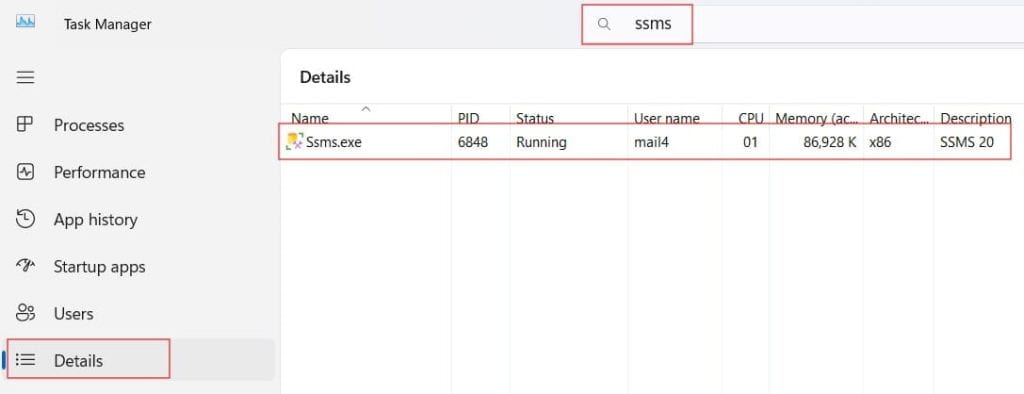
Sometimes, a previous attempt to launch a setup file (like SSMS-Setup-ENU.exe) is hanging in a “zombie” state.
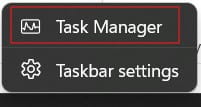
- Right-click the Taskbar and select Task Manager.
- Go to the Details tab.
- Look for
msiexec.exe,setup.exe, orSSMS-Setup-ENU.exe. - Right-click and select End Task Tree. Check out the screenshot below for your reference.
Step-by-Step Guide: Clearing the Windows Installer Lock
If the restart didn’t work, here is the professional workflow I use to manually release the installer service.
Step 1: Restart the Windows Installer Service
The msiserver service can sometimes become “stuck” in a Start_Pending or Stop_Pending state.
- Press
Win + R, typeservices.msc, and hit Enter. - Scroll down to Windows Installer.
- If it is running, right-click and select Restart.
- If it is greyed out, we may need to use the command prompt as an Administrator.
Step 2: Unregister and Re-register MSI
This is a “deep clean” for the installer engine. Open Command Prompt (Admin) and run these two commands:
DOS
msiexec /unreg
msiexec /regserver
Note: You won’t see a confirmation message if this works; the cursor will simply move to the next line.
Addressing the Registry: The “PendingFileRenameOperations” Fix
I always warn: Back up your registry before making changes. However, this is the “Nuclear Option” that almost always solves the “Setup in Progress” loop.
Windows uses a specific registry key to track files that need to be renamed or deleted upon the next reboot. If this key is populated, many installers (including SSMS) will believe a setup is still active.
The Technical Workflow:
- Open Regedit (Registry Editor).
- Navigate to the following path:
HKEY_LOCAL_MACHINE\SYSTEM\CurrentControlSet\Control\Session Manager - In the right-hand pane, look for a value named PendingFileRenameOperations.
- If it exists, double-click it. You will likely see a list of file paths.
- Action: Delete the contents of this value (or the value itself) and restart your machine.
Identifying the “Hidden” Installer: Using Resource Monitor
If you’ve cleared the registry and SSMS still says setup is in progress, there is likely a background process holding a file handle.
I recommend using the Resource Monitor—a tool frequently overlooked by junior DBAs but essential for senior-level troubleshooting.
| Feature | Use Case for SSMS Errors |
| CPU Tab | Search for “Associated Handles” using the string “SQL”. |
| Disk Tab | Identify if System is currently writing large amounts of data to C:\Windows\Installer. |
| Network Tab | Check if svchost.exe (netsvcs) is downloading a large Windows Update in the background. |
How to use it:
- Open Task Manager > Performance > Open Resource Monitor.
- Under the CPU tab, find the Associated Handles search bar.
- Type
msiorsetup. - This will show you exactly which executable is currently acting as an “Installer,” allowing you to terminate the specific culprit.
Dealing with Partial SSMS Installations
Sometimes the error occurs because a previous attempt to update SSMS failed halfway through. This leaves the application in a “limbo” state where the shortcut exists, but the underlying binaries are flagged as “In-Repair.”
The “Repair” Strategy
Instead of trying to launch SSMS, run the installer file you used to download it (e.g., SSMS-Setup-ENU.exe).
- When the splash screen appears, look for the Repair button instead of “Install.”
- The repair process will often force-clear any existing locks and re-register the DLLs needed for the Visual Studio shell to launch.
Professional Best Practices for SSMS Maintenance
Follow a strict maintenance protocol.
- Schedule Updates: Never run an SSMS update or a SQL Server Cumulative Update (CU) during business hours. Background locks are more likely to occur when multiple applications are active.
- The “Wait 10” Rule: After a Windows Update reboot, give the system 10 minutes to finish background configurations before attempting to open heavy IDEs like SSMS or Azure Data Studio.
- Separate Environments: If possible, run your SSMS on a management jump box or a local workstation, rather than directly on the Production Database Server. This reduces the number of shared installer locks.
Summary Table: Resolution Paths
Here is a quick-reference guide to the steps we’ve covered:
| Step | Complexity | Recommended for… |
| System Restart | Low | 1st line of defense (clears volatile flags). |
| Task Manager Kill | Low | Immediate “zombie” process removal. |
| Registry Cleanup | High | Clearing the PendingFileRenameOperations “loop.” |
| MSI Re-registration | Medium | Fixing corrupted installer service paths. |
| Installer Repair | Medium | Fixing broken SSMS binary links. |
Final Thoughts:
When you encounter the “SSMS cannot run when setup is in progress” error, don’t panic or start randomly deleting folders. As we’ve discussed, this is a procedural safeguard by Windows. By methodically checking for pending restarts, clearing registry rename flags, and ensuring the MSI service is healthy.
You may also like the following articles:
- Error 40 Could Not Open Connection to SQL Server
- Download SSMS
- SQL Server Error 18456
- SSMS Cannot Connect To Server
- Drop All Constraints On A Table SQL Server

After working for more than 15 years in the Software field, especially in Microsoft technologies, I have decided to share my expert knowledge of SQL Server. Check out all the SQL Server and related database tutorials I have shared here. Most of the readers are from countries like the United States of America, the United Kingdom, New Zealand, Australia, Canada, etc. I am also a Microsoft MVP. Check out more here.