
In this comprehensive tutorial, I am going to walk you through exactly why your SQL Server database is stuck in a restoring state and show you step-by-step how to fix it confidently.
SQL Server Database In Restoring State
Understanding the “Restoring” State: What Is SQL Server Actually Doing?
To fix the problem with authority, you must first understand the internal mechanics of what SQL Server is trying to accomplish.
When you see the RESTORING status, it means the SQL Server database engine has taken the database offline to perform a recovery operation. This operation relies on the ACID (Atomicity, Consistency, Isolation, Durability) properties of relational databases. SQL Server must ensure that the database is 100% transactionally consistent before letting a single user execute a query.
The recovery process happens in two distinct phases:
1. The Roll-Forward Phase (Redo)
During this phase, SQL Server reads the transaction logs from your backup files and applies every single committed transaction to the data files (.mdf and .ndf). This brings the database up to the exact point in time when the backup was captured or when the log sequence stopped.
2. The Roll-Back Phase (Undo)
This is where the magic—and the bottleneck—usually happens. SQL Server scans the transaction log for any modifications that were in-progress but uncommitted when the backup operation ended. To ensure data integrity, SQL Server must completely roll back (reverse) these uncommitted transactions.
The Golden Rule: A database cannot go online and change its status to ONLINE until the Roll-Back phase is fully completed and SQL Server explicitly knows that no more transaction logs are coming.
Top 5 Reasons Your SQL Server Database Gets Stuck in Restoring
Why does a database get trapped in this state indefinitely? In my experience, the culprit almost always falls into one of these five buckets:
- The Missing
WITH RECOVERYClause: This is the absolute number-one reason. If you script your restores manually and forget to appendWITH RECOVERYto your final command, SQL Server assumes you have more transaction log backups to apply. It keeps the database in a restoring state to protect the log chain. - Restoring a Massive Transaction Log Chain: If you are restoring a full backup followed by dozens of differential or transaction log backups, the database will remain in a restoring state throughout the entire sequence until the very last file is processed.
- An Immense, Active Long-Running Transaction: If a user or an application (let’s say an automated billing script run by Sarah in accounting) started a massive data modification right before the backup, SQL Server has to undo all of that work during the roll-back phase. If the transaction was massive, the roll-back could take hours.
- Vastly Insufficient Disk Space: If the drive hosting your database files fills up to 100% mid-restore, the process stalls out. SQL Server can’t expand the files, and it can’t finish the recovery loop.
- Underlying Hardware and I/O Bottlenecks: Slow disk read/write speeds, SAN disruptions, or network latency during a network-share restore can stretch a 10-minute recovery into a multi-hour ordeal.
Phase 1: Diagnosing the Root Cause
Before you start firing off T-SQL commands blindly, you need to gather intelligence. Acting without diagnosing can worsen the situation, potentially forcing you to restart a multi-terabyte restore from scratch.
Let’s run some diagnostic queries to see what is happening under the hood.
Query 1: Checking the Absolute Database State
Open a new query window in SSMS and run this script against the master database to verify the status of all databases on the instance:
SQL
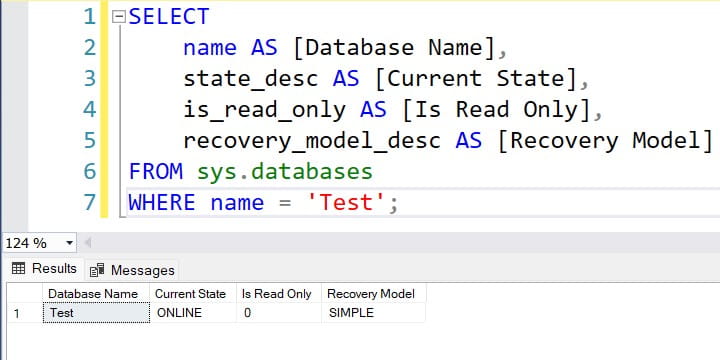
SELECT
    name AS [Database Name],
    state_desc AS [Current State],
    is_read_only AS [Is Read Only],
    recovery_model_desc AS [Recovery Model]
FROM sys.databases
WHERE name = 'YourDatabaseName';
After executing the above query, I got the expected output as shown in the screenshot below.
Understanding the Results Matrix
Use this table to quickly cross-reference what your database state means and what your immediate mental posture should be:
| State Description | What It Means | Immediate Action Required |
| ONLINE | The database is fully operational and accessible. | None. Relax and grab a coffee. |
| RESTORING | The database is undergoing recovery or waiting for logs. | Run progress and lock checks (see below). |
| RECOVERY_PENDING | SQL Server knows it needs to run recovery but is blocked. | Check drive permissions and file availability. |
| SUSPECT | The primary filegroup is damaged; recovery failed. | Check error logs immediately; prepare to restore. |
Query 2: Is It Actually Stuck, or Is It Just Slow?
Before you panic, check if SQL Server is actively working through the transaction logs by checking the active request DMV:
SQL
SELECT
    r.session_id,
    r.command,
    CONVERT(NUMERIC(5,2), r.percent_complete) AS [Percent Complete],
    CONVERT(VARCHAR(20), DATEADD(ms, r.estimated_completion_time, GETDATE()), 20) AS [Estimated Completion Time],
    ST.text AS [Executing T-SQL Script]
FROM sys.dm_exec_requests r
CROSS APPLY sys.dm_exec_sql_text(r.sql_handle) ST
WHERE r.command LIKE '%RESTORE%'
   OR r.command LIKE '%RECOVERY%';
If this query returns rows and the percent_complete is steadily climbing, do not touch anything. The database isn’t stuck; it is actively processing data. Let it finish. If you kill the process now, you will ruin the progress and have to start over.
Phase 2: How to Fix a Database Stuck in a Restoring State
If the diagnostic query returns no active restore operations, yet the database remains stubbornly locked in the RESTORING state, it is time to take definitive action. Here are the actionable scenarios and solutions.
Solution 1: The Standard T-SQL Force Recovery (The Most Common Fix)
If the database is stuck because a previous restore script ran WITH NORECOVERY and no further backup files are available, you can safely tell SQL Server to stop waiting and bring the database online.
Execute the following T-SQL command:
SQL
RESTORE DATABASE [YourDatabaseName] WITH RECOVERY;What happens behind the scenes?
This command forces SQL Server to bypass any further log imports, skip directly to the roll-back (Undo) phase, clean up any uncommitted transactions, and safely flip the database status flag to ONLINE.
Solution 2: Fixing the Issue via SQL Server Management Studio (GUI)
If you prefer using a graphical user interface over raw code, you can achieve the exact same result through SSMS, though I always recommend scripting for audit trails.
- Open SQL Server Management Studio and connect to your database engine instance.
- Expand the Databases node in the Object Explorer.
- Right-click the database stuck in the (Restoring) state, hover over Tasks, choose Restore, and select Database.
- Navigate to the Options page on the top-left pane.
- Look for the Recovery state section. Change the dropdown menu selection to:
RESTORE WITH RECOVERY. - Click OK at the bottom of the window to initiate the process.
Advanced Troubleshooting: When Standard Recovery Fails
What happens if you run RESTORE DATABASE WITH RECOVERY and it throws a blistering crimson error message across your screen? Don’t panic. Let’s look at the two most common advanced failure points.
Scenario A: The Broken Log Chain Dilemma
If you are restoring a production environment and a previous administrator missed a transaction log file in the sequence, SQL Server will refuse to bring the database online because it knows there is a gap in data continuity.
If you attempt to force recovery and receive an error regarding log sequence numbers (LSNs), you have a broken log chain.
The Step-by-Step Resolution:
- Locate the Missing File: Review your backup history tables in the
msdbdatabase to identify the missing transaction log backup file that fits perfectly chronologically between your last applied file and the current state. - Apply with NORECOVERY: Restore that specific missing file using the
WITH NORECOVERYclause. - Finalize: Once the missing piece of the puzzle is applied, run your final log backup file using
WITH RECOVERY.
Scenario B: The Infinite Roll-Back Loop
If you check your active requests and see that SQL Server is running a ROLLBACK command that has been stuck at 99% complete for hours, you are dealing with a massive uncommitted transaction.
Let’s say a developer named Mark ran a poorly optimized UPDATE statement on a table with 500 million rows right before the backup was taken. SQL Server must meticulously revert every single one of those rows.
The Strategy:
- Do not restart the SQL Server Service: This is a common rookie mistake made out of sheer desperation. If you restart the SQL instance, SQL Server will simply restart the roll-back process from 0% the moment the service comes back online. You will double your downtime.
- Monitor the Error Log: Execute
xp_readerrorlogto monitor the precise internal IO throughput of the rollback phase. - Provide Disk IO Headroom: If possible, temporarily throttle other non-essential applications or maintenance jobs on that server to give the storage subsystem maximum throughput to finish writing out the rollback data.
Proactive Strategies to Prevent Database Restore Hangs
The best way to fix a database stuck in a restoring state is to ensure it never gets stuck in the first place.
- Standardize Your Scripts: Ensure all automated restore scripts explicitly terminate with
WITH RECOVERYunless they are deliberately designed to feed into a multi-file log shipping secondary instance. - Implement Rigorous Monitoring Alerts: Set up automated alerts via tools like Azure Monitor, AWS CloudWatch, or native SQL Server Agent alerts to notify your on-call DBA team the exact second a database enters a
RECOVERY_PENDINGorSUSPECTstate. - Enforce Strict Automated Maintenance Plans: Run
DBCC CHECKDBon a rigorous weekly schedule. Catching data and structural allocation corruption in your production environment early ensures that your automated backups don’t end up containing corrupted transactional sequences that crash during an emergency restore. - Implement Dedicated Staging Testing: Never assume a backup works just because the backup script returned a success code. Set up an isolated staging or UAT server and automate a weekly process that pulls your production backups, restores them completely, and verifies their integrity.
Final Thoughts
Watching a core business database sit helplessly in a restoring state can make any technology professional break out into a cold sweat. However, by maintaining a methodical approach—checking your active requests, verifying file paths, ensuring storage availability, and applying the correct T-SQL recovery commands—you can handle this issue like an absolute expert.
You may also like the following articles:
- Error 40 Could Not Open Connection to SQL Server
- SSMS Cannot Run When Setup Is In Progress
- SQL Server Error 18456

After working for more than 15 years in the Software field, especially in Microsoft technologies, I have decided to share my expert knowledge of SQL Server. Check out all the SQL Server and related database tutorials I have shared here. Most of the readers are from countries like the United States of America, the United Kingdom, New Zealand, Australia, Canada, etc. I am also a Microsoft MVP. Check out more here.