
In this article, I’m going to walk you through exactly how to update SSMS like a pro, ensuring your environment remains stable, secure, and cutting-edge.
How To Update SSMS
Why Keeping SSMS Updated is Critical
In the United States, data security and compliance (like SOC2 or HIPAA) are paramount. An outdated management tool can be a vulnerability.
Security and Vulnerability Patching
Microsoft frequently releases updates to the Visual Studio shell that powers SSMS. These updates patch security holes that could potentially be exploited to gain unauthorized access to your server instances.
Support for New SQL Server Features
If your organization is moving to SQL Server 2022 or utilizing Azure SQL Managed Instance, an old version of SSMS might not even “see” the new features. You wouldn’t try to drive a Tesla with a steering wheel from a 1990 Ford—the same logic applies to your database tools.
Bug Fixes and Performance
Ever had SSMS crash while you were mid-script? Many of those “not responding” errors are resolved in minor point releases. Updating ensures the IDE remains snappy and reliable during high-pressure deployments.
Checking Your Current SSMS Version
The first step in any professional workflow is assessment. You need to know where you stand before you can move forward.
- Launch SSMS: Open your current version of the application.
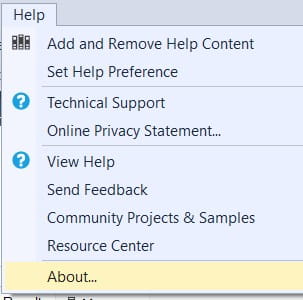
- Navigate to “About”: Click on the Help menu in the top toolbar.
- Select “About”: A dialog box will appear.
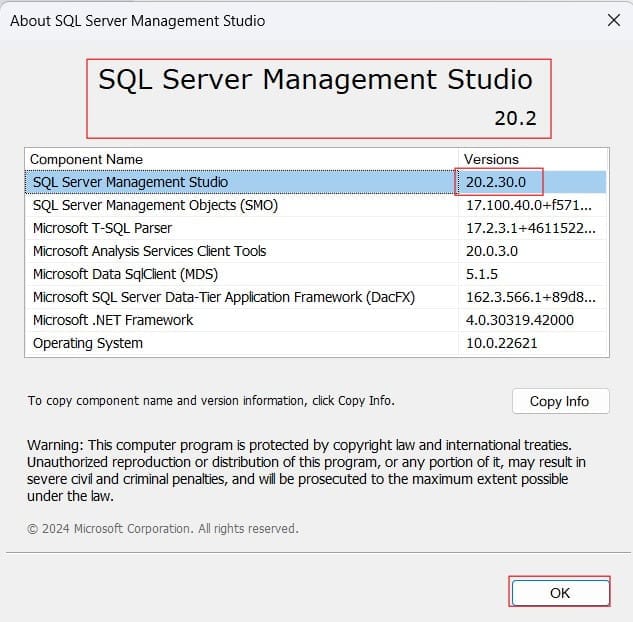
- Note the Release Number: Look for the “SQL Server Management Studio” line. It will look something like
v19.3orv20.1. Check out the screenshots below for your reference.
How SSMS Updates Work:
Back in the day, SSMS was bundled with the SQL Server installer. Those days are over. Since version 17.0, SSMS has been a standalone installation. This was a brilliant move by Microsoft, as it allows the IDE to be updated much more frequently than the database engine itself.
The “Update Notification” Feature
Modern versions of SSMS (v18 and higher) include an integrated notification system.
- When a new version is available, you will see a small toast notification in the bottom-right corner of the IDE.
- You can also manually check by clicking Tools > Check for Updates.
Step-by-Step Tutorial: Updating SSMS via the Installer
While the “Check for Updates” button is convenient, the most reliable way to perform a clean update is to download the latest executable directly from the Microsoft Learn repository.
Step 1: Download the Latest Executable
- Navigate to the official Microsoft SSMS download page.
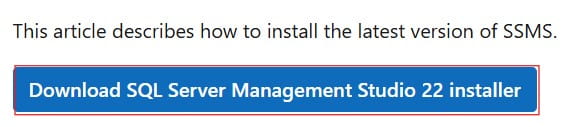
- Click on the link titled “Download SQL Server Management Studio 22 installer”.
- The file will usually be named vs_
SSMS.exe. Check out the screenshots below for your reference.

Step 2: Prepare Your Environment
Never try to update SSMS while you have active query windows open.
- Save Your Scripts: SSMS generally recovers unsaved files, but as an authority in this space, I recommend manual saving to avoid data loss.
- Close the IDE: Ensure all instances of SSMS and the SQL Server Profiler are closed.
Step 3: Run the Installer as Administrator
Right-click the downloaded .exe file and select Run as Administrator. This is a non-negotiable step in enterprise environments to ensure the installer has the necessary permissions to modify the Visual Studio Shell and system registry.
Step 4: The Installation Sequence
- Welcome Screen: The installer will detect your existing version.
- Click “Install” or “Repair”: If you are moving between major versions (e.g., 19 to 20), it may look like a fresh install. If you are doing a minor update, it will simply overwrite the existing binaries.
- Wait for Completion: The process usually takes 5 to 10 minutes depending on your disk speed (SSD vs. HDD).
Post-Update: Verification and Configuration
Once the installer finishes, it will likely prompt you for a Restart. Do not skip this. A restart is required to refresh the GAC (Global Assembly Cache) and register new DLLs.
Verifying the Update
After the reboot, open SSMS and go back to Help > About. Verify that the version number matches the one you downloaded.
Restoring Your Settings
One of the best things about the modern SSMS installer is that it preserves your connections and custom settings. Your registered servers and color themes should remain intact. However, I always recommend checking your SQL Server Agent jobs and Object Explorer filters to ensure everything migrated smoothly.
Updating SSMS in Enterprise Environments (Silent Install)
If you are a SysAdmin in a large firm in Seattle or Chicago, you probably don’t want to walk around to 500 workstations. You can update SSMS silently via the command line or SCCM (Microsoft Configuration Manager).
The Silent Install Command
You can run the installer with the /Passive or /Quiet flags. This allows for a background update without user intervention.
DOS
SSMS-Setup-ENU.exe /Quiet /NoRestartProfessional Tip: While /NoRestart prevents a forced reboot, the update won’t actually be fully active until the machine is eventually restarted.
Troubleshooting Common Update Errors
| Error | Cause | Professional Solution |
| Setup Failed: 0x80070643 | General MSI installation error. | Restart the machine and try the installer again with “Run as Administrator.” |
| Pending Reboot | Windows Update is holding a lock. | Complete all pending Windows Updates first, reboot, and then run the SSMS setup. |
| Visual Studio Shell Conflict | A corrupted VS 2022 Shell instance. | Uninstall SSMS completely, use the Visual Studio Installer to repair the shell, then reinstall SSMS. |
Summary Checklist for a Successful Update
To ensure you don’t miss a beat, use this checklist I’ve developed for my consulting clients:
- Verify Version: Check
Help > Aboutto see if an update is actually needed. - Backup Connections: Export your registered servers (just in case).
- Close Apps: Ensure SSMS, Profiler, and Configuration Manager are closed.
- Admin Rights: Run the installer with elevated privileges.
- Reboot: Always perform a full system restart after the installation is complete.
- Test Connections: Verify you can still reach your Chicago or New York data centers.
Video Tutorial
Conclusion:
Updating SSMS is about more than just getting the latest icons; it’s about maintaining the integrity and performance of your database management environment. By following this structured, authoritative approach, you ensure that your workstation is ready for the demands.
You may also like the following articles:

After working for more than 15 years in the Software field, especially in Microsoft technologies, I have decided to share my expert knowledge of SQL Server. Check out all the SQL Server and related database tutorials I have shared here. Most of the readers are from countries like the United States of America, the United Kingdom, New Zealand, Australia, Canada, etc. I am also a Microsoft MVP. Check out more here.