
In this article, I will walk you through the mechanics of the CREATE LOGIN Transact-SQL (T-SQL) statement. We will dissect the architectural distinction between logins and users, evaluate authentication modes, enforce stringent password policies, and implement enterprise-grade security protocols.
SQL CREATE LOGIN
The CREATE LOGIN Syntax Breakdown
The T-SQL syntax for CREATE LOGIN supports multiple credential sources. Below is the standard syntax structure used across production environments:
SQL
-- Creating a native SQL Server Authentication Login
CREATE LOGIN login_name
WITH PASSWORD = 'strong_password'
    [ MUST_CHANGE ]
    [ , DEFAULT_DATABASE = database_name ]
    [ , DEFAULT_LANGUAGE = language_name ]
    [ , CHECK_EXPIRATION = { ON | OFF } ]
    [ , CHECK_POLICY = { ON | OFF } ]
    [ , CREDENTIAL = credential_name ]
    [ , SID = sid_value ];

-- Creating a Windows-Authenticated Login (Domain or Local)
CREATE LOGIN [DOMAIN\account_name]
FROM WINDOWS
    [ WITH DEFAULT_DATABASE = database_name ]
    [ , DEFAULT_LANGUAGE = language_name ];
Constructing Native SQL Server Logins
When building native SQL Server logins, you must enforce policy flags to ensure compliance with enterprise frameworks such as NIST, HIPAA, and SOX.
Basic SQL Authentication Login
To create a standard application login tied to a default transactional database:
SQL
CREATE LOGIN AppSvcUser
WITH PASSWORD = 'P@ssw0rd!Secure#2026$Key',
     DEFAULT_DATABASE = AzureLessons,
     DEFAULT_LANGUAGE = us_english,
     CHECK_EXPIRATION = ON,
     CHECK_POLICY = ON;
Critical Security Parameters Explained
CHECK_POLICY = ON: Instructs SQL Server to enforce the Windows Server host password complexity rules. This prevents users from selecting trivial or easily brute-forced passwords.CHECK_EXPIRATION = ON: Forces the account to respect operating system domain password aging and lifetime limits.MUST_CHANGE: Requires the user or application engineer to supply a replacement password on their initial connection. (Note:MUST_CHANGErequiresCHECK_EXPIRATION = ON).
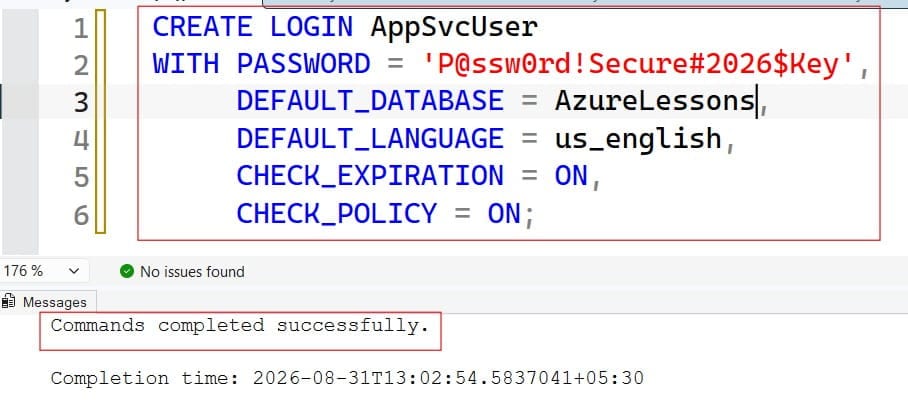
After running the query above, I got the expected output shown in the screenshot below.
SQL
-- Forcing immediate password rotation upon first logon
CREATE LOGIN DavidMiller
WITH PASSWORD = 'InitialTempPassword#987',
     MUST_CHANGE,
     DEFAULT_DATABASE = OperationsDB,
     CHECK_EXPIRATION = ON,
     CHECK_POLICY = ON;
Integrating Windows and Active Directory Logins
Windows Authentication reduces operational overhead by centralizing credential lifecycles within Active Directory. When an employee leaves the company, revoking their Active Directory profile instantly revokes their access across all SQL Server instances.
Provisioning an Individual Active Directory User
To grant a corporate domain engineer access to your SQL Server instance:
SQL
CREATE LOGIN [CORP\SarahJenkins]
FROM WINDOWS
WITH DEFAULT_DATABASE = CustomerPortal,
     DEFAULT_LANGUAGE = us_english;
Provisioning an Active Directory Security Group (Best Practice)
Managing permissions on an individual basis creates management drift. In high-scale architectures, always map access to an Active Directory Security Group rather than individual employee accounts:
SQL
CREATE LOGIN [CORP\DataAnalytics_Tier2_Engineers]
FROM WINDOWS
WITH DEFAULT_DATABASE = EnterpriseReporting;
When new engineers join the corporate team, group membership management in Active Directory handles database authentication automatically without requiring explicit DBA intervention on the SQL Server instance.
End-to-End Workflow: From Login Creation to Data Access
A common oversight is creating a login and expecting queries to succeed immediately. Let us step through the sequential administrative pipeline required to grant a login read-only access to a database table.
Administrative Execution Sequence:
[1. CREATE LOGIN] ---> [2. USE Database] ---> [3. CREATE USER] ---> [4. GRANT Permissions]
Step 1: Initialize the Server Login
Switch to the instance context and execute the login creation:
SQL
USE master;
GO

CREATE LOGIN MichaelChang
WITH PASSWORD = 'K9#vX!89mQ@pZ7$wL2#e',
     DEFAULT_DATABASE = FinancialRecords,
     CHECK_EXPIRATION = ON,
     CHECK_POLICY = ON;
GO
Step 2: Provision the Database User
Navigate into the target database container and bind a database user principal to the server-level login:
SQL
USE FinancialRecords;
GO

CREATE USER MichaelChang
FOR LOGIN MichaelChang
WITH DEFAULT_SCHEMA = dbo;
GO
Step 3: Assign Database Roles or Explicit Object Permissions
Apply the principle of least privilege by granting only the required access tiers:
SQL
USE FinancialRecords;
GO

-- Option A: Add the user to a standard built-in fixed role
ALTER ROLE db_datareader ADD MEMBER MichaelChang;

-- Option B: Grant explicit, granular execution rights on a specific object
GRANT SELECT ON dbo.MonthlyLedger TO MichaelChang;
GRANT EXECUTE ON dbo.usp_GenerateQuarterlyStatement TO MichaelChang;
GO
Administrative Maintenance: Altering, Disabling, and Dropping Logins
Database systems require continuous maintenance as staffing and application requirements change.
Modifying Passwords and Unlocking Accounts
To rotate a password or unlock an account locked out due to failed attempts:
SQL
-- Rotate password without forcing a reset
ALTER LOGIN AppSvcUser
WITH PASSWORD = 'NewValidatedPassword!2026#Alpha';

-- Unlock an account locked by Windows Password Policy
ALTER LOGIN DavidMiller
WITH UNLOCK;
Disabling vs. Dropping Logins
When an account is suspected of compromise or an application is decommissioned, immediately disable the login rather than dropping it. Disabling prevents authentication while preserving server-level metadata, role memberships, and audit trails:
SQL
-- Disable access immediately
ALTER LOGIN MichaelChang DISABLE;

-- Re-enable when clearance is confirmed
ALTER LOGIN MichaelChang ENABLE;
If you must permanently delete a login, ensure it does not own database schemas or server roles:
SQL
USE master;
GO

-- Drop the server login
DROP LOGIN MichaelChang;
GO
Warning: Dropping a login does not automatically delete the corresponding
sys.database_principalsentry inside user databases. This creates an Orphaned User. Always clean up the database-level user before or immediately after dropping a server login.
Enterprise Best Practices & Security Hardening
To maintain compliance and protect your database infrastructure, adhere to these enterprise security standards:
- Enforce the Principle of Least Privilege: Never add standard user logins to the
sysadminfixed server role. Limitsysadminprivileges to dedicated, audited emergency administrator accounts. - Avoid Renaming the
saAccount Without Strategy: While disabling the nativesa(System Administrator) account and renaming it is a common compliance check, remember that renaming alone does not stop targeted attacks if elevated permissions are broadly distributed. - Audit Failed Logins Regularly: Configure SQL Server Audit or examine the SQL Server Error Logs for
Event ID 18456(Failed Login Attempt). A high volume of these entries indicates potential brute-force attacks or misconfigured connection strings. - Isolate Service Accounts: Dedicated application services should each have their own login. Never share a single service account across multiple microservices or reporting tools.
- Automate Schema Validation: Ensure all production databases use explicit schemas (e.g.,
sales,hr,finance) rather than dumping all database users into thedbodefault schema.
Summary
Mastering the CREATE LOGIN command allows you to establish a secure, well-architected perimeter around your SQL Server instances. By separating server-level authentication from database-level authorization, enforcing strict operating system password policies, and prioritizing Active Directory integration, you build a resilient foundation for your enterprise data operations.
You may also like the following articles:
- How To Check If SQL Server Is Reachable
- SQL Server Last Login Date for User
- Error 40 Could Not Open Connection to SQL Server
- How to find SQL Server instance name in SSMS

After working for more than 15 years in the Software field, especially in Microsoft technologies, I have decided to share my expert knowledge of SQL Server. Check out all the SQL Server and related database tutorials I have shared here. Most of the readers are from countries like the United States of America, the United Kingdom, New Zealand, Australia, Canada, etc. I am also a Microsoft MVP. Check out more here.