
A manufacturing client called me on a Friday afternoon. Their only database administrator had left the company two weeks earlier, and nobody knew the sa password. The ERP system still ran, but a vendor needed to patch it that night. Every attempt to sign in with the old credentials ended in the same login failure.
The good news was that the company owned the server. This is the situation where you need to know how to reset SQL Server sa password without login. If you have administrator rights on the Windows or Linux host, SQL Server gives you a supported recovery path. You do not need to reinstall anything or touch the data files.
This guide shows you the exact recovery steps for SQL Server on Windows and Linux, plus what to do on Azure VMs, Azure SQL Database, and Managed Instance. You will also learn how to store the new password safely, lock down the sa account, and keep this from happening again.
Understand What sa Is and Why You Are Locked Out
The sa login is the built-in system administrator account in SQL Server. It is a member of the sysadmin fixed server role, which means it can do anything on the instance.
It only works if the server runs in mixed mode authentication, which allows both Windows and SQL logins. In Windows-only mode, sa is disabled by default even when the password is correct.
You can be locked out for several reasons:
- Nobody recorded the password at install time.
- The account was disabled, and no other sysadmin exists.
- The password was changed, and the person who changed it left.
- Mixed mode is off, so SQL logins are rejected.
- A password policy lockout is blocking the account after repeated failures.
Check the error before you change anything. A login failure with state details usually names the cause. See the guide on SQL Server error 18456 to read the state codes. If you cannot even connect, review why SSMS cannot connect to the server first.
Pro Tip: In my experience, about half of “forgotten sa password” calls turn out to be a Windows account that is already a sysadmin. Before you restart anything, try signing in with every Windows admin account that was used to install or manage the server.
Authorization and Security First
This procedure gives whoever runs it full control of the instance. Only use it on servers you own or are authorized to administer. Before you start:
- Get written approval from the data owner or system owner.
- Note the date, time, and reason in your change record.
- Confirm that you have local administrator rights on the host, because the recovery method depends on them.
- Schedule a maintenance window. The method restarts the SQL Server service, so applications will lose their connections.
Also take a backup of your system databases if you can. See the overview of types of backup in SQL Server to choose the right kind. If SQL Server is hosted on an Azure VM, consider a VM-level backup or snapshot first. The guide to Azure VM backup and restore explains how.
If someone else controls the host and you are not an administrator, you cannot use this method. Ask the infrastructure owner. That limit is a security feature, not a bug.
Pro Tip: I always write the approval and the exact time window into the ticket before I touch the service. If an auditor asks six months later who regained sysadmin access and why, the answer is one click away.
Method 1: Reset sa in Single-User Mode (Windows)
When SQL Server starts in single-user mode, only one connection is allowed, and members of the local Windows Administrators group can connect with full sysadmin rights. This is the standard supported recovery path.
Step 1: Find the Instance Name
You need the service name. For a default instance, it is MSSQLSERVER. For a named instance, it is MSSQL$<InstanceName>. If you are unsure, see how to find the SQL Server instance name, or list the services on the host:
Get-Service | Where-Object { $_.Name -like 'MSSQL*' } | Select-Object Name, StatusThis lists SQL Server services and their status. The one named MSSQLSERVER or MSSQL$<InstanceName> is the database engine. You can also confirm it is running with this guide to check if SQL Server is running.
Step 2: Stop the Service and Dependent Services
Open PowerShell as Administrator. Stop the SQL Server Agent first, because it will otherwise grab the one allowed connection:
Stop-Service -Name 'SQLSERVERAGENT' -Force
Stop-Service -Name 'MSSQLSERVER' -Force
Replace the names with SQLAgent$<InstanceName> and MSSQL$<InstanceName> for a named instance. Warning: stopping the service disconnects every user and application, so run this only in your approved window.
Step 3: Start SQL Server in Single-User Mode
net start MSSQLSERVER /mSQLCMDThe /mSQLCMD startup option starts the instance in single-user mode and limits the connection to the sqlcmd utility. This keeps other programs, such as the Agent or a monitoring tool, from taking the only connection. For a named instance, use net start MSSQL$<InstanceName> /mSQLCMD.
If the service fails to start, check the error log and see SQL Server service not starting and the error 1067 guide.
Step 4: Connect with sqlcmd Using Windows Authentication
Open a second Command Prompt or PowerShell as Administrator, and run this:
sqlcmd -S . -EThe -S . flag means the local default instance. For a named instance, use -S .\<InstanceName>. The -E flag uses your Windows credentials. Because you are a local administrator and the instance is in single-user mode, you connect as a sysadmin. If you see a “login failed” message, another process has taken the single connection, so stop it and try again.
Step 5: Reset the Password and Re-enable sa
Generate a strong password first. Do not invent a simple one under pressure. Use PowerShell to create a random value:
$NewPassword = -join ((48..57) + (65..90) + (97..122) | Get-Random -Count 28 | ForEach-Object { [char]$_ })This builds a 28-character password from letters and digits. Letters and digits avoid quoting problems in T-SQL. Now pass it to sqlcmd as a variable so it never appears in a script file:
sqlcmd -S . -E -v NewPwd="$NewPassword" -Q 'ALTER LOGIN sa ENABLE; ALTER LOGIN sa WITH PASSWORD = N''$(NewPwd)'', CHECK_POLICY = ON; SELECT name, is_disabled FROM sys.server_principals WHERE name = N''sa'';'Here is what this does:
-v NewPwd="$NewPassword"defines a scripting variable that sqlcmd substitutes into the query.ALTER LOGIN sa ENABLEturns the account on if it was disabled.ALTER LOGIN sa WITH PASSWORD = ...sets the new password.CHECK_POLICY = ONenforces Windows password complexity and lockout rules.- The final
SELECTconfirms thatsaexists and showsis_disabled = 0.
You can also run the same T-SQL inside an interactive sqlcmd session. Type the statements, then GO:
ALTER LOGIN sa ENABLE;
GO
ALTER LOGIN sa WITH PASSWORD = N'<new-strong-password>' , CHECK_POLICY = ON;
GO
After executing the above query, I got the expected output as shown in the screenshot below.
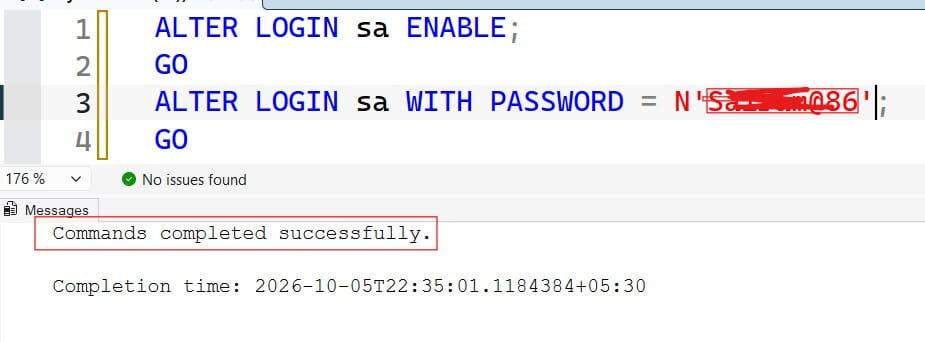
Use the interactive form only if you can avoid leaving the password in your terminal history. Clear the history afterward.
Step 6: Add a Named Admin (Better Than Using sa)
While you have sysadmin rights, create or fix a proper administrator account so nobody depends on sa again.
CREATE LOGIN [DOMAIN\sql-admins] FROM WINDOWS;
GO
ALTER SERVER ROLE sysadmin ADD MEMBER [DOMAIN\sql-admins];
GO
This creates a login for an Active Directory group and adds it to the sysadmin role. Use a group so access follows team membership. For more on creating logins, see the guide on creating a SQL login and how SQL Server permissions work.
Step 7: Return to Normal Mode
Close sqlcmd, then restart the service normally:
Stop-Service -Name 'MSSQLSERVER' -Force
Start-Service -Name 'MSSQLSERVER'
Start-Service -Name 'SQLSERVERAGENT'
This stops the single-user instance and starts SQL Server in normal multi-user mode. Then restart the Agent. If Agent jobs do not start, check SQL Server Agent will not start.
Step 8: Check Mixed Mode if sa Still Fails
If sa still cannot connect, the instance may be in Windows-only mode. Check from a sysadmin session:
SELECT SERVERPROPERTY('IsIntegratedSecurityOnly') AS WindowsOnlyMode;A value of 1 means Windows authentication only. In SSMS, right-click the server, choose Properties > Security, and select SQL Server and Windows Authentication mode. Restart the service for the change to take effect.
Pro Tip: I stop every other service that connects to SQL Server before starting single-user mode, including monitoring agents and backup tools. A forgotten agent grabbing the one connection is the number one reason this method seems to fail.
Method 2: Reset sa on SQL Server for Linux
On Linux, the mssql-conf utility handles this directly, and you do not need single-user mode.
sudo systemctl stop mssql-server
sudo /opt/mssql/bin/mssql-conf set-sa-password
sudo systemctl start mssql-server
The first command stops the service. The second prompts you for a new sa password twice, so the password never appears on the command line. The third starts SQL Server again. You need sudo rights on the host. Check status afterward with systemctl status mssql-server.
If you cannot sign in with sa afterward, SQL authentication may have been turned off, or the account may be locked by policy. Review the error log as covered below.
Method 3: SQL Server on an Azure VM
An Azure VM running SQL Server behaves like any Windows or Linux host, with one extra problem: you may not know the VM’s own administrator password either.
- Make sure you can reach the VM. See how to access an Azure VM.
- If you have lost the VM admin password, follow how to reset the password in an Azure virtual machine.
- Sign in with Remote Desktop (or SSH on Linux) and use Method 1 or Method 2.
Keep the network locked down while you work. A network security group (NSG) holds the rules that allow or deny traffic to the VM. Read what an NSG in Azure is, and make sure TCP 1433 is open only to your application subnet, not the internet. If you give people access to the VM, use Azure RBAC, which grants permissions through roles. Learn the basics in what Azure RBAC is.
Method 4: Azure SQL Database and Managed Instance
There is no sa login in Azure SQL Database. Instead, you have a server admin login that you chose at creation, and optionally a Microsoft Entra admin. If you lose the password, you reset it at the Azure level. You do not need any SQL login.
For Azure SQL Database, run:
az sql server update \
  --resource-group <resource-group-name> \
  --name <sql-server-name> \
  --admin-password "<new-strong-password>"
This sets a new password for the server admin login. For Managed Instance, use az sql mi update with the same --admin-password option. You need an Azure role that can modify the server, such as SQL Server Contributor.
Read the related guides on how to reset a password in Azure SQL Database and change a password for an Azure SQL server database. If the new value is rejected, see Azure SQL password validation failed.
The better fix is to stop using the password altogether. Set a Microsoft Entra ID admin on the server, and sign in with your Entra identity. Start with the Microsoft Entra ID tutorial for beginners. Applications can then use a managed identity, which lets an Azure service authenticate without a stored secret. Read what a managed identity in Azure is.
Avoid typing the new password in plain text on a shared screen. Use a variable or prompt, and clear your shell history afterward.
Pro Tip: On Azure SQL, I reset the admin password once, immediately set an Entra admin group, and then stop using the SQL admin login. It turns a recurring emergency into a one-time cleanup.
Store and Protect the New Password
A reset only helps if the new password does not get lost again. Treat it as a break-glass credential.
Use Azure Key Vault. Azure Key Vault is a service for storing secrets, keys, and certificates. Read how Azure Key Vault works and follow how to create a secret in Azure Key Vault.
$SecretValue = ConvertTo-SecureString $NewPassword -AsPlainText -Force

Set-AzKeyVaultSecret `
  -VaultName "<key-vault-name>" `
  -Name "sql-sa-breakglass" `
  -SecretValue $SecretValue
ConvertTo-SecureString wraps the password so the cmdlet can accept it, and Set-AzKeyVaultSecret stores it as a secret. Giving the secret a clear name and an owner makes it easy to find during the next emergency.
Then clear the variable from your session with Remove-Variable NewPassword, SecretValue. Never save the password in a spreadsheet, a shared document, a chat message, or a script.
Limit who can read it. Give a small group the Key Vault Secrets User role, and alert when anyone reads this secret.
Lock Down sa After Recovery
Once you have a named administrator group, reduce the risk that sa carries.
- Disable it for daily use. Run
ALTER LOGIN sa DISABLE;after you confirm the Windows admin group works. - Never use it in applications. Applications should connect with their own least-privilege users, not
saor any sysadmin account. Use a login with only the roles it needs. - Prefer Windows or Entra authentication. Passwords can be shared, guessed, or leaked. Identity-based sign-in leaves a clearer trail.
- Rename it if your policy allows. Renaming
saremoves an easy target for password-guessing attacks, though it does not replace strong passwords. - Keep the connection encrypted. Require TLS, and install a certificate from a trusted authority.
Review who has sysadmin rights, and what each person can do, with these checks:
SELECT p.name, p.type_desc, p.is_disabled
FROM sys.server_role_members AS m
JOIN sys.server_principals AS r ON r.principal_id = m.role_principal_id
JOIN sys.server_principals AS p ON p.principal_id = m.member_principal_id
WHERE r.name = N'sysadmin';
This lists every member of the sysadmin role. Anyone who should not be on the list is a finding. For deeper checks, see how to check database role permissions in SQL Server and when a login was last used with last login date for a user.
Pro Tip: I leave one disabled
saand two named admin groups in place, and I test the break-glass path every quarter. A recovery process nobody has practiced tends to fail on the one night you need it.
Audit, Monitor, and Alert
Regaining sysadmin access is a sensitive event. Make sure you can prove what happened.
- Review the error log. Failed and successful logins, and the service restart, appear in the log. See how to view SQL Server error logs.
- Turn on auditing. Track logins, role membership changes, and failed logins. For Azure SQL, see how to configure Azure SQL Database auditing.
- Alert on
sause. Any successfulsalogin after recovery should raise an alert, since you disabled it for daily use. - Send logs to Azure Monitor. Azure Monitor collects metrics and logs and triggers alerts. Learn what Azure Monitor does.
Write down what you did: the time of the restart, the commands you ran, who approved the change, and where the new secret lives.
Test Normal, Failure, and Unauthorized Scenarios
Before you close the ticket, test the result.
- Normal: Sign in with the named admin group and confirm full access. Confirm that applications reconnect and read data.
- Failure: Try an intentionally wrong password on a test login and confirm the lockout and alert behave as expected.
- Unauthorized: Sign in as a normal application user and confirm it cannot create logins, change roles, or read data outside its scope.
- Recovery: Store a copy of the break-glass process, and try reading the secret from Key Vault as an authorized person.
Common Errors and Fixes
| Problem | Likely cause | Fix |
|---|---|---|
Login failed for user 'sa' after reset | Mixed mode is off, or the account is disabled | Enable mixed mode, run ALTER LOGIN sa ENABLE, restart |
| Cannot connect in single-user mode | Another process took the only connection | Stop the Agent and monitoring tools, then retry |
Service will not start with /m | Wrong service name or bad startup parameter | Check the name, remove stray startup options, read the log |
Password validation failed | New password violates complexity rules | Use a longer password with mixed characters |
| Not a member of local Administrators | Insufficient host rights | Ask the server owner to run the procedure |
Azure az sql server update is denied | Missing Azure role | Request SQL Server Contributor or equivalent |
| Applications still fail after reset | They store the old sa password | Create dedicated users and update the secrets |
Frequently Asked Questions
How do I reset the SQL Server sa password if I forgot it?
Stop the SQL Server service, start it in single-user mode with net start MSSQLSERVER /mSQLCMD, and connect with sqlcmd -S . -E as a local Windows administrator. Then run ALTER LOGIN sa WITH PASSWORD = .... Restart the service normally afterward.
Can I reset the sa password without being a Windows administrator?
No. The single-user method requires local administrator rights on the host, and that requirement protects the server. Ask the system owner for access, or have another sysadmin reset the login.
Does Azure SQL Database have an sa account?
No. Azure SQL Database and Managed Instance use a server admin login, plus an optional Microsoft Entra admin. If you lose the admin password, reset it with az sql server update --admin-password. Prefer Entra authentication so you do not depend on a password.
How do I reset the sa password on SQL Server for Linux?
Stop mssql-server, run sudo /opt/mssql/bin/mssql-conf set-sa-password, and enter the new password when prompted. Then start the service again.
Should I keep using sa after resetting it?
No. Create a named administrator group, store the new sa password in Key Vault as a break-glass credential, and disable sa for daily use. Applications should use their own least-privilege logins or managed identities.
You learned how to regain control of a SQL Server instance by resetting sa through single-user mode, mssql-conf, or the Azure admin password, and how to lock down access afterward. The key principle is to treat sa as a break-glass credential: store it in Key Vault, disable it for daily use, and rely on named, audited, least-privilege identities. I hope you found this article helpful.
You May Also Like
- How to check object-level permissions in SQL Server
- SQL Server user permissions explained
- How to check user permissions on a table in SQL Server
- How to grant SELECT on a table in SQL Server
- Azure Key Vault best practices

After working for more than 15 years in the Software field, especially in Microsoft technologies, I have decided to share my expert knowledge of SQL Server. Check out all the SQL Server and related database tutorials I have shared here. Most of the readers are from countries like the United States of America, the United Kingdom, New Zealand, Australia, Canada, etc. I am also a Microsoft MVP. Check out more here.