
In this comprehensive article, I will walk you through the professional methods I use to identify and verify a SQL Server instance name. Whether you are troubleshooting a connection for a firm or setting up a local dev environment, this tutorial will provide the authoritative answers you need.
How to find SQL Server instance name in SSMS
In the Microsoft SQL Server ecosystem, you can have multiple “instances” of SQL Server running on a single physical or virtual machine.
- Default Instance: This typically takes the name of the computer itself (e.g.,
NYC-PROD-DB01). - Named Instance: This is a specific installation with a unique name appended to the server (e.g.,
NYC-PROD-DB01\PAYROLL).
Method 1: The “Connect to Server” Dialog (The Quickest Way)
The most common place to find your instance name is the very first screen you see when launching the application. If you’ve already connected in the past, SSMS likely has a “memory” of your server names.
Using the Dropdown Menu
- Launch SQL Server Management Studio.
- When the Connect to Server dialog box appears, look at the Server name field.
- Click the downward arrow at the end of the text box.
- Select <Browse for more…> from the bottom of the list. Check out the screenshot below for your reference.
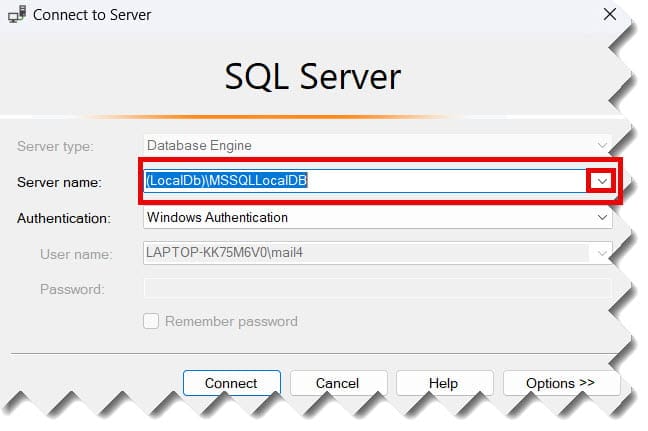
Using the “Browse for More” Feature
This is a lifesaver for consultants who travel between different US-based offices.
- In the Browse for Servers window, click the Local Servers tab.
- Expand the Database Engine node.
- Here, SSMS will list all SQL Server instances it can detect on your local machine.
- Select the instance name (e.g.,
LAPTOP-DENVER\SQLEXPRESS) and click OK.
Method 2: Identifying Instance Name via Object Explorer
Reading the Object Explorer Tree
The top node of the Object Explorer tree displays the instance name in a specific format:
- ServerName\InstanceName (SQL Server Version – UserLogin). Check out the screenshot below for your reference.
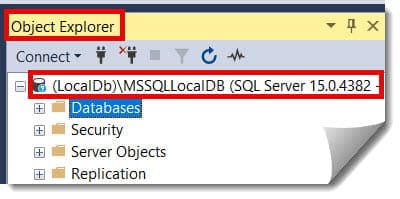
Breaking Down the Display
| Component | Example | Description |
| Server Name | DESKTOP-PHX | The name of the host computer in Phoenix. |
| Instance Name | SQL2026 | The specific named instance. |
| Version Number | 16.0.1000 | The internal build number of the engine. |
| Login | AD\JSmith | The Windows or SQL account used to connect. |
Method 3: Using T-SQL Queries (The Pro Method)
As a database professional, I always prefer scripts over the GUI. Queries are immutable, shareable, and provide the most accurate “ground truth” directly from the engine.
The Standard Global Variable
To get the instance name quickly, run this in a New Query window (Ctrl + N):
SQL
SELECT @@SERVICENAME AS 'Instance Name';- Result: If it returns
MSSQLSERVER, you are on a Default Instance. If it returns a name (likeDEVELOPMENT), that is your Named Instance.
After executing the query above, I received the expected output, as shown in the screenshot below.
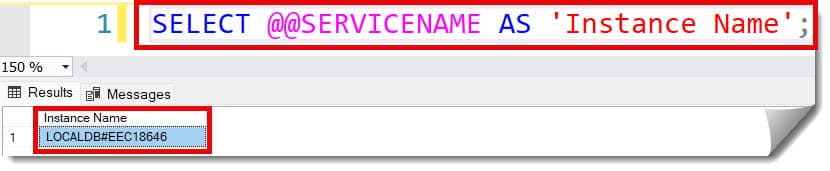
The Full Server Name Query
If you need both the computer name and the instance name (the format required for connection strings), use this:
SQL
SELECT SERVERPROPERTY('ServerName') AS 'Full Instance Name';Checking the Service Name and Version
For a more detailed audit, use this comprehensive query:
SQL
SELECT
    SERVERPROPERTY('MachineName') AS [Computer Name],
    SERVERPROPERTY('InstanceName') AS [Instance Name],
    SERVERPROPERTY('Edition') AS [Edition],
    SERVERPROPERTY('ProductVersion') AS [Version];
After executing the query above, I received the expected output, as shown in the screenshot below.
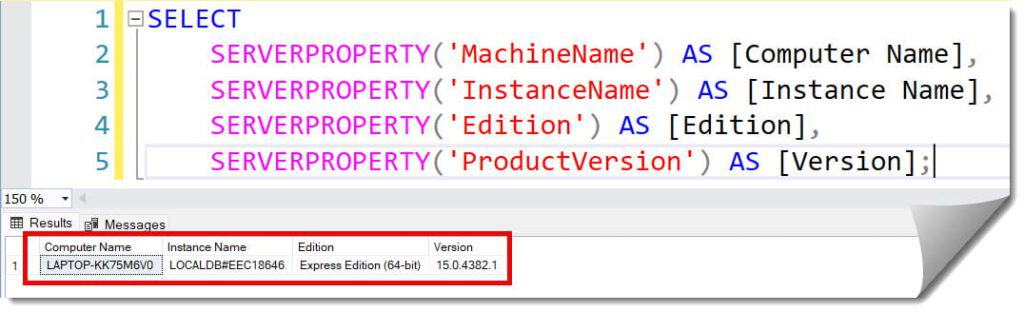
Method 4: Checking Windows Services
Sometimes SSMS itself won’t connect, and you need to find the instance name to troubleshoot why. In this case, we go to the source: the Windows Services Manager.
- Press
Win + Ron your keyboard, typeservices.msc, and hit Enter. - Scroll down to the entries starting with SQL Server.
- Look at the text inside the parentheses.
SQL Server (MSSQLSERVER)= Default Instance.SQL Server (TEST_INSTANCE)= The instance name isTEST_INSTANCE.
Expert Tip: If the service is “Stopped,” you won’t be able to connect in SSMS even if you have the correct name. Ensure the status is Running before trying to log in.
Method 5: Using SQL Server Configuration Manager
If you are a systems administrator in San Francisco managing multiple environments, the SQL Server Configuration Manager is your best friend. It provides a clean, consolidated view of every instance installed on that machine.
- Open the Start Menu and search for SQL Server Configuration Manager.
- Click on SQL Server Services in the left-hand pane.
- The right-hand pane will list every instance.
- Note the name following “SQL Server” in the list—this is exactly what you should type into the SSMS connection box.
Summary of Methods
| Method | Best Used For | Required Access |
| Connect Dialog | New connections | None (Public) |
| Object Explorer | Verifying current session | Login Access |
| T-SQL Query | Scripting and Auditing | Query Permissions |
| Services (msc) | Troubleshooting stopped servers | Windows Admin |
| Config Manager | Managing multiple instances | Windows Admin |
Video Tutorial
Conclusion
Finding your SQL Server instance name in SSMS is a foundational skill that allows you to navigate complex data environments with confidence. Whether you are using the visual “Browse for more” feature, running high-level T-SQL queries, or digging into Windows Services, knowing where this information lives is the first step toward database mastery.
You may also like the following articles:
- Rename Database SSMS
- SSMS Cannot Connect To Server
- How To Insert Data In SSMS
- How To Run Query In SSMS
- How To Comment In SSMS
- SSMS 22 New Features

After working for more than 15 years in the Software field, especially in Microsoft technologies, I have decided to share my expert knowledge of SQL Server. Check out all the SQL Server and related database tutorials I have shared here. Most of the readers are from countries like the United States of America, the United Kingdom, New Zealand, Australia, Canada, etc. I am also a Microsoft MVP. Check out more here.