
Fortunately, an autocomplete failure in SSMS is rarely a sign of a deeper system error. It is almost always a minor breakdown in the IDE’s client-side cache or config settings. In this article, I will take you through a systematic, step-by-step troubleshooting workflow to restore your IntelliSense and clear out those false invalid object errors for good.
SSMS IntelliSense Not Working
Why Does SSMS IntelliSense Stop Working?
Before changing your settings, it helps to understand why IntelliSense loses track of your database schema. SSMS relies on an internal background memory process that periodically pulls metadata—like names of tables, views, stored procedures, and columns—from your active SQL Server instance and caches it locally on your computer.
You might experience an IntelliSense drop due to one of several common triggers:
- Stale Local Cache: Someone recently created, altered, or dropped database objects, but the local SSMS cache is still holding onto the old schema snapshot.
- Global Configuration Changes: IntelliSense or statement completion options were accidentally toggled off in the IDE options menu.
- Connection and Context Limits: The active query window is disconnected, targeting the wrong database, or running under an environment mode that explicitly blocks autocomplete.
- Script Size Thresholds: The T-SQL file you are modifying has exceeded the maximum file size safety limit configured inside SSMS.
The Definitive Troubleshooting Workflow
Let’s work through the exact sequence of fixes I use to troubleshoot IntelliSense issues. Start with the easiest, most common solution and work your way down the list.
Step 1: Force-Refresh the Local IntelliSense Cache
By far, the most common reason IntelliSense fails is that it’s stale. If your teammate just executed a deployment script to add three new tables to your staging database, your open SSMS window won’t know they exist yet. It will throw an “Invalid object name” error even if you can see the tables right there in the Object Explorer.
To fix this, you need to force SSMS to refresh the server metadata and rebuild its local index.
- The Keyboard Shortcut: Ensure your cursor is active inside the broken query window, then press Ctrl + Shift + R.
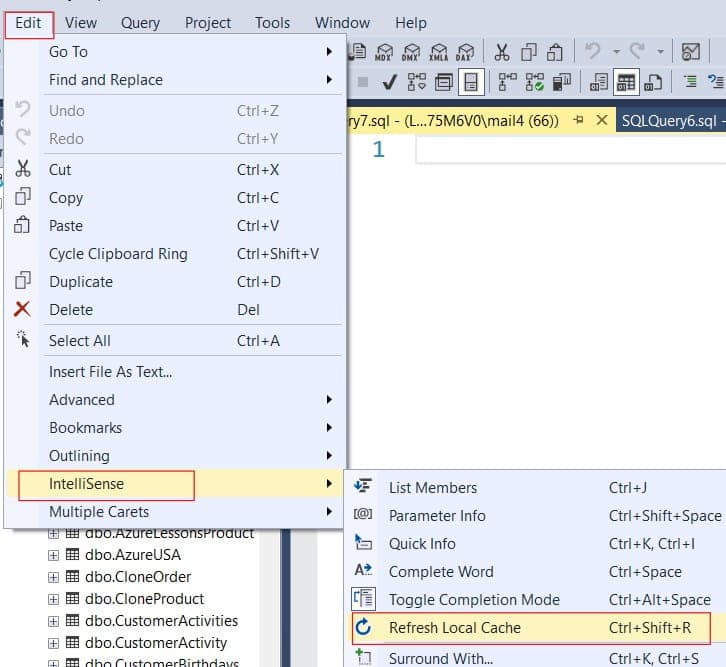
- The Menu Path: Navigate to Edit on the top menu bar, hover over IntelliSense, and click Refresh Local Cache. Check out the screenshot below for your reference.
Note for Large Databases: If you are connected to a massive data warehouse containing tens of thousands of objects, the refresh process isn’t instant. Give the IDE 30 to 60 seconds to finish rebuilding the cache before you start typing again.
Step 2: Verify Your Active Database Connection Status
It sounds simple, but it trips people up constantly. If your query window loses its active connection to the database engine due to a brief network drop or an idle timeout policy, IntelliSense will stop working entirely.
Look closely at the lower-right corner of your SSMS window to inspect the status bar.
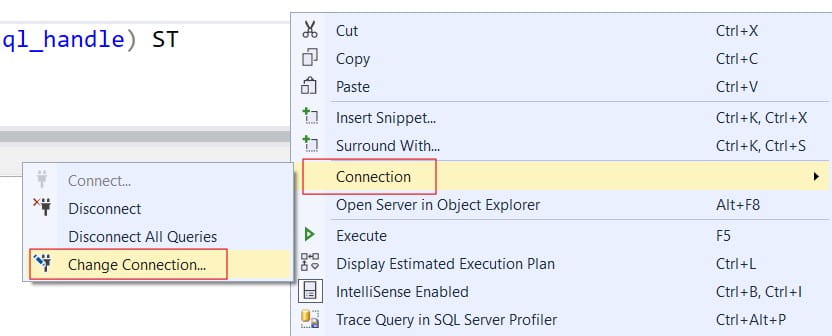
- If the connection bar is red or displays a disconnected state, right-click inside your query window and select Connect (or choose Change Connection).
- Look at the Available Databases dropdown menu in the top-left toolbar. If your script query targets tables in SalesData but your window context dropdown has drifted back to master, IntelliSense will look in the wrong schema and show red error underlines.
Check out the screenshot below for your reference.
Step 3: Check Global Text Editor Configuration Settings
If refreshing the cache doesn’t restore autocomplete, your global editor settings might have been disabled. Let’s make sure the built-in language features are actually enabled in your IDE settings.
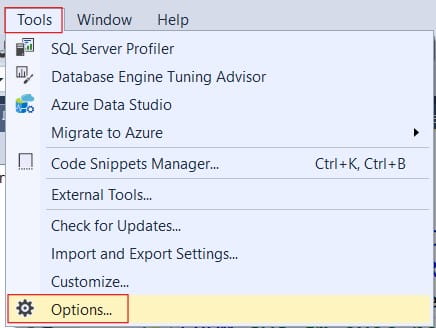
- Navigate to Tools in the top menu and click Options.
- In the left-hand menu tree, expand Text Editor, expand Transact-SQL, and click General.
- Under the Statement completion section, ensure both Auto list members and Parameter information are explicitly checked.
- Next, move down the menu tree and click directly on the IntelliSense sub-node.
- Verify that the Enable IntelliSense checkbox is ticked.
- Look closely at the Troubleshoot script size slider or numeric field. By default, SSMS turns off IntelliSense for files that exceed a certain size to prevent the IDE from lagging. If you are modifying a massive migration script, increase this threshold value.
Step 4: Turn Off SQLCMD Mode
This is a hidden trap that surprises many developers. SQLCMD mode allows you to execute SQL scripts along with operating system commands directly inside your query editor window. However, enabling this mode changes how text is parsed, and SSMS turns off IntelliSense completely when SQLCMD mode is active.
Let’s check if this mode was accidentally enabled:
- Look at the Query option on the top menu bar.
- Check the entry named SQLCMD Mode.
- If the icon next to it is highlighted or checked, click it once to disable it.
Pro Tip: If SQLCMD mode was turned on by default for all new queries via your global options menu, go to Tools > Options > Query Execution > SQL Server > General, uncheck By default, open new queries in SQLCMD mode, click OK, and then open a brand-new query tab.
Step 5: Check the Transact-SQL Toggle Shortcuts
SSMS has built-in, easily triggered hotkeys that toggle IntelliSense on and off for individual query tabs. It is very easy to hit these chords by accident while trying to comment out code or execute formatting shortcuts.
If autocomplete works fine in a brand-new query window but remains completely dead in your current working tab, you may have accidentally muted it.
Try pressing the toggle hotkeys to bring it back:
- The Management Studio Toggle Chord: Press Ctrl + Q followed by Ctrl + I (or Ctrl + B followed by Ctrl + I, depending on your specific SSMS version build).
- The Alternative Completion Chord: If your text editor box autocompletes text in a weird way, press Ctrl + Alt + Space to toggle between Completion Mode and Suggestion Mode.
Configuration Reference
To help you troubleshoot methodically, use this quick-reference table to audit your environment when things stop working:
| Component Path / Shortcut | Targeted Setting | Expected Configuration Value |
| Ctrl + Shift + R | Metadata State | Triggers a fresh cache rebuild from the server. |
| Tools > Options > Text Editor > Transact-SQL > General | Statement Completion | Ensure Auto list members is checked. |
| Tools > Options > Text Editor > Transact-SQL > IntelliSense | Master Control | Ensure Enable IntelliSense is checked. |
| Query > SQLCMD Mode | Editor Parsing Mode | Must be Disabled for autocomplete to function. |
| Status Bar (Bottom Right) | Network State | Must show an active, authenticated connection. |
Video Tutorial
What to Do When Nothing Else Works
If you have refreshed your cache, verified your settings, checked your connection context, and confirmed you are not in SQLCMD mode—yet IntelliSense remains completely broken—you are likely dealing with a rare edge case.
Here are the final recovery tactics I use to get things back on track:
- The Tab Swap Reset: Sometimes, a single query tab window suffers an unrecoverable internal parsing state. Create an entirely blank query tab (Ctrl + N), copy your T-SQL script text out of the broken tab, paste it into the new window, ensure your database dropdown matches, and try again.
- The Minimum Version Mismatch Rule: Keep in mind that SSMS IntelliSense requires a baseline level of support from the target database engine. If you are using a modern version of SSMS to connect to an exceptionally old, legacy instance of SQL Server (such as SQL Server 2005 or earlier), the modern metadata views won’t map correctly, and IntelliSense will silently turn itself off.
- The IDE Restart Strategy: If all else fails, save your open scripts, close SSMS entirely, and launch a fresh session. This clears out any hung background processes or memory leaks in the local shell environment and forces a completely clean connection state from scratch.
By stepping methodically through this troubleshooting guide, you can quickly find and fix whatever configuration hitch is blocking your autocomplete.
You may also like the following articles:
- Error 40 Could Not Open Connection to SQL Server
- SSMS Cannot Run When Setup Is In Progress
- SQL Server Error 18456
- SQL Deadlock Victim

After working for more than 15 years in the Software field, especially in Microsoft technologies, I have decided to share my expert knowledge of SQL Server. Check out all the SQL Server and related database tutorials I have shared here. Most of the readers are from countries like the United States of America, the United Kingdom, New Zealand, Australia, Canada, etc. I am also a Microsoft MVP. Check out more here.