
SQL Server refuses to start; it is easy to fix. In this comprehensive tutorial, I will walk you through the precise internal mechanics of the SQL Server startup sequence, show you where to find hidden diagnostic indicators, and outline the exact troubleshooting methodologies required to get your data layer back online safely and efficiently.
SQL Server Service Not Starting
Event Viewer and Error Logs
When the Windows Service Control Manager fails to initialize SQL Server, it rarely explains why it failed. To find the true root cause, you must bypass the standard service interface and consult the specialized event and engine logs that track system operations.
The Windows Application Event Log
The Windows Application Event Log is your first line of defense. The moment SQL Server crashes or terminates during boot, the operating system registers a corresponding event record.
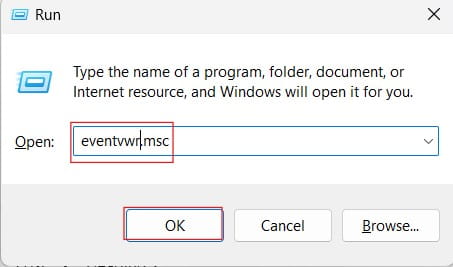
- How to Access: Open the Run dialog (
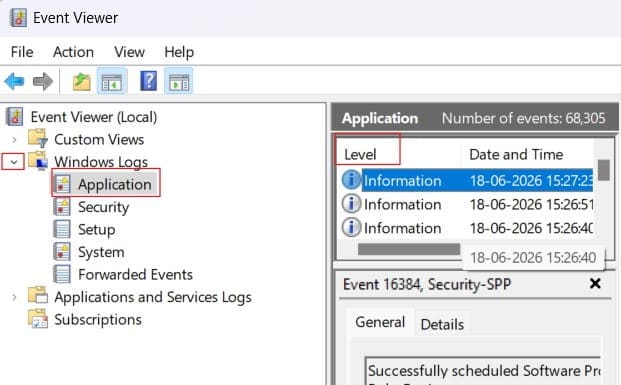
Win + R), typeeventvwr.msc, and press Enter. Expand the Windows Logs directory and select the Application log. - What to Look For: Filter the log by checking for Error severity levels and look for sources named
MSSQLSERVER(for default instances) orMSSQL$InstanceName(for named instances). You will typically find an Event ID 17051 or 17182 record, which often provides the exact system error code that halted execution.
Check out the screenshot below for your reference.
The SQL Server Errorlog File
If the database engine managed to initialize even for a fraction of a second before crashing, it will write detailed technical notes into its proprietary text ledger, known as the ERRORLOG. This file records internal milestones like memory allocations, database mounts, and cryptographic checks.
If you cannot open SQL Server Management Studio (SSMS) because the service is offline, you must retrieve this file directly from the physical storage drive. The default storage paths for standard modern installations typically adhere to the following file layout structure:
Default Default Instance Path:
C:\Program Files\Microsoft SQL Server\MSSQL16.MSSQLSERVER\MSSQL\Log\ERRORLOG

Typical Named Instance Path:
C:\Program Files\Microsoft SQL Server\MSSQL16.INSTANCENAME\MSSQL\Log\ERRORLOG
Note: The MSSQL16 segment of the folder name corresponds to SQL Server 2022. If your infrastructure runs SQL Server 2019, look for MSSQL15, or MSSQL14 for SQL Server 2017.
Open the raw ERRORLOG file (the one without any file extension) using a text editor like Notepad. Scroll to the very bottom of the text block to isolate the final sequences executed right before the engine terminated.
Common Causes of Service Startup Failures
To help your team identify and resolve issues quickly during a system outage, use this comparative guide outlining the primary reasons why the SQL Server service fails to start.
| Core Problem Category | Identifiable Log Symptoms | Direct Root Cause | Initial Resolution Strategy |
| Credential & Authentication Failure | “Logon failure: the user name or password is incorrect.” | The service account password expired, was changed in Active Directory, or rights were revoked. | Update credentials in SQL Server Configuration Manager and verify local security policies. |
| System Database Corruption | “Error: 9003, Severity: 20, State: 1. The log scan number passed to log scan in database ‘model’ is invalid.” | The master or model database files were corrupted during a sudden power outage or system crash. | Restore system databases from an enterprise backup or rebuild the system databases entirely. |
| Storage & Resource Deficits | “There is insufficient system memory in resource pool ‘internal’ to run this query.” | The hosting volume ran completely out of disk space, or the system has insufficient RAM to initialize the buffer pool. | Clear temporary storage drives, allocate more memory, or move database transaction logs to a larger volume. |
| Shared Network Protocol Clashes | “TDSSNIClient initialization failed with error 0x2740, status code 0xa. Port is already in use.” | Another application or an orphaned SQL process is already bound to the designated TCP port (default 1433). | Identify the conflicting application using command tools, alter the port assignment, or terminate the blocking process. |
Account and Permission Failures
In my consulting experience, nearly half of all unexpected startup failures are caused by account credential anomalies or misconfigured security policies.
Service Account Password Expirations
Many corporate IT environments enforce strict Active Directory password rotation rules across all network accounts. If your SQL Server service runs under a dedicated domain user account rather than a managed service account, and that account’s password expires or is changed by a network administrator, the local Service Control Manager will instantly reject the login token on the next boot.
The Configuration Manager Rule
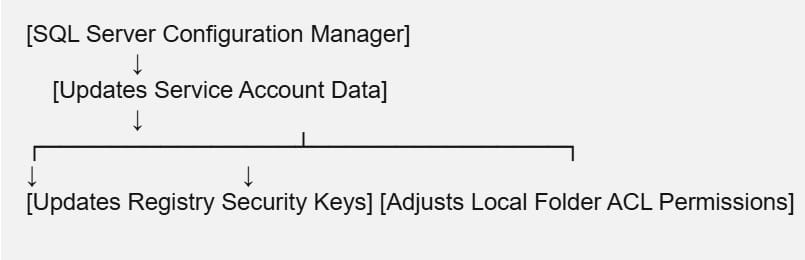
When a password change occurs, never update the credentials using the standard Windows Services console (services.msc). The Windows Services console does not have the internal hooks required to update the complex registry keys, cryptographic keys, and folder permissions that SQL Server relies on.
Instead, always open the official SQL Server Configuration Manager. Expand the SQL Server Services tab, right-click your target engine instance, select Properties, navigate to the Log On tab, and securely input the updated password or account string there. The Configuration Manager handles the structural permission updates behind the scenes automatically.
Missing Local Security Policies
For the SQL Server engine to spin up its core execution threads, its service account must hold specific, hardcoded user rights assignment parameters within the local operating system. If a restrictive Group Policy Object (GPO) rolls out across your company network and strips these rights away, the service will crash on launch.
Ensure the service account is explicitly granted these two policies within the Local Security Policy tool (secpol.msc under User Rights Assignment):
- Log on as a service (
SeServiceLogonRight) - Perform volume maintenance tasks (
SeManageVolumePrivilege– required for instant file initialization)
System Database Corruption and File Locks
During its initialization sequence, SQL Server must boot its internal system databases before it can touch any user tables. The core engine cannot run if the master or model databases are offline or corrupted.
The Role of the Master and Model Databases
masterDatabase: Tracks all system-level configurations, logins, endpoints, and the precise physical location of every other database file on the server.modelDatabase: Acts as the template configuration blueprint for any new database structures. Crucially, during startup, SQL Server uses themodeldatabase to create a fresh instance of the temporary workspace database (tempdb). If themodeldatabase file is corrupted,tempdbcannot initialize, and the entire engine will abort.
Compressed or Hidden File Properties
A subtle but frustrating issue occurs when system volumes run out of storage space, prompting administrators or automated cleanup tools to compress folders to reclaim bytes.
SQL Server cannot mount system databases if their hosting folders are compressed or marked with specific advanced attributes. If you inspect your ERRORLOG and spot an entry like “The file ‘master.mdf’ is compressed but does not reside in a read-only database or filegroup,” the engine will stop immediately.
To resolve this, navigate to the physical storage folder where your data files live (e.g., C:\Program Files\Microsoft SQL Server\MSSQL16.MSSQLSERVER\MSSQL\Data), right-click the folder, go to Properties, click Advanced, and uncheck the box labeled Compress contents to save disk space. Click apply, propagate the changes to all subfolders and files, and restart the service.
Network Protocol and Port Clashes
For SQL Server to accept incoming connections from your application servers, it must bind its internal Tabular Data Stream (TDS) listener to a communication port—most commonly TCP port 1433.
If another software package on the server binds to port 1433 before SQL Server starts, or if an orphaned background instance of SQL Server crashed but failed to release its network socket, the new service instance will fail to initialize its network interface client and will throw an error like 0x2740 (the socket address is already in use).
To identify what application is holding your database port hostage, open an administrative Command Prompt or PowerShell window and execute the following network statistics utility command:
PowerShell
netstat -ano | findstr 1433This command returns a clean list of active connections using that port along with the corresponding Process Identifier (PID) in the far-right column. You can then cross-reference that PID inside Windows Task Manager to isolate and terminate the conflicting software process, clearing the runway for SQL Server to boot successfully.
Step-by-Step Tutorial: Methodical Troubleshooting Sequence
When a production database fails to start, avoid guessing at changes randomly. Follow this disciplined troubleshooting sequence to isolate the issue and bring the service back online safely:
1. Review the Windows Event Viewer and Engine ERRORLOG: Log Inspection.
Open the Windows Event Viewer to inspect application-level errors, then locate the physical text ERRORLOG file on your storage volume. Scroll to the final entries to find the exact system error code or file violation that triggered the shutdown.
2. Verify Service Account Identity and Password Settings: Identity Validation.
Confirm that the service account password has not expired or been altered in Active Directory. If updates are needed, open the official SQL Server Configuration Manager to reset credentials and automatically reapply folder permissions.
3. Check System Volume Space and File Compression States: Attribute Correction.
Verify that the storage volume hosting your data files has sufficient free space. Inspect the physical .mdf and .ldf system database files to ensure they have not been compressed or hidden by automated storage tools.
4. Utilize Minimal Configuration Switches for Recovery Mode: Emergency Boot.
If system database corruption or configuration errors block standard initialization, open an administrative command line and launch the engine manually using the minimal configuration recovery switch: sqlservr.exe -f -m. This launches a lightweight instance, allowing you to connect locally and fix configuration errors before performing a standard boot.
Final Thoughts:
Resolving an unbootable SQL Server instance is a test of technical discipline. By ignoring generic error dialogs and systematically reviewing the event viewer, checking account permissions within the SQL Server Configuration Manager, and verifying network port availability, you can isolate and repair even the most complex infrastructure issues.
You may also like the following articles:

After working for more than 15 years in the Software field, especially in Microsoft technologies, I have decided to share my expert knowledge of SQL Server. Check out all the SQL Server and related database tutorials I have shared here. Most of the readers are from countries like the United States of America, the United Kingdom, New Zealand, Australia, Canada, etc. I am also a Microsoft MVP. Check out more here.