
In this comprehensive article, I will take you through everything you need to know about SSMS—from its fundamental definition to the advanced features that make it the gold standard for database administration and beyond.
What Is SSMS
What Exactly is SSMS? A Deep Dive
At its core, SQL Server Management Studio (SSMS) is an integrated environment for managing any SQL infrastructure. Imagine it as a “Universal Remote Control” for your databases. Developed by Microsoft, it provides a single interface for configuring, monitoring, and administering SQL Server and Azure SQL Database instances.
While some beginners mistake the database engine for the management tool, it is important to distinguish the two. SQL Server is the engine (the car), and SSMS is the dashboard and steering wheel. You use SSMS to “talk” to the engine using Transact-SQL (T-SQL).
The Evolution of SSMS
For those of us who remember the early 2000s, SSMS replaced the older “Enterprise Manager” and “Query Analyzer.” It unified these tools into a single, cohesive IDE (Integrated Development Environment) built on the Visual Studio shell. This transition allowed for a much more robust, extensible, and user-friendly experience that has only improved over the last two decades.
The Core Architecture: Understanding the Interface
When you first launch SSMS, the layout can feel a bit overwhelming. However, once you understand the “Logic of the Layout,” it becomes incredibly intuitive. Below are the primary components that every professional needs to recognize.
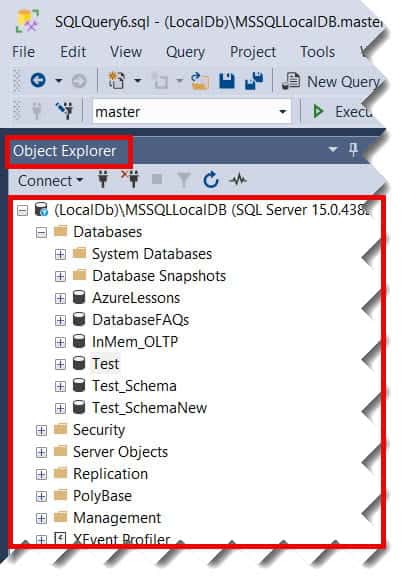
1. Object Explorer
This is the heart of SSMS. Typically located on the left side, the Object Explorer provides a hierarchical view of all database objects on a server. You can drill down into:
- Databases: Tables, Views, Stored Procedures, and Functions.
- Security: Logins, Server Roles, and Credentials.
- Server Objects: Backup Devices and Linked Servers.
- Management: Maintenance Plans, Error Logs, and Activity Monitors. Check out the screenshot below for your reference.
2. The Query Editor
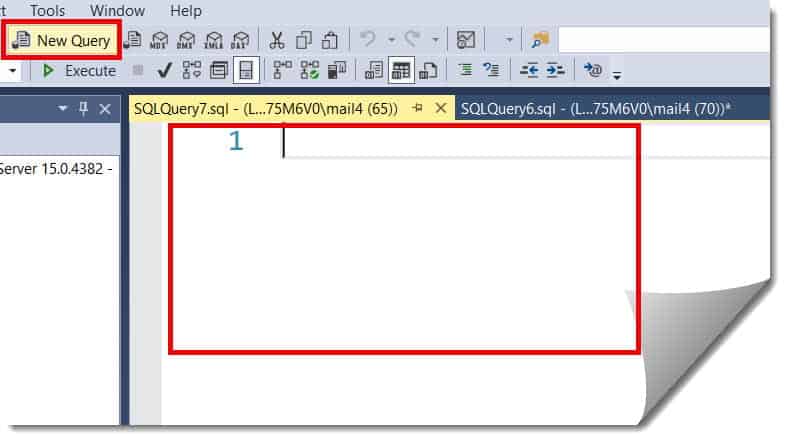
This is where the magic happens. The Query Editor is a sophisticated text editor designed for writing and executing T-SQL scripts. It features IntelliSense (auto-completion), color-coded syntax, and a results pane that displays data in grids or text. Check out the screenshot below for your reference.
3. Solution Explorer
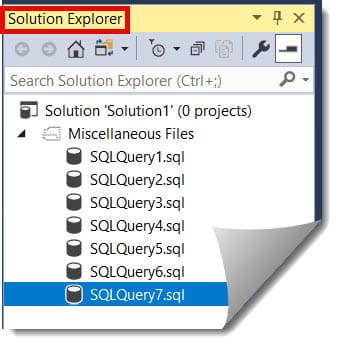
For those working on large-scale projects, the Solution Explorer allows you to group related scripts and connection information together. It’s a lifesaver for managing complex migrations or deployment scripts.
Why SSMS is the Industry Standard
SMS dominates the market because it addresses these needs better than almost any open-source alternative.
Key Benefits at a Glance
| Feature | Description | Business Value |
| Graphical Administration | Perform complex tasks via UI without writing code. | Reduces human error and training time. |
| Security Management | Granular control over user permissions and encryption. | Essential for HIPAA and SOC2 compliance. |
| Performance Tuning | Access to Execution Plans and Database Engine Tuning Advisor. | Saves thousands in cloud infrastructure costs. |
| Multi-Platform Support | Manage on-prem servers and Azure Cloud simultaneously. | Supports hybrid-cloud strategies favored by US firms. |
A Tutorial: To use SSMS on a daily basis
I want to walk you through how I use SSMS on a daily basis. This isn’t just a “how-to”; it’s a look at the “pro-way” to handle data environments.
Step 1: Establishing a Connection
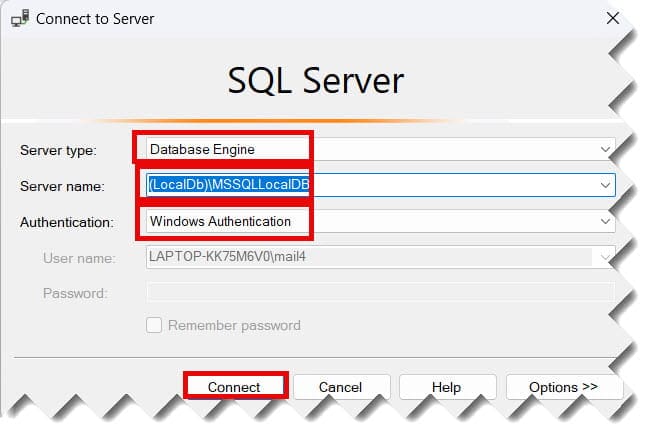
The first thing you encounter is the Connect to Server dialog box. This is your gateway. You’ll need:
- Server Type: Usually “Database Engine.”
- Server Name: This could be
localhostfor local work, or a string likeproduction-server.database.windows.netfor Azure. - Authentication: Windows Authentication is standard for internal corporate networks (Active Directory), while SQL Server Authentication is common for external or cloud-based apps.
Step 2: Navigating the Object Explorer
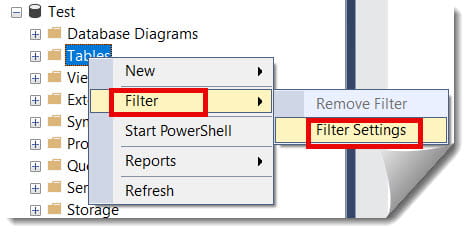
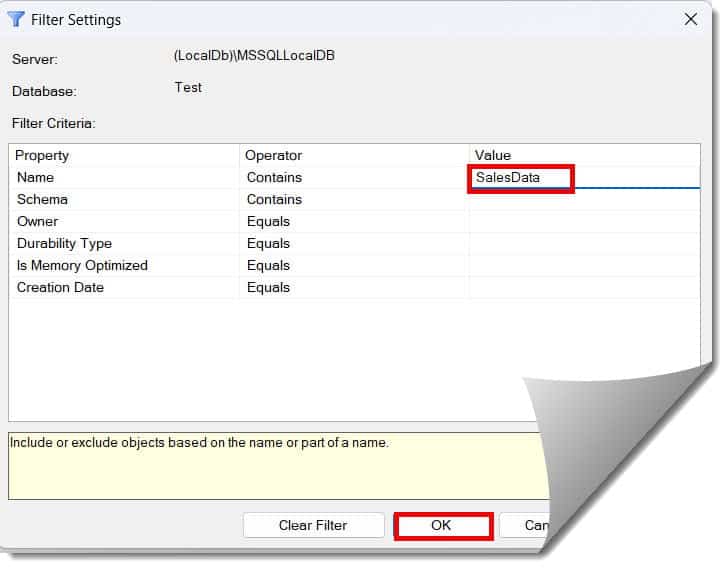
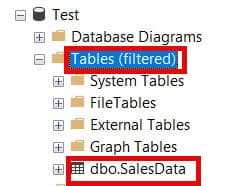
Once connected, I always expand the “Databases” node first. If I’m looking for a specific table—let’s say SalesData for a retail client—I don’t just scroll. I use the Filter feature (right-click on Tables > Filter > Filter Settings) to find exactly what I need without getting lost in a sea of thousands of tables.
Step 3: Writing and Executing Queries
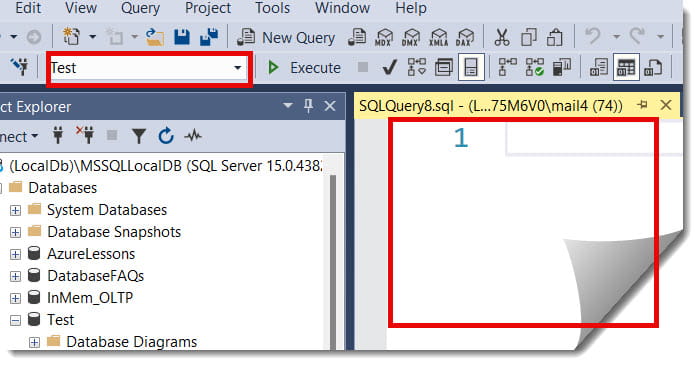
I open a New Query window (Ctrl+N). I always recommend using the Database Dropdown at the top left to ensure you are executing code against the correct database. There is nothing worse than running a DELETE statement on Production When you meant to run it on Development.
Step 4: Analyzing Results
After executing (F5), the results appear below. I frequently use the “Save Results As” feature to export data directly to CSV for my project managers or stakeholders who prefer looking at spreadsheets over SQL code.
Essential Features Every Administrator Should Know
If you are just using SSMS to write SELECT * statements, you are barely scratching the surface. Here are the “Power Features” I rely on:
The Activity Monitor
When a server slows down, I head straight to the Activity Monitor (Right-click Server Name > Activity Monitor). This gives me a real-time “heartbeat” of the server, showing me:
- Processes currently running.
- Resource Waits (why is the system slow?).
- Data File I/O.
- Recent Expensive Queries.
The Execution Plan
Before I ever commit a heavy query to a production environment, I check the Estimated Execution Plan. This visual flowchart shows me exactly how the SQL Engine plans to retrieve the data. If I see a “Table Scan” where there should be an “Index Seek,” I know I need to optimize my query or add an index.
Scripting Objects
One of my favorite shortcuts is the Script Object as feature. If you need to move a table from one server to another, you don’t have to write the DDL (Data Definition Language) from scratch. Right-click the table, select “Script Table as,” then “CREATE To,” and SSMS generates the perfect T-SQL code for you.
Best Practices for Security and Efficiency
Working in the USA tech sector means adhering to strict data privacy standards. Here is how I configure my SSMS environment for maximum safety:
- Color-Code Your Connections: In the Connection Properties, you can set a custom background color for your status bar. I set Red for Production and Green for Development. This visual cue prevents catastrophic mistakes.
- Always Use Transactions: Wrap your update scripts in
BEGIN TRANandROLLBACKblocks. OnlyCOMMITonce you have verified the results. - Limit Results: By default, I set my SSMS to only return the top 1,000 rows to prevent crashing the application with a massive data pull.
- Update Frequently: Microsoft releases monthly updates for SSMS. Ensure you are running the latest version to get the newest security patches and feature enhancements.
Common Troubleshooting Tips
Even the most seasoned pros run into issues. Here are the top three roadblocks and how I solve them:
- “Cannot Connect to Server”: This is usually a network or firewall issue. Ensure your IP address is whitelisted in the Azure portal or that the SQL Server Browser service is running for on-premise instances.
- IntelliSense Not Updating: If you just added a column but SSMS says it doesn’t exist, hit Ctrl+Shift+R to refresh the local cache.
- Out of Memory Errors: For massive scripts, try using the
SQLCMDmode within SSMS or running the script in batches using theGOcommand.
Summary of SSMS Components
| Component | Professional Use Case |
| Object Explorer | Browsing tables, views, and security logins. |
| Template Explorer | Accessing pre-written code snippets for common tasks. |
| Properties Window | Viewing detailed metadata about a specific column or table. |
| Error List | Debugging syntax errors in long T-SQL scripts. |
| Registered Servers | Managing connections to dozens of different server environments. |
Final Thoughts:
SQL Server Management Studio remains the champion of the SQL world for a reason: it is reliable, exhaustive, and built for professionals. Whether you are managing the payroll database for a small business or the massive telemetry data for a tech giant, SSMS provides the tools you need to succeed.
You may also like the following articles:
- How To Insert Data In SSMS
- SSMS 22 New Features
- SSMS Dark Mode
- SSMS Latest Version
- How To Check SSMS Version

After working for more than 15 years in the Software field, especially in Microsoft technologies, I have decided to share my expert knowledge of SQL Server. Check out all the SQL Server and related database tutorials I have shared here. Most of the readers are from countries like the United States of America, the United Kingdom, New Zealand, Australia, Canada, etc. I am also a Microsoft MVP. Check out more here.