
In this article, I’m going to walk you through the authoritative, step-by-step process of enabling SSMS Dark Mode. We will cover the “hidden” official method, the community-driven alternatives, and how to truly customize your environment for a professional, sleek aesthetic.
SSMS Dark Mode
For those of us working with SQL Server, that time is spent looking at high-contrast text.
The Benefits of a Dark Interface:
- Reduced Eye Strain: Darker backgrounds reduce the amount of blue light hitting your retinas, which can help prevent “computer vision syndrome.”
- Improved Focus: Many developers find that syntax highlighting (the colors of your SQL keywords) “pops” more effectively against a dark gray or black background.
- Battery Efficiency: If you are working on a laptop—like a high-end Dell XPS or a MacBook Pro running a VM—darker pixels consume less power on OLED screens.
- Aesthetic Appeal: Let’s be honest—it just looks cooler. It matches the modern IDE feel of VS Code or Azure Data Studio.
The “Official” Hidden Dark Theme in SSMS
Microsoft actually built a Dark Theme into SSMS (starting around version 18), but it is considered “experimental.” Because it isn’t 100% polished across every single dialog box, they hid it in the configuration files.
As a professional, I recommend this method if you want to stay within the native environment without installing third-party plugins. Here is exactly how I do it.
Step 1: Locate Your Configuration File
You need to find a file called ssms.pkgundef. The location depends on your version of SSMS. For most users on the latest version (SSMS 19 or 20), you will find it here:
C:\Program Files (x86)\Microsoft SQL Server Management Studio 19\Common7\IDE\
Check out the screenshot below for your reference.
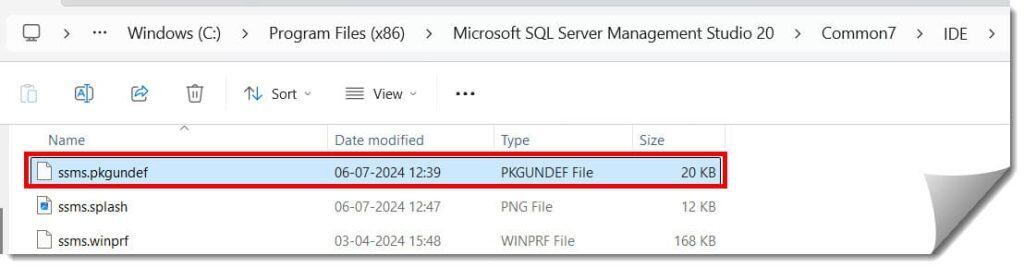
Pro Tip: You will need Administrative Privileges to edit files in the Program Files directory. I usually copy the file to my desktop, edit it there, and then paste it back.
Step 2: Edit the File
- Open
ssms.pkgundefin a text editor (Notepad is fine, but Notepad++ is better). - Scroll down to the bottom or use
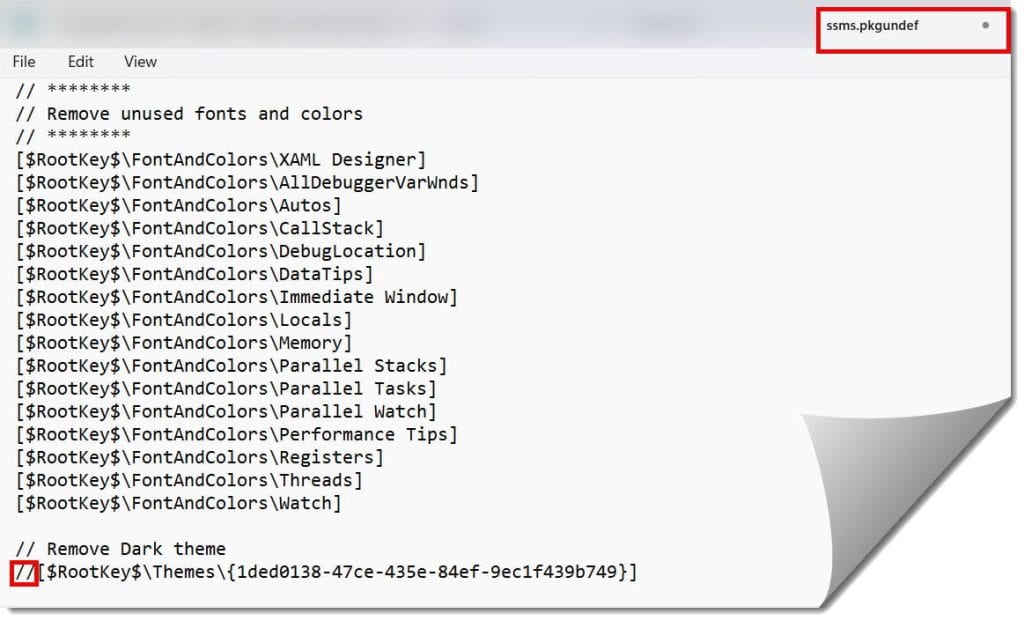
Ctrl + Fto search for the word “Dark”. - You will see a block of code that looks like this:
// Remove Dark theme[$RootKey$\Themes\{1ded0138-4710-4e27-9619-812201d90446}] - The Secret: Add two forward slashes
//to the beginning of the line starting with[$RootKey$. This “comments out” the command that hides the Dark theme.
Check out the screenshot below for your reference.
Step 3: Launch and Select
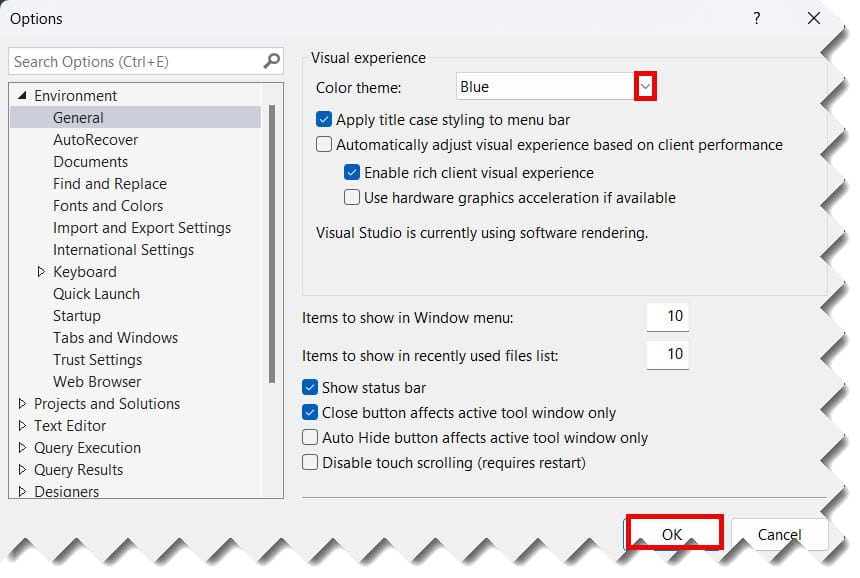
Restart SSMS. Go to Tools > Options > Environment > General. Under the “Color Theme” dropdown, you should now see Dark as an option. Select it, hit OK, and watch your workspace transform. Check out the screenshot below for your reference.
The Pros and Cons of the Native Dark Theme
Even though I love the native look, I have to be the voice of authority here: it isn’t perfect.
| Pros | Cons |
| No third-party software required. | Some pop-up windows remain white. |
| Consistent with Visual Studio’s “Dark” look. | The Object Explorer can sometimes have “ghosting” lines. |
| Very easy to revert if you encounter bugs. | Certain icons are hard to see against the dark gray. |
Customizing the Query Editor (The “Hybrid” Approach)
Perhaps you don’t want the entire application to be dark, but you want your coding area (the Query Editor) to be easy on the eyes. This is the approach many of my colleagues in New York financial firms take—keeping the UI standard but the code editor dark.
How to Manually Customize Colors
- Go to Tools > Options.
- Navigate to Environment > Fonts and Colors.
- In the “Show settings for” dropdown, ensure Text Editor is selected.
- Change the Item background to a dark gray or black.
- Individually update your “Plain Text,” “Keyword,” and “String” colors to bright, neon-like colors (Cyan, Lime Green, and Pink work best).
Popular Color Palettes
- Solarized Dark: A very popular palette that uses subtle contrasts to reduce fatigue.
- Monokai: The classic “hacker” look with vibrant pinks and yellows.
- Dracula: A high-contrast theme designed specifically for dark-room environments.
Using Third-Party Extensions (The “Power User” Way)
There are reputable extensions used across the tech industry that simplify this process.
1. SQLShades
This is a dedicated extension designed specifically to fix the “white dialog box” problem in SSMS. It applies a more comprehensive dark skin across the entire application, including those stubborn menus that the native dark mode misses.
2. Redgate SQL Prompt
While primarily a productivity tool for auto-completion (IntelliSense on steroids), Redgate is a staple in American enterprise environments. It includes features that help format your code to be more readable in dark environments, ensuring that your indentations and casing are consistent.
Best Practices
Changing to Dark Mode is just the beginning. To maintain a professional environment, follow these “expert” rules:
- Sync Your OS: Set SSMS to match your Windows “App Mode.” This creates a cohesive visual experience when switching between your browser and your database.
- Adjust Brightness/Contrast: If you switch to Dark Mode, you may find you need to slightly increase your monitor’s contrast to make the dark-blue keywords legible.
- Use a High-Quality Font: For dark backgrounds, I highly recommend Cascadia Code or Fira Code. These fonts have “ligatures” (symbols like
!=or>=turn into single characters), which are much easier to read in dark themes. - Save Your Settings: Once you find the perfect color combination, go to Tools > Import and Export Settings. Export your environment settings to a
.vssettingsfile. Store this in your OneDrive so you can apply it to any new workstation you sit at.
Frequently Asked Questions (FAQs)
Does enabling Dark Mode affect performance?
Not at all. Dark Mode is purely a visual “skin” applied to the UI elements. It does not affect query execution times or server resource usage.
Will Microsoft ever release an “official” toggle for Dark Mode?
While there has been significant demand on the Microsoft Feedback portals, the core architecture of SSMS (which relies on some older Win365 components) makes a “perfect” dark mode difficult to implement. For now, the “Hidden” method remains the standard.
I edited the file but the Dark option isn’t appearing. Why?
Double-check your file path. If you have multiple versions of SSMS installed (e.g., v18 and v19), you must edit the file for the specific version you are launching. Also, ensure you removed the leading spaces before the forward slashes.
Can I use Dark Mode in the SQL Profiler?
Unfortunately, no. The SQL Profiler is a legacy tool that hasn’t received a UI update in years. If you need a dark tracing experience, I recommend moving to Extended Events and viewing the data in Azure Data Studio.
Final Thoughts
Setting up SSMS Dark Mode is more than just an aesthetic choice—it’s an investment in your long-term health and productivity. The “blinding white” default is a relic of the past. By taking five minutes to follow the tutorial above, you are aligning your workspace with modern professional standards.
Whether you choose the hidden native setting or a fully customized theme, the result is the same: a more comfortable, focused, and professional environment for managing your enterprise data.
You may also like the following articles:
- Copilot In SSMS
- SSMS Latest Version
- SQL Get Number Of Rows In Table
- Get Primary Key Of Table SQL Server
- How To Check SSMS Version

After working for more than 15 years in the Software field, especially in Microsoft technologies, I have decided to share my expert knowledge of SQL Server. Check out all the SQL Server and related database tutorials I have shared here. Most of the readers are from countries like the United States of America, the United Kingdom, New Zealand, Australia, Canada, etc. I am also a Microsoft MVP. Check out more here.