
Microsoft announced GitHub Copilot in SQL Server Management Studio (SSMS). If you’re a DBA or a Data Engineer, you know the backlog is growing, the queries are getting more complex. In this article, I’m going to walk you through how I’ve integrated Copilot into my SSMS environment to write cleaner, faster code.
Copilot In SSMS
What is Copilot in SSMS?
GitHub Copilot in SSMS is an AI-powered assistant integrated directly into the SQL Server Management Studio environment. Unlike a simple autocomplete tool, Copilot understands the context of your database schema.
Key Capabilities at a Glance
| Feature | Description | Benefit |
| Natural Language to SQL | Convert plain English prompts into complex T-SQL queries. | Speeds up query drafting for complex joins. |
| Code Completion | Real-time “ghost text” suggestions as you type. | Reduces syntax errors and repetitive typing. |
| Context Awareness | Understands your active database connection and schema. | Provides accurate column and table name suggestions. |
| Explanation & Optimization | Explains what a block of code does or suggests better ways to write it. | Great for troubleshooting legacy “spaghetti” code. |
Step 1: System Requirements and Prerequisites
To get started, you can’t just be running any old version of SSMS. Microsoft has tied these AI capabilities to the latest releases. Here is what is recommend for a smooth setup:
- SSMS Version: You need SSMS 22.x or later. (The “Preview” versions of 21 also supported it, but 22 is where it matured).
- Subscription: An active GitHub Copilot subscription (Individual, Business, or Enterprise).
- Connectivity: A stable internet connection to reach the GitHub and Azure AI endpoints.
- Permissions: You’ll need administrative rights on your local machine to run the Visual Studio Installer, which handles the SSMS components.
Step 2: Installing the Copilot Extension
SSMS is built on the Visual Studio shell, we manage the components through the installer.
The Installation Process
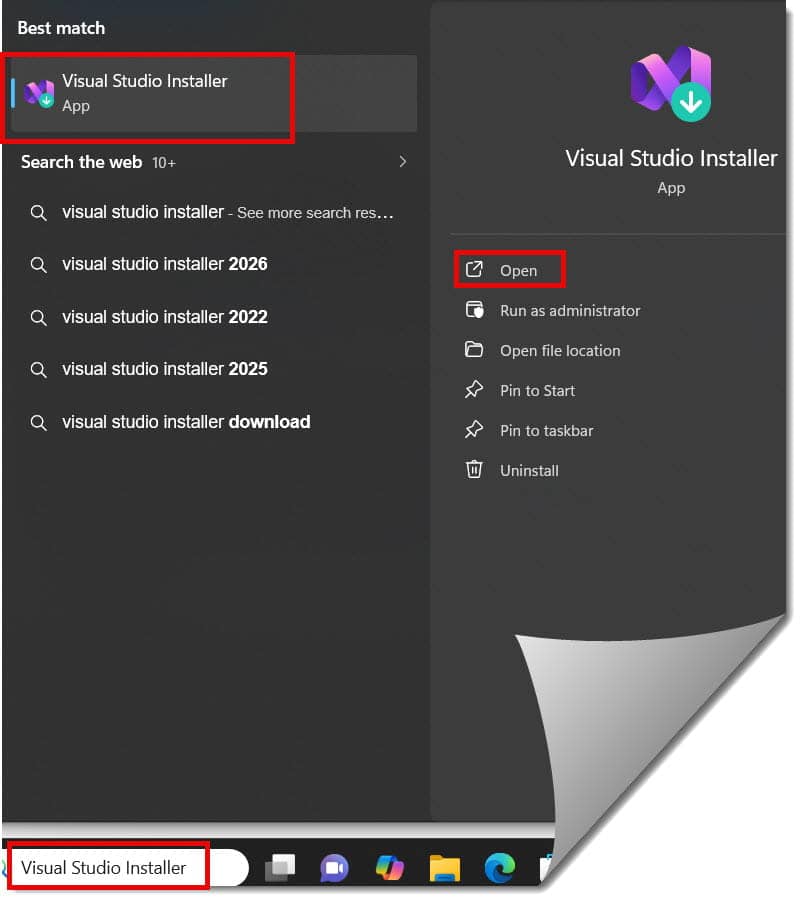
- Launch the Visual Studio Installer: Search for it in your Windows Start menu.
- Modify SSMS: Find your SQL Server Management Studio installation and click Modify.
- Select AI Assistance: Under the “Workloads” or “Individual Components” tab (depending on your specific build), look for AI Assistance or GitHub Copilot for SSMS.
- Confirm and Install: Click Modify at the bottom right. Once the download finishes, restart your machine just to be safe—I’ve seen fewer “hanging” issues when I do a fresh reboot.
Step 3: Configuring Your Environment
Once installed, you’ll notice a new Copilot badge in the upper right-hand corner of your SSMS window. This is your command center.
Authenticating Your Account
When I first set this up, I had to link my GitHub account. Click the badge and select Sign In. It will redirect you to a browser to authorize the device. If you’re working for a large firm, your IT department might have “Conditional Access” policies, so make sure you’re logged into your corporate VPN if required.
Setting the Model and Privacy
In the Tools > Options > GitHub Copilot menu, you can fine-tune how the AI behaves. I always recommend:
- Enable/Disable Ghost Text: If you find the suggestions distracting while you’re brainstorming, you can toggle them off and rely solely on the Chat window.
- Custom Instructions: You can actually point Copilot to a local file that contains your company’s coding standards (e.g., “Always use UPPERCASE for keywords” or “Always include
NOLOCKhints”).
Step 4: Mastering the Copilot Chat Window
The Chat window is where I spend 70% of my time with Copilot. You can open it via View > Copilot Chat or by using the shortcut Ctrl + Alt + C.
The most important thing I realized is that Copilot is only as smart as your connection. If your query editor is connected to master, Copilot won’t know about the Sales table in your ECommerceDB.
- Sync Active Editor: Always ensure the “Sync” icon is active. This allows Copilot to “see” what you’re currently working on.
- Ask for Explanations: If you inherit a 500-line stored procedure from a developer who left the company three years ago, simply highlight the code and ask: “What does this logic do?”
Step 5: Writing Queries with Natural Language
Let’s get into the fun stuff. Suppose I’m working for a retail giant and I need to find all customers who haven’t made a purchase in the last six months.
Instead of typing out the joins and the DATEDIFF logic, I just type this into the chat:
“Give me a list of customers from the Customers table who have no records in the Orders table within the last 180 days.”
Copilot will generate the T-SQL for me. I then have two options:
- Copy: Puts the code on my clipboard.
- Insert: Drops the code directly at my cursor in the query editor.
Pro-Tip: Refining the Output
If the AI gives you a query using a subquery, but your team prefers LEFT JOIN / IS NULL, just ask: “Can you rewrite this using a LEFT JOIN instead of a NOT IN clause?” It handles these refactors effortlessly.
Common Scenarios for Database Professionals
As a senior analyst, I use Copilot for more than just SELECT statements. Here are three ways it has saved my skin:
1. Generating Test Data
Need 100 rows of dummy data for a Products table to test a new report?
- Prompt: “Generate an INSERT statement for the Products table with 50 rows of realistic sample data including names like ‘Laptop’, ‘Mouse’, and ‘Monitor’ with random prices.”
2. Troubleshooting Performance
If a query is running slow, I often share the execution plan (or the query itself) with Copilot.
- Prompt: “This query is hitting a nested loop join on a large table. Can you suggest an index or a query hint to improve performance?”
3. Converting Scripts
If you’re migrating a legacy system, you might have snippets of code in Python or older SQL dialects.
- Prompt: “Convert this MySQL date formatting logic to T-SQL for SQL Server 2022.”
Security and Best Practices
Security is a top priority, especially for those of us handling sensitive data in the healthcare or financial sectors.
- Data Privacy: GitHub Copilot for Business has specific “Data Exclusion” settings. Ensure your organization has opted out of “training on user snippets” to keep your proprietary schema private.
- The “Human in the Loop” Rule: I never run a Copilot-generated script on a production server without reviewing it first. AI can hallucinate. It might suggest a
DROP TABLEif it misunderstands your intent. Verify before you execute. - Schema-Only Access: Remember, Copilot sees your schema (tables, columns), not your data (the actual rows). It knows there is a
SSNcolumn, but it doesn’t see the numbers inside.
Summary:
After months of using Copilot in SSMS, as per my experience. It doesn’t replace the need for a deep understanding of SQL, but it removes the “blank page”. It handles the syntax so that you can focus on the architecture and the logic.
Quick Checklist for Success
- [ ] Upgrade to SSMS 22+.
- [ ] Install via Visual Studio Installer.
- [ ] Connect to the correct database context before asking questions.
- [ ] Use the Chat window for complex logic and Inline suggestions for speed.
- [ ] Review every line before hitting F5.
You may also like the following articles:

After working for more than 15 years in the Software field, especially in Microsoft technologies, I have decided to share my expert knowledge of SQL Server. Check out all the SQL Server and related database tutorials I have shared here. Most of the readers are from countries like the United States of America, the United Kingdom, New Zealand, Australia, Canada, etc. I am also a Microsoft MVP. Check out more here.