
In this article, I will walk you through professional ways to rename a database in SQL Server Management Studio (SSMS). We will cover the graphical interface, the robust T-SQL approach, and the critical “gotchas” that can take your applications offline if you aren’t careful.
Rename Database SSMS
Method 1: The Graphical User Interface (GUI) Way
For most day-to-day tasks in dev environments, the SSMS GUI is the most intuitive path.
Step-by-Step GUI Rename:
- Open SQL Server Management Studio and connect to your instance.
- Expand the Databases node in the Object Explorer.
- Crucial Step: Ensure no one is using the database. (See the “Single User Mode” section below if you get an error).
- Right-click the target database and select Rename.
- Type the new name and press Enter.
- Right-click the Databases folder and select Refresh to verify the change. Check out the screenshot below for your reference.
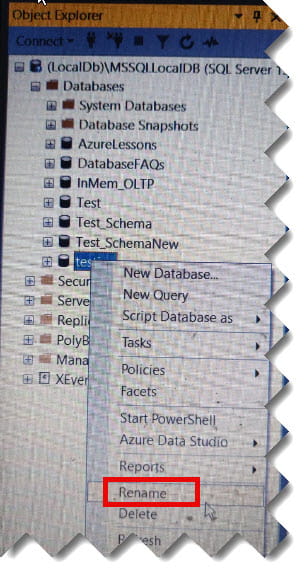
Expert Insight: If you see an error stating “The database could not be exclusively locked,” it means there are active sessions. I personally prefer Method 2 (T-SQL) for production servers because it allows me to force-close those sessions.
Method 2: The Professional T-SQL Script (Recommended)
When I am working on a mission-critical server, I never use the GUI. I use a script. Why? Because a script is repeatable, documented, and far more powerful at handling active connections.
The “Force Rename” Script
This script does three things: it kicks everyone out, changes the name, and lets everyone back in.
SQL
USE master;
GO

-- 1. Set the database to Single User mode and kick everyone out immediately
ALTER DATABASE [Old_DB_Name]
SET SINGLE_USER WITH ROLLBACK IMMEDIATE;
GO

-- 2. Perform the actual rename
ALTER DATABASE [Old_DB_Name]
MODIFY NAME = [New_DB_Name];
GO

-- 3. Set the database back to Multi User mode
ALTER DATABASE [New_DB_Name]
SET MULTI_USER;
GO
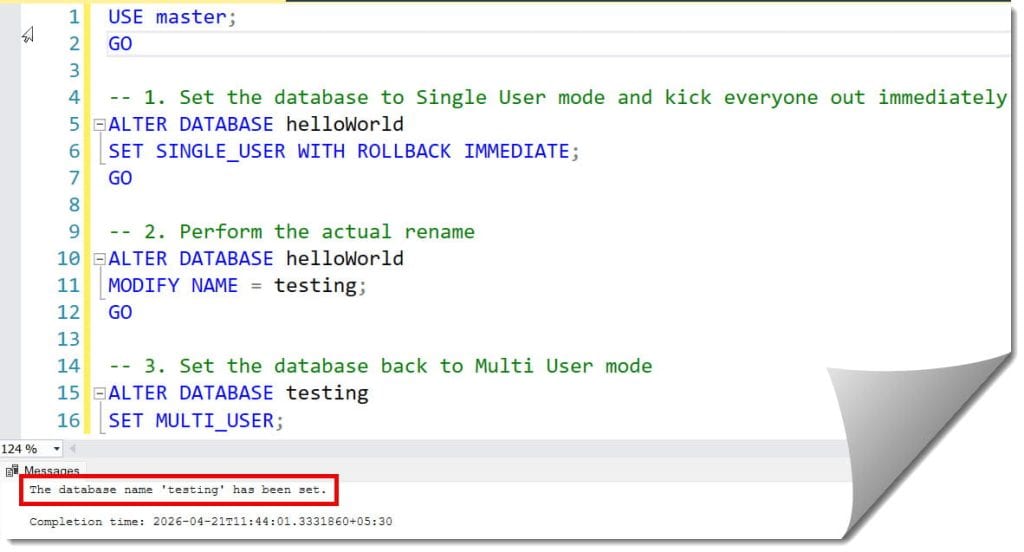
After executing the query above, I received the expected output, as shown in the screenshot below.
Why “ROLLBACK IMMEDIATE”?
In a busy office in Austin, a user might have a transaction open. ROLLBACK IMMEDIATE tells SQL Server to terminate those transactions and disconnect the users instantly so the rename can happen without waiting for them to finish their lunch break.
The “Physical File” Dilemma: Renaming .mdf and .ldf
After a rename, you might notice that your files on the C: or D: drive still have the old names. For a truly clean environment, you may want the physical files to match the logical name.
| Feature | ALTER DATABASE Rename | Detach/Attach Rename |
| Logical Name Change | Yes | Yes |
| Physical File Rename | No | Yes |
| Downtime Required | Minimal | Significant |
| Risk Level | Low | Medium |
How to Rename Physical Files:
- Detach the database in SSMS.
- Go to the Windows folder and manually rename the
.mdfand.ldffiles. - Attach the database in SSMS, pointing to the new file names and specifying the new database name.
Troubleshooting: Common SSMS Rename Errors
Here is how to scale them:
1. Msg 5030: Database could not be exclusively locked
- The Cause: Someone (or a background service) is connected.
- The Fix: Use the
SET SINGLE_USERscript provided above.
2. Error: Login failed for user
- The Cause: After a rename, your application’s connection string is still looking for the old name.
- The Fix: You must update all
.configfiles,.envfiles, and SQL Server Agent Jobs to point to the new name.
3. “The database is a system database”
- The Warning: You cannot rename
master,model,tempdb, ormsdb. Don’t even try—it will break the entire SQL instance.
Video Tutorial
Conclusion
Renaming a database in SSMS is a task that requires both precision and a plan. Whether you use the quick GUI method for a local project or the authoritative T-SQL script for a production cluster, always ensure you have exclusive access and a recent backup.
You may also like the following articles:
- How To Detach Database In SSMS
- SQL Join Example With Where Clause
- SSMS Keyboard Shortcuts
- How to find SQL Server instance name in SSMS
- How To Insert Data In SSMS

After working for more than 15 years in the Software field, especially in Microsoft technologies, I have decided to share my expert knowledge of SQL Server. Check out all the SQL Server and related database tutorials I have shared here. Most of the readers are from countries like the United States of America, the United Kingdom, New Zealand, Australia, Canada, etc. I am also a Microsoft MVP. Check out more here.