
In this comprehensive guide, I will take you inside the core mechanics of SQL Error 1067, show you where to unearth the hidden variables behind the crash, and map out the definitive, authoritative sequence required to fix your environment and restore system stability.
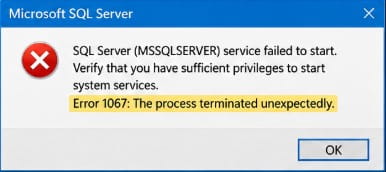
Error 1067: The process terminated unexpectedly.
SQL Error 1067
Unmasking the True Culprit: The Diagnostic Pipeline
Because Error 1067 is merely a surface-level notification, attempting to fix it without looking at the background logs is a waste of valuable time. To bypass the generic OS message, you must access the specific logs that track engine execution.
The Windows Application Log Core
When an enterprise service terminates unexpectedly, the Windows operating system documents the event.
- Access Routine: Open your machine’s Run menu (
Win + R), inputeventvwr.msc, and press Enter. Navigate down through Windows Logs and highlight the Application dashboard. - The Target Markers: Look down the source column for events tagged
MSSQLSERVER(orMSSQL$InstanceNameif you are dealing with a named deployment footprint). You are searching for an Error event containing Event ID 17182 or Event ID 17051. These events contain the internal reasoning text that explains exactly what forced the database engine to drop offline.
Navigating to the Physical ERRORLOG File
If the SQL Server engine successfully executed even its first line of code before dropping offline, it will write a detailed, chronological record into its master text file, simply titled ERRORLOG.
When the graphical interface of SQL Server Management Studio (SSMS) is locked down due to a service failure, you can access this file directly via the physical storage system. In a standard modern installation, the log file resides in the following directory layout:
Standard Default Deployment Path:
C:\Program Files\Microsoft SQL Server\MSSQL16.MSSQLSERVER\MSSQL\Log\ERRORLOG

Standard Named Deployment Path:
C:\Program Files\Microsoft SQL Server\MSSQL16.INSTANCENAME\MSSQL\Log\ERRORLOG
Note: The MSSQL16 segment of the file track indicates SQL Server 2022. For SQL Server 2019 infrastructures, check the MSSQL15 directory structure.
Open the raw ERRORLOG file (the asset with no trailing extension type) using a basic text editor. Scan the very bottom of the document file to read the final error strings captured immediately prior to the process termination.
Primary Root Causes of SQL Error 1067
To help your operations center triage the issue quickly during a critical outage, use this comparative table mapping out the four primary reasons why the SQL Server process terminates unexpectedly.
| Diagnostic Category | Target Log Indicators | Underlying System Conflict | Remediation Path |
| System File Lock / Corruption | “Cannot open file ‘master.mdf’. Operating system error 5: Access is denied.” | The underlying system files are corrupted, missing, or locked down by external antivirus scanners. | Configure explicit directory exclusions within security scanners and repair permissions. |
| Invalid Startup Parameters | “Registry lookup failed. Invalid startup parameter configuration values.” | Incorrect directory paths or corrupted registry values were passed to the engine executable during launch. | Repair system parameters using the SQL Server Configuration Manager interface. |
| Identity Permission Deficits | “Logon failure: the account does not hold the required user right assignment.” | A Group Policy update stripped the service account of its local operating system privilege layers. | Open Local Security Policies and manually reassign the “Log on as a service” right to the identity. |
| Storage Page Depletion | “There is insufficient disk space on the logging volume to initialize tempdb.” | The host storage partition is completely full, blocking the creation of the temporary database files. | Purge temporary files or expand the volume to allocate sufficient workspace bytes. |
Resolving Parameter and Registry Discrepancies
A frequent trigger for Error 1067 is an invalid startup parameter pattern hidden deep within the Windows Registry. When SQL Server boots, it queries specific registry keys to locate the precise physical drive paths for the master database data file (master.mdf) and its companion transaction log file (mastlog.ldf).
If a system administrator performs a manual file migration, changes local storage drive letters, or implements a faulty script that alters these registry parameters incorrectly, the engine wrapper will search for the files, fail to locate them, and instantly trigger a 1067 crash.
To audit and correct these parameters safely, never edit the raw registry database manually via regedit. Making a single syntax error in the registry can destabilize the host operating system.
Instead, always leverage the official SQL Server Configuration Manager:
- Expand the SQL Server Services hierarchy node.
- Right-click the offline database engine instance and choose Properties.
- Select the Startup Parameters tab page.
- Verify that the file paths prefixed with
-d(data file path),-l(log file path), and-e(error log file path) map accurately to the physical paths on the server. If any path is incorrect, update it through the management panel and apply changes.

Remediation of Antivirus and File Lock Conflicts
Another common issue I address during architecture audits is conflicts with enterprise endpoint detection and security monitoring agents.
Relational database systems are highly active I/O engines, continuously writing data to storage pages. If an aggressive corporate antivirus scanner runs a real-time sweep over the database directory right as the SQL Server service initiates its boot sequence, the scanner can place an exclusive file lock on the master.mdf file.
When SQL Server attempts to claim its master data files and encounters an active third-party file lock, it cannot initialize its tracking matrices. Left with no fallback option, the engine logs a file access failure and undergoes an immediate 1067 termination.
Developing an Enterprise Directory Exclusion Pattern
To eliminate this vulnerability permanently, your security operations group must configure explicit directory exclusions within your endpoint security platforms (such as Windows Defender or CrowdStrike).
Ensure that the entirety of the database deployment home folder structure is explicitly exempted from real-time scanning sweeps:
- Exempt the entire binary engine home track:
C:\Program Files\Microsoft SQL Server\MSSQL16.MSSQLSERVER\ - Exempt all dedicated storage volumes holding your
.mdf,.ldf, and.ndffiles.
Overcoming Service Account and Identity Collisions
If your database parameters are flawless and your file volumes are completely free of security scanner conflicts, the 1067 crash is likely caused by an identity or permission issue.
For the SQL Server engine to run, its service account must have full read and write security permissions over the physical directories where the database files reside. If an administrator manually modifies local folder access controls, or if an automated permission clean-up script resets the folder’s Access Control Lists (ACLs), the engine account can lose access to its own data.
To resolve this, avoid using the generic Windows Services utility (services.msc) to manage service credentials. This standard Windows tool lacks the internal orchestration hooks required to propagate complex security descriptors across hidden directory paths.
Instead, manage your credentials through the SQL Server Configuration Manager:
- Highlight SQL Server Services, right-click the failing engine line, and choose Properties.
- Select the Log On tab layout.
- Input the updated service account identity credentials or switch the instance to a local built-in account template (like
NT Service\MSSQLSERVER) to test if local isolation works. - Clicking apply forces the Configuration Manager to loop through the filesystem behind the scenes, automatically resetting all underlying security keys, folder privileges, and directory permissions required for a successful boot.
Step-by-Step Tutorial: Production Emergency Resolution Workflow
When a production database environment fails with Error 1067, adopt a structured, systematic troubleshooting framework to minimize downtime:
1. Audit the Primary Event Viewer and Physical ERRORLOG Files: Telemetry Gathering.
Open the Windows Event Viewer to isolate Event ID 17182 records, then drill directly down into the physical ERRORLOG file on the storage drive. Read the final trailing entries to determine the exact root cause of the shutdown.
2. Verify Path Formats Inside the Startup Parameters Dashboard: Parameter Review.
Launch the official SQL Server Configuration Manager, open the target instance’s properties, and navigate to the Startup Parameters tab. Confirm that the directory paths for the master data and transaction log files match your physical storage layout exactly.
3. Reapply Folder Security Permissions and Antivirus Exclusions: Privilege Normalization.
Confirm that the database folder paths are excluded from real-time antivirus scans. Use the Log On tab in the Configuration Manager to re-enter your service account credentials, forcing the system to refresh all underlying folder ACL permissions.
4. Execute a Minimal Maintenance Boot via Command Line Parameters: Safe Boot Test.
If the database still fails to start normally, bypass the Windows Service infrastructure entirely. Open an administrative Command Prompt window, navigate to the engine’s binary directory, and launch the executable manually using the minimal maintenance switch: sqlservr.exe -f -m. This launches a lightweight instance, allowing you to patch internal configuration errors before performing a standard boot.
Summary
Resolving SQL Error 1067 is an achievable task when you approach it with systematic, technical discipline. By ignoring the generic OS message and focusing on the underlying engine logs, verifying your startup parameters within the Configuration Manager, establishing robust antivirus exclusions, and ensuring folder permission integrity, you can systematically eliminate the root causes of this service crash.
You may also like the following articles:
- SQL Server Error 3414
- SQL Server Error 18456
- SQL Server Service Not Starting
- Error 40 Could Not Open Connection to SQL Server
- SQL Error Code

After working for more than 15 years in the Software field, especially in Microsoft technologies, I have decided to share my expert knowledge of SQL Server. Check out all the SQL Server and related database tutorials I have shared here. Most of the readers are from countries like the United States of America, the United Kingdom, New Zealand, Australia, Canada, etc. I am also a Microsoft MVP. Check out more here.