
Showing line numbers in SSMS is a professional necessity for debugging, collaboration, and code reviews. In this article, I will walk you through the authoritative steps to enable and master line numbers across your entire SSMS environment.
How To Show Line Numbers In SSMS
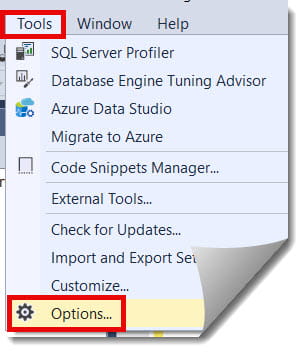
Step 1: Open the Options Menu
Launch SSMS and connect to your instance. In the top navigation bar, click on Tools and select Options… at the bottom of the dropdown menu. Check out the screenshot below for your reference.
Step 2: Navigate to the Text Editor Section
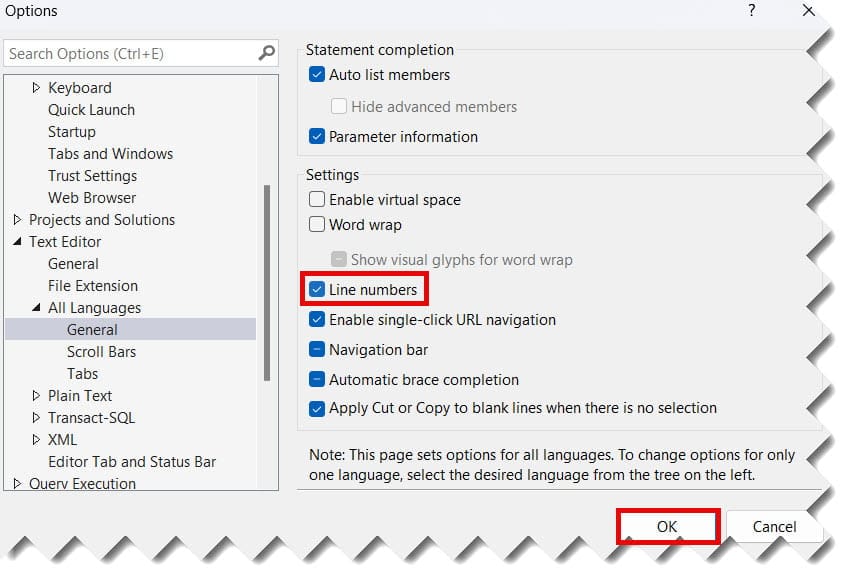
In the Options dialog box, you will see a tree-view on the left.
- Locate and expand the Text Editor node.
- Expand the All Languages sub-node. (I recommend “All Languages” so that the setting applies to T-SQL, XML, and Plain Text files alike).
- Click on General. Check out the screenshot below for your reference.
Step 3: Toggle the Setting
On the right-hand side, under the Display section, find the checkbox labeled Line numbers.
- Check the box to enable them.
- Click OK to save your changes.
Check out the above screenshot for your reference.
Expert Insight: You do not need to restart SSMS for this change to take effect. Your open query windows will immediately update to show a vertical gutter on the left with numeric increments.
Mastering Navigation with Line Numbers
Once your line numbers are visible, your productivity shouldn’t stop at just “looking” at them. You need to know how to navigate them like a pro.
The “Go To” Shortcut: Ctrl + G
- Action: Press Ctrl + G.
- Result: A small dialog box appears. Enter the line number you want to jump to and hit Enter.
- Why use it? When an error log points to line 850, don’t scroll.
Ctrl + Ggets you there in less than a second.
Best Practices for Clean SQL Code
Now that you have your line numbers in place, use it to enforce better coding standards within your team.
- The 100-Line Rule: If a single block of logic (like a subquery or a CTE) exceeds 100 lines, it’s a sign you should probably break it into a Temp Table or a Table-Valued Function.
- Comments as Landmarks: Use comments to denote major sections. For example, “Line 500: End of Data Transformation, Start of Aggregation.”
- Print Settings: Remember that showing line numbers in the editor does not mean they will show up when you print a script. To include them in a hard copy (for those rare paper-based reviews), you must go to
File > Page Setupand check “Line Numbers” there as well.
Summary and Key Takeaways
Turning on line numbers turns a wall of text into a structured, navigable document.
Quick Recap:
- Tools > Options is your starting point.
- Text Editor > All Languages > General is the most efficient path.
- Ctrl + G is your best friend for jumping to specific lines.
- Check your theme if the numbers aren’t visible.
You may also like the following articles:
- SQL Server Export Table To CSV
- SQL Server Multi Statement Table Function
- Table Partition In SQL Server Step By Step

After working for more than 15 years in the Software field, especially in Microsoft technologies, I have decided to share my expert knowledge of SQL Server. Check out all the SQL Server and related database tutorials I have shared here. Most of the readers are from countries like the United States of America, the United Kingdom, New Zealand, Australia, Canada, etc. I am also a Microsoft MVP. Check out more here.