
Struggling to read small T-SQL code or squinting at a results grid is a recipe for fatigue and, worse, syntax errors. Knowing how to zoom in SSMS is an essential skill. With the release of SSMS 22, Microsoft has finally introduced features we’ve been begging for for years. In this article, I’ll show you exactly how to master the zoom levels across every inch of the IDE.
How To Zoom In SSMS
1. Zooming in the Query Editor (The Basics)
The query editor is where the magic happens. Fortunately, this is the easiest area to adjust. I prefer using keyboard and mouse combinations to stay in “flow state” without digging through menus.
The Mouse-Scroll Method
This is the fastest way to adjust your view on the fly.
- Action: Press and hold the Ctrl key on your keyboard.
- Movement: Scroll your Mouse Wheel up to zoom in or down to zoom out.
- Result: The text size scales instantly. This does not change the actual font size in your settings; it only changes the visual magnification of the current tab.
The Zoom Dropdown Menu
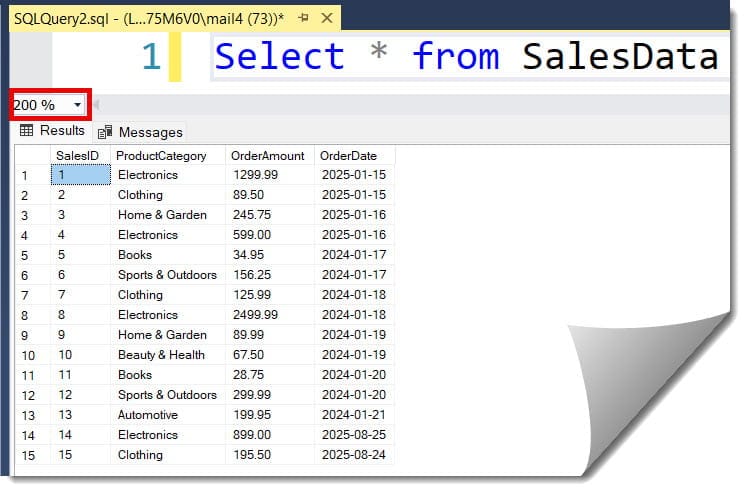
If you don’t have a scroll wheel or prefer a precise percentage, look to the bottom-left corner of your query window.
- You’ll see a small dropdown box (it usually says 100%).
- Click it to select a preset like 150% or 200%.
- Pro Tip: You can also type a custom number directly into that box (e.g., 133%) and hit Enter. Check out the screenshot below for your reference.
2. Zooming the Results Grid in SSMS 22
For years, zooming the editor was easy, but the Results Grid (where your data actually appears) was stubbornly fixed. If you wanted the data to be bigger, you had to restart SSMS after changing global font settings.
In SSMS 22, that limitation is officially dead. Microsoft introduced independent grid zooming, and it is a complete game-changer for accessibility and presentations.
| Action | Shortcut | Target |
| Zoom In Grid | Ctrl + Scroll Up | Data in the results pane. |
| Zoom Out Grid | Ctrl + Scroll Down | Data in the results pane. |
| Keyboard Zoom In | Ctrl + Shift + > | Results Grid |
| Keyboard Zoom Out | Ctrl + Shift + < | Results Grid |
This feature allows you to keep your code at 100% while blowing up the results to 200% so everyone in the conference room can see the specific row you’re discussing.
3. Persistent Font Scaling: The “Set and Forget” Method
Zooming is great for temporary changes, but what if you want your text to be permanently larger every time you open SSMS? For that, we need to dive into the Options menu.
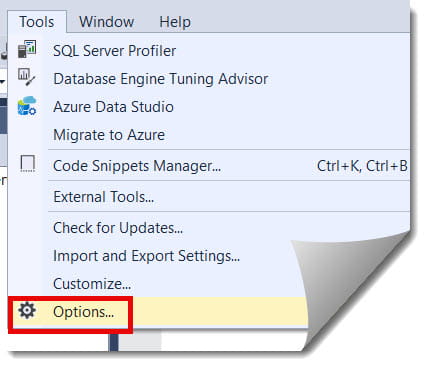
- Navigate to Tools > Options.
- Expand the Environment node and select Fonts and Colors.
- In the “Show settings for” dropdown, you can target specific areas:
- Text Editor: Changes the default size of your T-SQL code.
- Grid Results: Changes the default size for the data returned in your queries.
- Messages: Changes the size of the “Rows affected” or error messages.
- Change the Size to your preferred level (e.g., 12 or 14).
- Click OK.
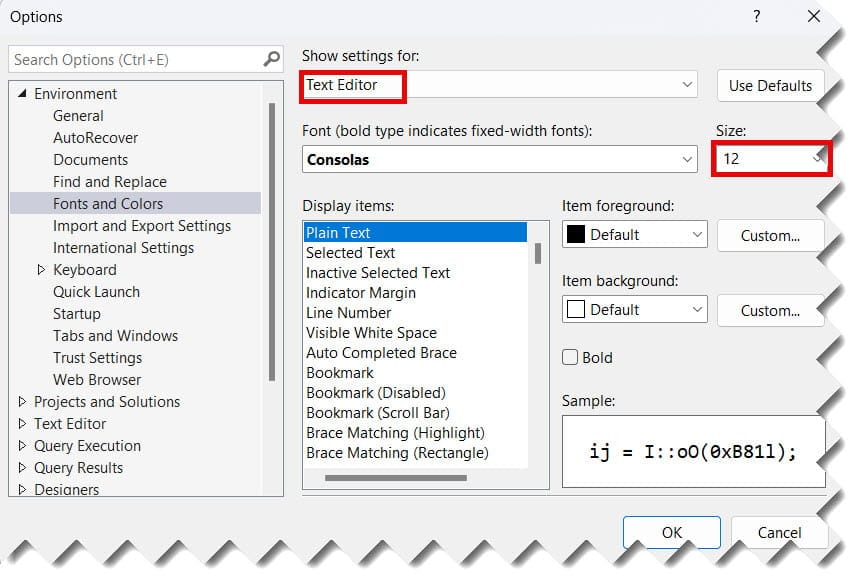
Note: Some of these changes—specifically the Grid Results and Environment Font—may require you to restart SSMS before they take effect.
4. Enabling “Presenter Mode” for High-Impact Demos
If you are a consultant or a trainer based in a tech hub like San Francisco or New York, you likely do a lot of screen sharing. Presenter Mode (enhanced in SSMS 22) is a one-click solution that saves you from manually adjusting ten different font settings.
- How to Toggle: Go to View > Presenter Mode and click Toggle Presenter Mode.
- What it Does: It instantly scales the UI, the Object Explorer, the Editor, and the Results to a much larger, high-contrast set of defaults.
- The Benefit: When you’re done with your demo, you toggle it off, and your SSMS returns to your preferred “work” layout immediately.
5. Zooming the Object Explorer and Menus
Unfortunately, the Object Explorer does not have a “Ctrl + Scroll” feature. To make the tree-view text larger, you have two options:
Option A: The Environment Font
- Go to Tools > Options > Environment > Fonts and Colors.
- Select Environment Font from the dropdown.
- Change the size from the default (usually 9) to 11 or 12.
- Restart SSMS. This will scale the menus, the Object Explorer, and the dialog boxes.
Option B: Windows Scaling
If everything on your screen looks too small, the issue might be your Windows Display settings.
- Right-click your Desktop and select Display Settings.
- Under Scale and Layout, change the size to 125% or 150%. This is often the best solution for 4K monitors.
Summary:
Managing your visual real estate in SSMS is about using the right tool for the specific task.
| Task | Quick Solution |
| I need to see this line of code better. | Ctrl + Mouse Wheel in the Editor. |
| The data in the grid is too tiny. | Ctrl + Mouse Wheel in the Results Grid (SSMS 22+). |
| I’m presenting on a projector. | Toggle Presenter Mode in the View menu. |
| The menus and folder names are too small. | Change Environment Font in Options and restart. |
| Everything is small on my 4K screen. | Increase Windows Display Scaling. |
You may also like the following articles:

After working for more than 15 years in the Software field, especially in Microsoft technologies, I have decided to share my expert knowledge of SQL Server. Check out all the SQL Server and related database tutorials I have shared here. Most of the readers are from countries like the United States of America, the United Kingdom, New Zealand, Australia, Canada, etc. I am also a Microsoft MVP. Check out more here.