
In this article, I’m going to walk you through every professional method I use to verify table permissions in SQL Server. We will cover everything from quick T-SQL queries to deep-dive system views and even the graphical interface for those who prefer a visual approach.
SQL Server Check User Permissions On Table
Why You Need to Audit Table Permissions Regularly
Regularly checking permissions helps you:
- Enforce the Principle of Least Privilege: Ensure users only have the access they need to do their jobs.
- Troubleshoot Access Denied Errors: Quickly identify if a user is missing a specific grant or if they are being hit by an explicit
DENY. - Audit for Security Compliance: Generate reports for management to show who can view sensitive customer information.
Method 1: Checking Your Own Permissions with sys.fn_my_permission
If you are logged in as yourself and want to know what you can do on a specific table, the easiest way is to use the built-in function sys.fn_my_permissions.
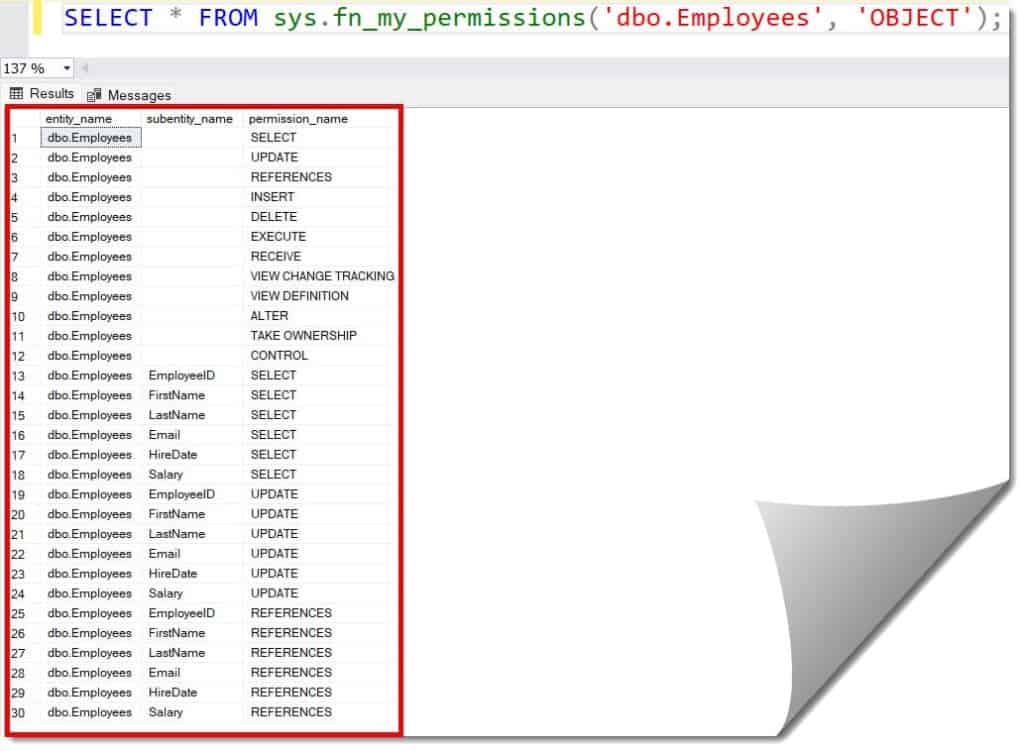
This function returns a list of all effective permissions you have on a specific object.
Syntax
To check your own permissions on a table named Employees in the dbo schema, you would run:
SQL
SELECT * FROM sys.fn_my_permissions('dbo.Employees', 'OBJECT');After executing the query above, I received the expected output, as shown in the screenshot below.
Method 2: Checking Permissions for Another User (The “Impersonation” Trick)
Step-by-Step T-SQL
- Switch Context: Use
EXECUTE AS USERto act as the user in question. - Check Permissions: Use
sys.fn_my_permissions. - Revert: Always remember to switch back to your own account!
SQL
-- Switch to Michael's context
EXECUTE AS USER = 'MichaelMiller';

-- Check his permissions on the Orders table
SELECT * FROM sys.fn_my_permissions('Sales.Orders', 'OBJECT');

-- Switch back to the DBA account
REVERT;
Expert Tip: If you run this and the result set is empty, it means Michael has absolutely no permissions on that table. If you see permissions but he still can’t access it, check for a
DENYon the schema or database level.
Method 3: Using System Catalog Views for a Detailed Audit
The three primary views you need are:
sys.database_permissions: The actual list of grants and denials.sys.database_principals: The users and roles.sys.objects: The tables, views, and procedures.
The Query
SQL
SELECT
    UserName = dp.name,
    UserType = dp.type_desc,
    Permission = p.permission_name,
    State = p.state_desc,
    ObjectName = OBJECT_NAME(p.major_id),
    SchemaName = OBJECT_SCHEMA_NAME(p.major_id)
FROM sys.database_permissions AS p
INNER JOIN sys.database_principals AS dp
    ON p.grantee_principal_id = dp.principal_id
WHERE p.class = 1 -- Object level permissions
AND OBJECT_NAME(p.major_id) = 'YourTableNameHere';
Method 4: Checking Table Privileges via sp_table_privileges
SQL Server includes several system-stored procedures that have been around since the early days. While some DBAs consider them “old school,” sp_table_privileges is incredibly reliable and provides a standardized output.
How to use it
If I want to see every privilege associated with the Customers table, I simply run:
SQL
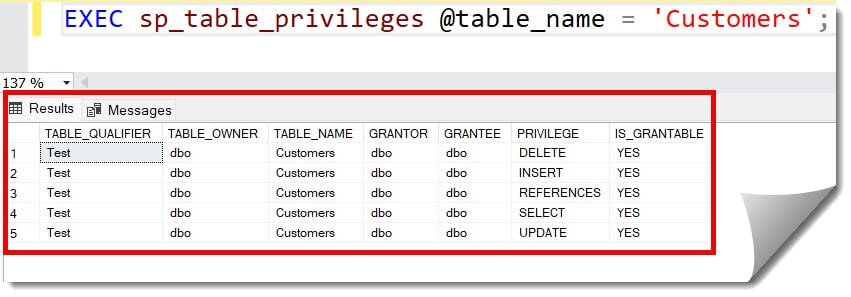
EXEC sp_table_privileges @table_name = 'Customers';After executing the query above, I received the expected output, as shown in the screenshot below.
Why use this?
This procedure is great because it shows the Grantor (who gave the permission) and whether the permission is Grantable (if the user can give that permission to others).
| TABLE_OWNER | TABLE_NAME | GRANTOR | GRANTEE | PRIVILEGE | IS_GRANTABLE |
| dbo | Customers | sa | SarahJenkins | SELECT | YES |
| dbo | Customers | sa | ReportingRole | SELECT | NO |
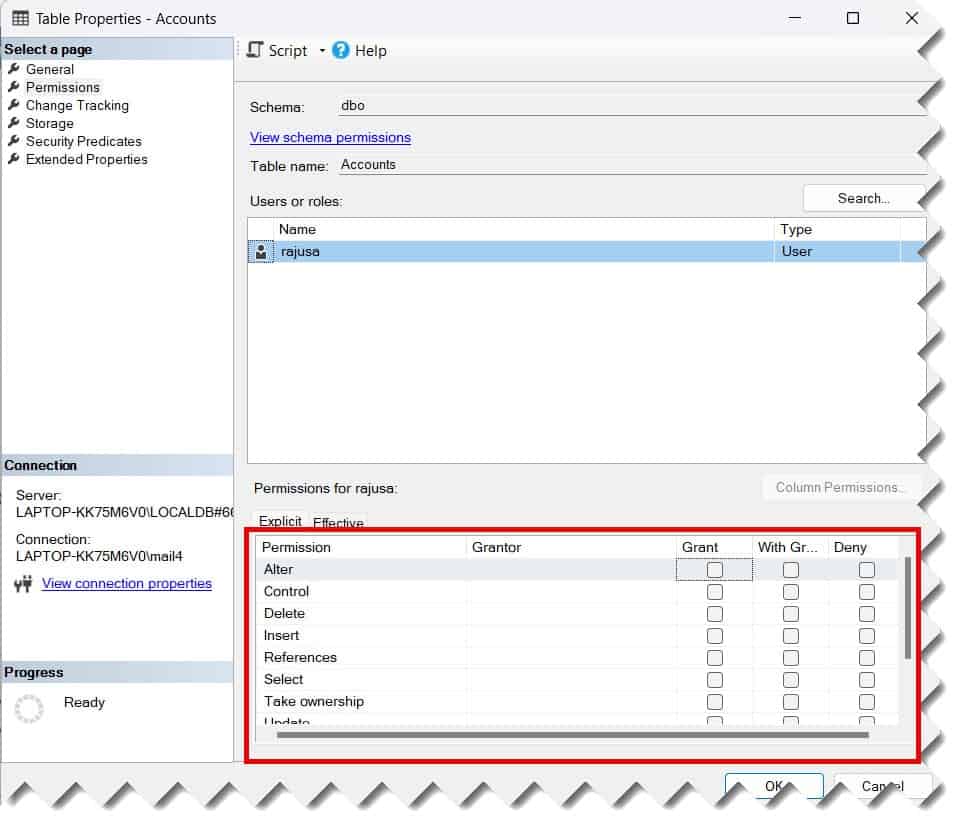
Method 5: Using the SQL Server Management Studio (SSMS) GUI
Not everyone loves writing code. Sometimes, when I’m in a meeting with the IT Director at our Atlanta headquarters and they want a quick visual confirmation, I’ll use the GUI.
Steps to Check via Object Explorer:
- Open SQL Server Management Studio (SSMS).
- Expand your Database and navigate to the Tables folder.
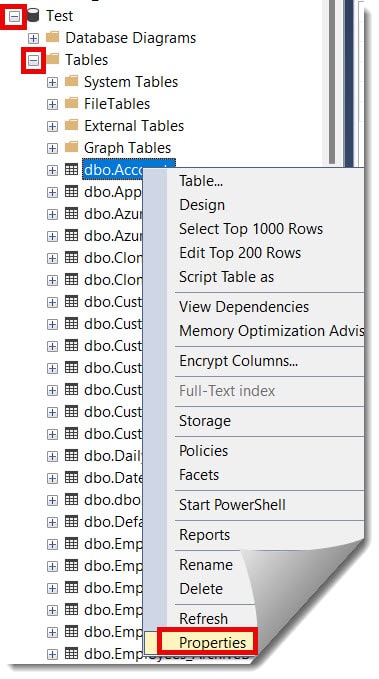
- Right-click on the table you want to check (e.g.,
dbo.Invoices). - Select Properties.
- In the Table Properties window, click on the Permissions page.
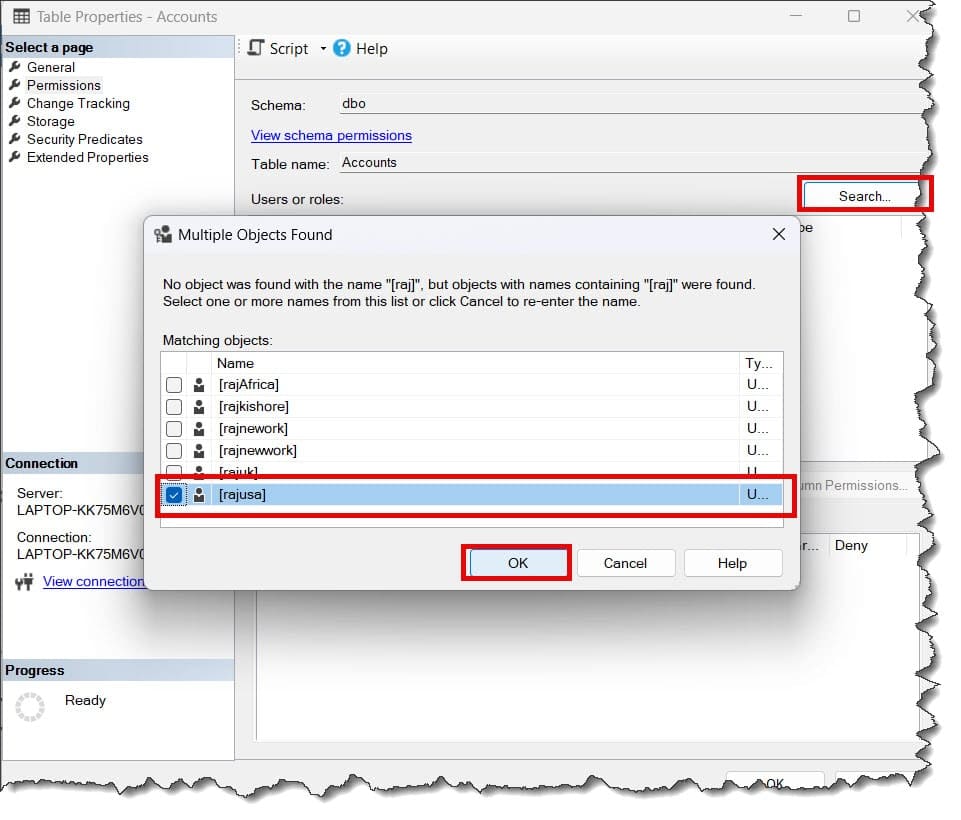
On this screen, you can click the Search button to add a specific user like Michael. Once added, the bottom pane will show you exactly what checkboxes are marked for Grant, With Grant, or Deny.
Method 6: Checking Role-Based Permission
This is where things get tricky. In most well-managed US enterprises, we don’t grant permissions directly to users. We grant them to Roles (like db_datareader or a custom Accounting_Role).
If Sarah has access to a table, it’s likely because she’s a member of a role. To check Sarah’s role memberships, use this script:
SQL
SELECT
    RoleName = role_principals.name,
    MemberName = member_principals.name
FROM sys.database_role_members
JOIN sys.database_principals AS role_principals
    ON sys.database_role_members.role_principal_id = role_principals.principal_id
JOIN sys.database_principals AS member_principals
    ON sys.database_role_members.member_principal_id = member_principals.principal_id
WHERE member_principals.name = 'SarahJenkins';
Once you know her roles, you can run the previous system view query (Method 3) but filter for the RoleName instead of her UserName.
Common Permissions You’ll Encounter
When you are auditing a table, you will see a variety of permission types. It’s important to understand what each one actually allows the user to do.
Table of Common Table Permissions
| Permission | Description |
| SELECT | Allows the user to read data from the table. |
| INSERT | Allows the user to add new rows to the table. |
| UPDATE | Allows the user to modify existing data. |
| DELETE | Allows the user to remove rows from the table. |
| REFERENCES | Necessary for creating a foreign key that points to this table. |
| ALTER | Allows the user to change the table structure (add columns, etc.). |
| CONTROL | Essentially “ownership” level; includes all permissions. |
Summary and Best Practices
Checking user permissions on a table is about more than just running a script; it’s about ensuring the integrity of your data. To recap:
- Use
sys.fn_my_permissionsfor a quick self-check. - Use
EXECUTE AS USERto troubleshoot specifically for a coworker. - Use System Views (
sys.database_permissions) for comprehensive auditing and reporting. - Always check Role Memberships to find “hidden” permissions.
By staying on top of these audits, you ensure your SQL Server environment remains secure, performant, and compliant with all regulations.
You may also like the following articles:
- SQL Server Permissions
- Table Backup in SQL Server
- How to Check If CDC Is Enabled on a Table in SQL Server
- SQL Server Find Table With Column Name

After working for more than 15 years in the Software field, especially in Microsoft technologies, I have decided to share my expert knowledge of SQL Server. Check out all the SQL Server and related database tutorials I have shared here. Most of the readers are from countries like the United States of America, the United Kingdom, New Zealand, Australia, Canada, etc. I am also a Microsoft MVP. Check out more here.