
When SSMS autocomplete goes dark, your productivity drops significantly. Whether your local cache is out of sync or an unexpected configuration change disabled the setting entirely, I will guide you through the exact troubleshooting steps I use to get autocomplete back up and running.
SSMS Autocomplete Not Working
Why Did My SSMS Autocomplete Stop Working?
Before diving into the solutions, it helps to understand why this functionality breaks. In my experience, the issue typically stems from a few specific culprits.
Common Causes of IntelliSense Failures
- Outdated Local Cache: SSMS stores a local copy of your database schema to power autocomplete. If another engineer—let’s call him Mike in the DevOps team—adds a column or updates a view, your local SSMS instance won’t know about it until that cache is refreshed.
- Global or Query-Level Disabling: Autocomplete can be accidentally disabled globally via the main options menu, or isolated to a single query tab.
- SQLCMD Mode Activation: Running scripts in SQLCMD mode intentionally suppresses standard IntelliSense behavior.
- Connection Drops or Permissions: Working over an unstable network or using a login with highly restricted metadata visibility can block schema detection.
Step 1: The Quickest Fix – Refreshing the Local Cache
SSMS does not actively monitor schema alterations in real time. To fix a stale cache, use one of the two methods below.
Option A: The Keyboard Shortcut
- Click inside your active query window.
- Press
Ctrl+Shift+Rsimultaneously.
Option B: The Menu Navigation
- Navigate to the top menu bar.
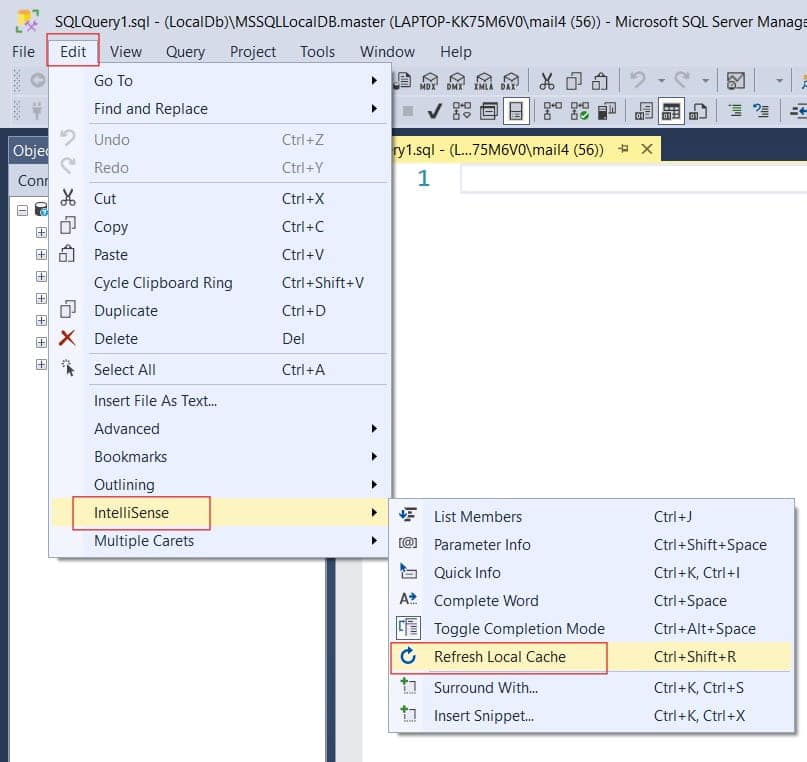
- Click Edit.
- Hover over IntelliSense.
- Click Refresh Local Cache. Check out the screenshot below for your reference.
Pro Tip: Give the application a few seconds to rebuild the cache after triggering this command, especially if you are connected to a large enterprise database with thousands of objects.
Step 2: Verify Your Global IntelliSense Settings
If a cache refresh doesn’t solve the issue, the next step is to ensure that the core autocomplete engine hasn’t been disabled within your global application settings.
How to Enable Global Code Completion
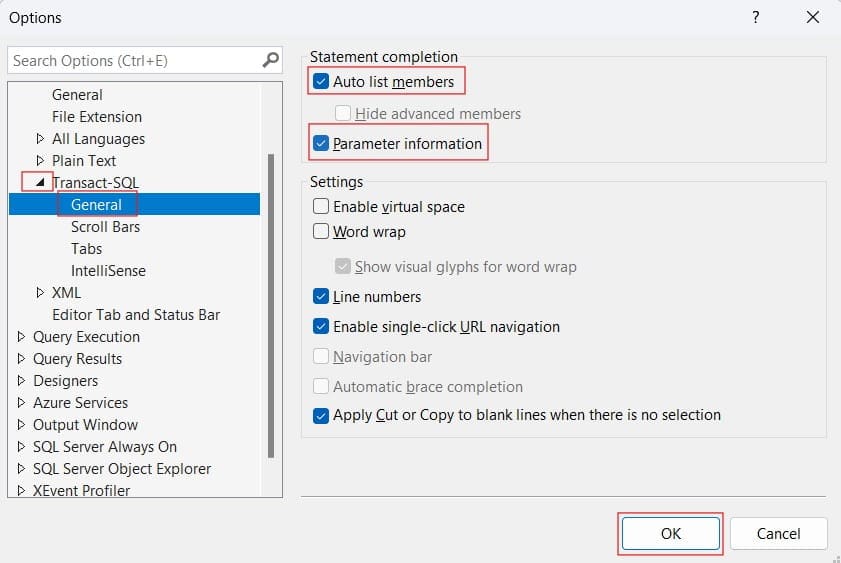
- Go to the top menu and select Tools, then click Options.
- In the left-hand tree view, expand Text Editor.
- Expand Transact-SQL and click on General.
- Under the Statement completion section, ensure both Auto list members and Parameter information are checked. Check out the screenshot below for your reference.
| Setting Name | Purpose | Recommended Status |
| Auto list members | Displays the dropdown list of available tables, columns, and functions. | Checked |
| Parameter information | Shows the required parameters for stored procedures and functions. | Checked |
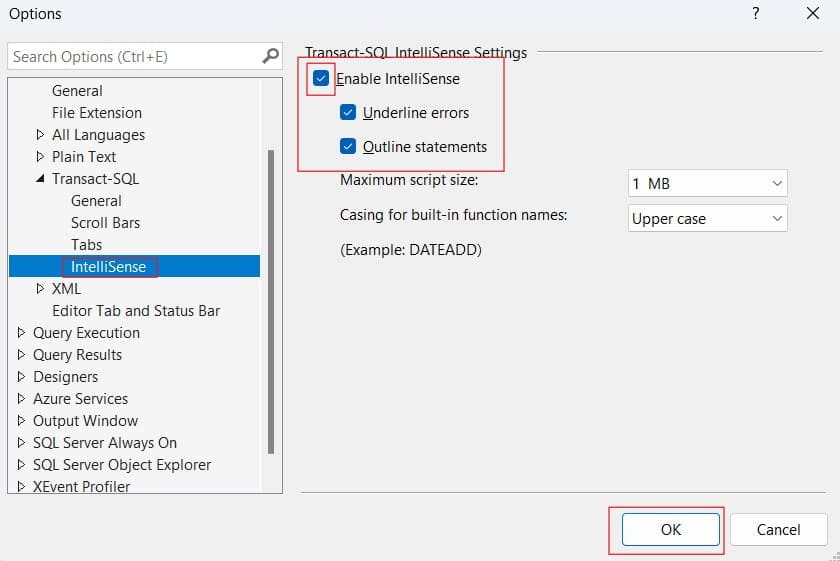
- Next, look back at the left-hand menu. Under Transact-SQL, click directly on IntelliSense.
- Check the box for Enable IntelliSense.
- Click OK to save your changes.
- Open a New Query window to test if the functionality has returned.
Check out the screenshot below for your reference.
Step 3: Check for Tab-Specific Deactivation
Sometimes, global configurations are perfectly fine, but autocomplete is deactivated on the specific query tab you are working in. This happens quite often when opening shared scripts or accidentally hitting a menu option.
Checking the Query Menu
To verify the active window status:
- Look at the top menu bar while focused on your problematic query tab.
- Click on the Query menu.
- Look for the IntelliSense Enabled option. If it is not highlighted or checked, click it to toggle it back on.
Step 4: Turn Off SQLCMD Mode
SQLCMD mode allows you to execute SQLCMD commands alongside standard T-SQL scripts in the editor window. While it is an incredibly powerful feature for deployment scripts, it comes with a major downside: it completely disables standard autocomplete.
If you notice odd syntax highlighting or if your autocomplete suddenly vanished, check your script execution mode.
Disabling SQLCMD Mode
- For the Active Window: Go to the Query menu at the top and look at SQLCMD Mode. If it has a dark background or a checkmark next to it, click it to turn it off.
- For All New Windows: If this is happening on every new tab you open, go to Tools > Options > Query Execution > SQL Server > General. Ensure that the checkbox for By default, open new queries in SQLCMD mode is entirely unchecked.
Step 5: Adjust the Maximum Script Size Limit
Are you working with an exceptionally long script? SSMS is designed to protect your workstation’s memory capacity. If a script surpasses a specific size threshold, the editor automatically shuts down IntelliSense to prevent performance lag or application crashes.
If your project involves extensive data migrations or vast scripts, you may need to scale up this limit.
How to Increase the Script Size Threshold
- Open the Tools menu and select Options.
- Expand Text Editor > Transact-SQL > IntelliSense.
- Locate the setting labeled Maximum script size.
- Change the value from its default to a larger size (such as Unlimited or a higher MB threshold) depending on your needs.
- Click OK, close the large script, and reopen it.
Summary Checklist for Fixing SSMS Autocomplete
When autocomplete breaks down, don’t panic. Run through this quick troubleshooting checklist to systematically eliminate the issue:
- Try the local cache reset shortcut:
Ctrl+Shift+R. - Verify that Auto list members is checked in Tools > Options.
- Confirm that Enable IntelliSense is active in your global settings.
- Check the Query menu to ensure IntelliSense isn’t toggled off for that specific tab.
- Ensure that SQLCMD Mode is disabled.
- Look at the script size; scale up the maximum script size limit if handling massive files.
- Double-check your network stability and user account metadata viewing permissions.
By following this structured approach, you can easily restore your development environment and keep your database workflows moving forward efficiently. Is your SSMS autocomplete still acting up after going through these steps, or are you seeing a specific error message when you try to refresh your cache?
You may also like the following articles:
- SQL Deadlock Victim
- SQL Server Database In Restoring State
- Error 40 Could Not Open Connection to SQL Server

After working for more than 15 years in the Software field, especially in Microsoft technologies, I have decided to share my expert knowledge of SQL Server. Check out all the SQL Server and related database tutorials I have shared here. Most of the readers are from countries like the United States of America, the United Kingdom, New Zealand, Australia, Canada, etc. I am also a Microsoft MVP. Check out more here.