
In this article, I am going to walk you through exactly how to “back up” a table, ensuring you have a safety net before anyone touches your production data.
Table Backup in SQL Server
Understanding the Architecture
Before we dive into the “How-To,” we need to establish the “Why.” Why doesn’t Microsoft provide a simple right-click option for this?
SQL Server databases are essentially containers of related data files (.mdf and .ndf) and log files (.ldf). When you run a standard backup, you are creating a point-in-time image of the entire container. To extract just one table from a standard .bak file, you would have to restore the entire database to a test server and then copy the table out. If your database is 2 Terabytes, that process could take hours—time you simply don’t have during a hotfix deployment.
Therefore, when we talk about “Table Backups,” we are actually talking about Data Export and Table Cloning.
Method 1: The Quickest Method (SELECT INTO)
If you need to back up a table instantly and you are staying within the same database instance, the SELECT INTO statement is the gold standard.
How It Works
This command creates a new table on the fly and copies the data into it. You do not need to create the destination table structure beforehand; SQL Server infers the schema from the source.
The Syntax:
SQL
SELECT *
INTO TableName_Backup_2025_05_20
FROM TableName;
Example
SELECT *
INTO Employees_ArchiveB
FROM Employees_Main;
The Pros and Cons
This method is incredibly popular, but it has specific behaviors you must be aware of:
- Speed: It is generally faster than a standard
INSERTbecause it uses bulk logging (if your database recovery model allows it). - Schema Limitations: This is the big “gotcha.”
SELECT INTOcopies the column definitions and the data. It does not copy:- Indexes (Non-clustered or Clustered)
- Triggers
- Primary Keys or Foreign Keys
- Constraints
My Advice: This is perfect for a temporary safety net. If the update goes wrong, you can quickly truncate the main table and insert the data back from this backup table. Just remember that if you need to restore, you are restoring data, not the full table architecture.
Method 2: The “Air-Gapped” Method (BCP)
Sometimes, creating a copy of the table inside the same database isn’t safe enough. What if the server crashes? What if someone accidentally drops the entire database? In these cases, you need to get the data off the server.
Enter the Bulk Copy Program (BCP). This is a command-line utility that I swear by. It allows you to dump a specific table’s data into a flat file (like a .txt or .csv) on your Windows file system.
The Strategy
You run BCP from the Command Prompt or PowerShell, not inside SQL Server Management Studio (SSMS).
The Syntax Concept:
DOS
bcp "DatabaseName.Schema.TableName" out "C:\Backups\TableName.dat" -c -T -S ServerNameBreakdown of Flags:
- OUT: Specifies we are moving data out of the database.
- -c: Performs the operation using a character data type (text).
- -T: Uses a Trusted Connection (Windows Authentication), so you don’t have to hardcode passwords.
- -S: Specifies the Server name.
I often use this when I am archiving data. For example, if we are purging audit logs from 2022, I will BCP them out to a secure drive before deleting them from the SQL Server. It is efficient, scriptable, and keeps your database size down.
Method 3: The GUI Approach (Export Data Wizard)
If you prefer a visual interface, or if you need to move the table to a completely different server (e.g., from Production to Development ), the SQL Server Import and Export Wizard is your friend.
The Steps
- Right-click your database in SSMS.
- Go to Tasks > Export Data.
- Source: Select your current SQL Server.
- Destination: This is where it gets flexible. You can choose:
- Another SQL Server instance.
- A Microsoft Excel file.
- A Flat File.
- Select Tables: Check the specific table you want to back up.

The Hidden Power: SSIS
Under the hood, this wizard is actually building a SQL Server Integration Services (SSIS) package. It handles data type mapping and connection strings for you.
When to use this: I recommend this for Junior DBAs or developers who aren’t comfortable with command-line tools. It’s also excellent when the “backup” needs to be sent to a non-technical stakeholder, like sending a user list to the Marketing team in an Excel sheet.
Method 4: Scripting (Generate Scripts)
What if the data is small, but the structure is complex? If you have a configuration table with 50 rows but complex triggers and permissions, SELECT INTO will fail you because it drops the metadata.
In this case, I use the “Generate Scripts” feature.
- Right-click the Database > Tasks > Generate Scripts.
- Select the specific table.
- Go to Advanced Scripting Options.
- Change “Types of data to script” from “Schema Only” to “Schema and Data”.
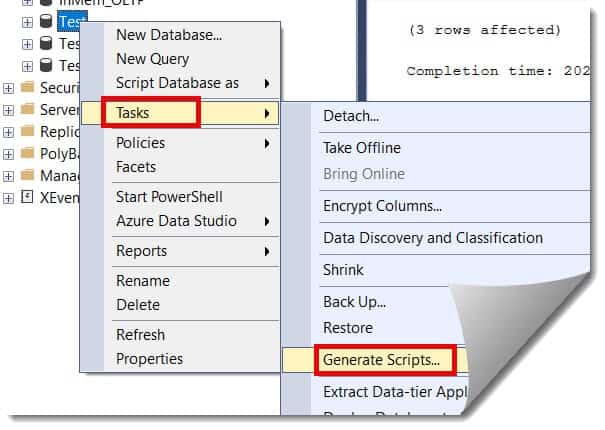


This generates a massive .sql file containing the CREATE TABLE statement followed by INSERT statements for every single row.
Warning: Do not do this for large tables. If you try to script out a table with 1 million rows, SSMS will likely crash, or the resulting script file will be too large to open. This method is strictly for small, critical lookup tables (e.g., State Codes, Tax Rates).
Comparison: Choosing the Right Tool
To make this decision easier, I’ve put together a matrix based on how I handle these requests in real-world environments.
| Method | Speed | Difficulty | Preserves Indexes? | Best Use Case |
| SELECT INTO | Very High | Low | No | Fast “Save point” before an update. |
| BCP | High | High (CLI) | No (Data only) | Archiving data to disk/network share. |
| Export Wizard | Medium | Low | No | Moving data to another server or Excel. |
| Generate Scripts | Low | Low | Yes | Small tables where schema is critical. |
Best Practices
- Watch the Space:
SELECT INTOduplicates data. If your database is 100GB and the table is 40GB, you just jumped to 140GB. Ensure your disk drive has headroom, or you could crash the entire server. - Clean Up Your Mess: There is nothing worse than logging into a server and seeing
Table_Backup_Jan,Table_Backup_Feb,Table_Backup_Test. Set a reminder to drop these backup tables once the maintenance work is confirmed successful. - Don’t Forget Permissions: When you create a new table using
SELECT INTO, it does not inherit the permissions of the old table. If “Jane from HR” had access to the main table, she will not automatically have access to the backup. - Naming Conventions: Be descriptive. Never name a table
Backup1. Use ISO dates:Customer_Backup_20240521_PreUpdate.
Conclusion
While SQL Server doesn’t offer a “one-click” solution for backing up a single table, the flexibility it provides via T-SQL, BCP, and SSIS is arguably more powerful. Whether you are doing a quick patch or a major data migration, choosing the right strategy for the right volume of data is what separates a novice from an expert.
By mastering SELECT INTO for speed and BCP for security, you ensure that no matter what happens to your data during an update, you always have a way to hit “Undo.”
You may also like the following articles:

After working for more than 15 years in the Software field, especially in Microsoft technologies, I have decided to share my expert knowledge of SQL Server. Check out all the SQL Server and related database tutorials I have shared here. Most of the readers are from countries like the United States of America, the United Kingdom, New Zealand, Australia, Canada, etc. I am also a Microsoft MVP. Check out more here.