
In this deep-dive article, I’m going to walk you through the professional approaches of running queries in SSMS. We’ll move beyond the basics of “point and click” and into the efficient, high-performance T-SQL execution.
How To Run Query In SSMS
Setting Up Your Workspace
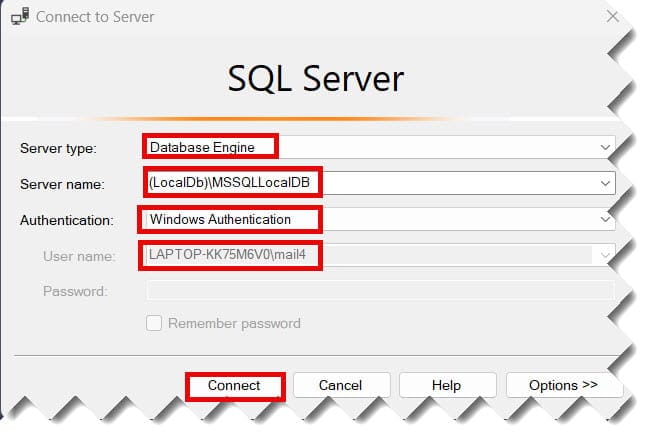
When you first launch SSMS, you’ll be greeted by the Connect to Server dialog.
1. Connecting to the Instance
- Server Type: Database Engine.
- Server Name: This is often your local machine name (e.g.,
LAPTOP-NYC-01) or a network address. - Authentication: Typically Windows Authentication for local dev, or SQL Server Authentication for remote servers.
Check out the screenshot below for your reference.
2. The Object Explorer
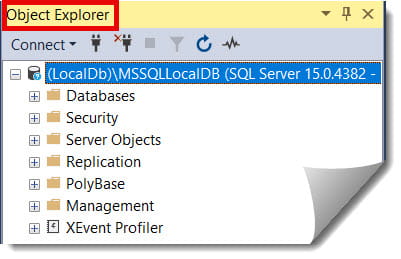
On the left side of your screen is the Object Explorer. This is your map. It lists all your databases, security logins, and server objects. Before running a query, use this to verify which database you are targeting.
Check out the screenshot below for your reference.
How to Open a New Query Window
There are three main ways to open a new query editor in SSMS.
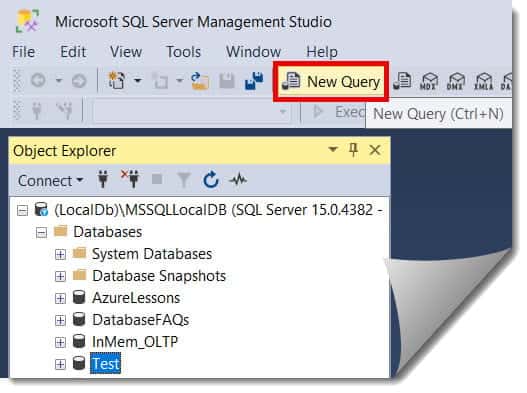
- The Ribbon Method: Click the “New Query” button in the top-left toolbar.
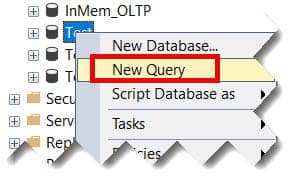
- The Context Method: Right-click a specific database in the Object Explorer and select “New Query.” This automatically sets the database context (more on that later).
- The Pro Shortcut: Press
Ctrl + N. This is the fastest way to get to work.
Check out the screenshot below for your reference.
Selecting the Correct Database Context
By default, a new query window often opens in the master system database. If you run a query against your custom tables while in master, you will get a “Could not find object” error.
Methods to Change Database Context
| Method | Action |
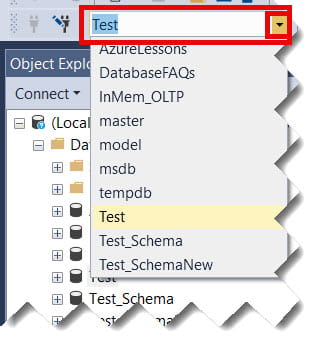
| Dropdown Menu | Use the “Available Databases” dropdown in the top toolbar. |
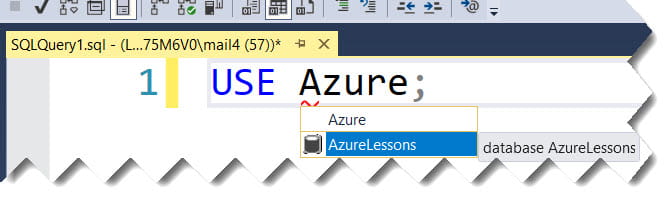
| The USE Command | Type USE [DatabaseName]; at the top of your script. |
| Right-Click | Right-click in the editor -> Connection -> Change Database. |
Pro Tip: Always start your scripts with the
USEstatement. It ensures that if another team member runs your script, it executes against the correct database automatically.
Check out the screenshot below for your reference.
Writing and Executing Your First T-SQL Query
Now that we have our window open and our database selected, let’s look at the mechanics of execution.
Writing the Code
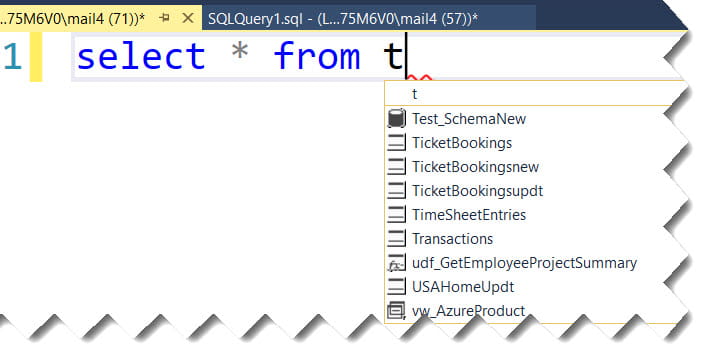
The editor provides IntelliSense, which is SQL’s version of autocomplete. As you type SELECT * FROM, SSMS will suggest table names. Use the Tab key to accept suggestions and save yourself from typos.
Executing the Code
You have several options to “run” the code:
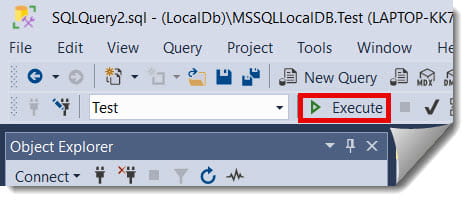
- Toolbar: Click the green “Execute” arrow.
- Keyboard Shortcut: Press F5. (This is the industry standard).
- Alternative Shortcut: Press Ctrl + E.
Check out the screenshot below for your reference.
Partial Execution:
One of the most powerful features in SSMS is the ability to execute only a portion of your script.
Imagine I am troubleshooting a complex stored procedure for a financial firm. The script is 500 lines long, but I only want to test one specific join.
- How to do it: Highlight the specific block of code with your mouse or keyboard.
- Run it: Press F5.
- The Result: SSMS ignores everything else and only executes the highlighted text.
Warning: Be careful! If you highlight half a command, you will get a syntax error. Always ensure your selection is a complete, valid SQL statement.
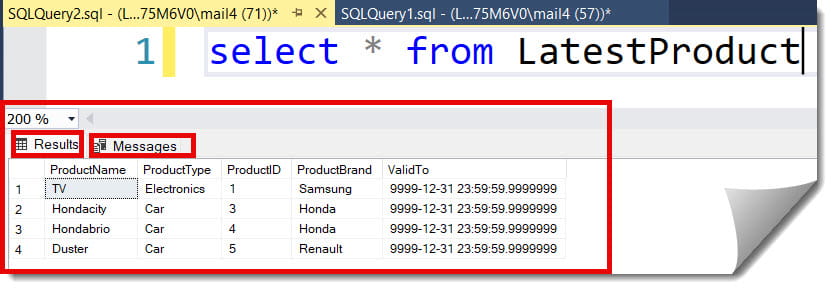
Understanding the Results Pane
After you hit F5, the bottom half of your screen will transform into the Results Pane. This is where the magic happens.
The Results Tab
This displays your data in a grid format. You can click on column headers to sort them (though this is a UI sort, not a database sort) and copy-paste data directly into Excel.
The Messages Tab
This is where the database engine “talks” back to you. It will show:
- How many rows were affected?
- Execution time.
- Any error messages or warnings.
Advanced Query Options and Performance Tools
In high-stakes environments—like a tech startup in Austin—running the query isn’t enough. You need to know how it ran.
1. Display Estimated Execution Plan
Before running a heavy query, press Ctrl + L. This shows you a graphical representation of how SQL Server intends to find the data. It helps you identify missing indexes.
2. Include Actual Execution Plan
Press Ctrl + M before executing. This provides the real-world performance metrics after the query finishes.
3. Change Output Format
By default, results are in a grid. However, sometimes you need them in text or sent directly to a file.
- Results to Grid:
Ctrl + D - Results to Text:
Ctrl + T - Results to File:
Ctrl + Shift + F
Best Practices for Querying in SSMS
You must follow the unwritten rules of the database world.
- Comment Your Code: Use
--for single lines or/* ... */for blocks. Explain why you are running a query, especially for complex filters. - Format for Readability: Don’t write everything on one line. Use indentations for joins and where clauses.
- Use Aliases: Instead of typing
Employees.FirstName, usee.FirstName(whereEmployeesis aliased ase). - The “Safety Select”: When performing updates or deletes, always run a
SELECTversion first to verify yourWHEREclause is targeting the right rows.
Troubleshooting Common Errors
Here is how to handle the “Big Three” errors:
1. “Invalid Object Name”
- Cause: You are likely in the wrong database context (check the dropdown) or you misspelled the table.
- Fix: Run
USE [CorrectDB]and refresh IntelliSense (Ctrl + Shift + R).
2. “Execution Timeout”
- Cause: The query is taking too long to process.
- Fix: Check your join logic or see if the table is currently locked by another process.
3. “Syntax Error near…”
- Cause: Missing a comma, a parenthesis, or a keyword.
- Fix: Double-click the error message in the Messages tab; SSMS will jump your cursor to the approximate location of the error.
Summary of Essential SSMS Shortcuts
| Action | Shortcut |
| New Query Window | Ctrl + N |
| Execute Query | F5 or Ctrl + E |
| Display/Hide Results Pane | Ctrl + R |
| Change Database Context | Alt + Down Arrow (focuses dropdown) |
| Refresh IntelliSense Cache | Ctrl + Shift + R |
| Comment Selection | Ctrl + K, Ctrl + C |
| Uncomment Selection | Ctrl + K, Ctrl + U |
Conclusion
Running a query in SSMS is the gateway to data mastery. Whether you are generating reports or cleaning up data, the principles remain the same: verify your connection, check your context, and use your shortcuts.
By mastering these techniques, you aren’t just running scripts; you’re properly managing your data.
You may also like the following articles:
- How to find SQL Server instance name in SSMS
- How To Comment In SSMS
- How To Zoom In SSMS
- SSMS 22 New Features
- Copilot In SSMS

After working for more than 15 years in the Software field, especially in Microsoft technologies, I have decided to share my expert knowledge of SQL Server. Check out all the SQL Server and related database tutorials I have shared here. Most of the readers are from countries like the United States of America, the United Kingdom, New Zealand, Australia, Canada, etc. I am also a Microsoft MVP. Check out more here.