
In this authoritative article, I will walk you through my professional framework for fixing this error. I’ll show you how to find the “hidden” state codes and provide a step-by-step tutorial to fix the SQL Server Error 18456.
SQL Server Error 18456
What is SQL Server Error 18456?
At its core, Error 18456 is an authentication failure. It indicates that a user or application tried to connect to a SQL Server instance, but the server rejected the “digital handshake.”
The “Security Shield”
Microsoft designed this error with a specific security philosophy: Information obfuscation. When you see this error in your application or SQL Server Management Studio (SSMS), it often just says:
Login failed for user ‘<username>’. (Microsoft SQL Server, Error: 18456)
It won’t tell you why—at least not on the front end. To find the “Why,” we have to look at the SQL Server Error Log.
Phase 1: Decoding the State Codes
The secret to solving Error 18456 lies in the State Code. Each number represents a specific reason for the failure. I’ve compiled this table of the most common state codes I encounter in high-performance tech environments.
18456 State Code Reference Table
| State Code | Real-World Meaning | The “Pro” Fix |
| State 1 | Information is hidden for security. | Check the internal Error Log. |
| State 2 & 5 | The Username does not exist. | Verify spelling or create the login. |
| State 6 | Windows login used for SQL Auth. | Check your connection string. |
| State 7 | Login is disabled. | Enable the login via SSMS. |
| State 8 | Incorrect Password. | Reset the password. |
| State 11 & 12 | Valid login but no server access. | Grant the “Connect” permission. |
| State 18 | Password has expired. | Change the password immediately. |
| State 38 | Database doesn’t exist/is offline. | Verify the “Initial Catalog” in connection string. |
| State 58 | Authentication Mode Mismatch. | Enable Mixed Mode Authentication. |
Phase 2: How to Find the “Hidden” State Code
To troubleshoot like an expert, you must go to the source. You can’t fix what you can’t see.
- Open SQL Server Management Studio (SSMS).
- Connect to your instance (using an account that can log in, like a Windows Admin).
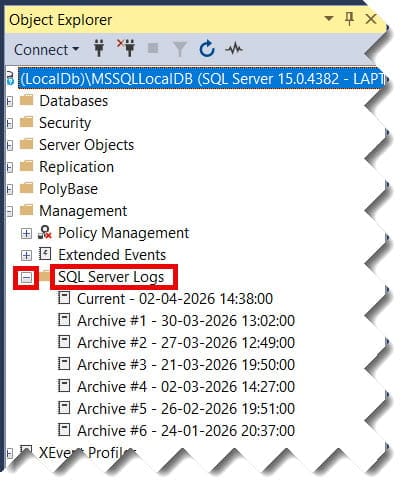
- In the Object Explorer, navigate to Management > SQL Server Logs.
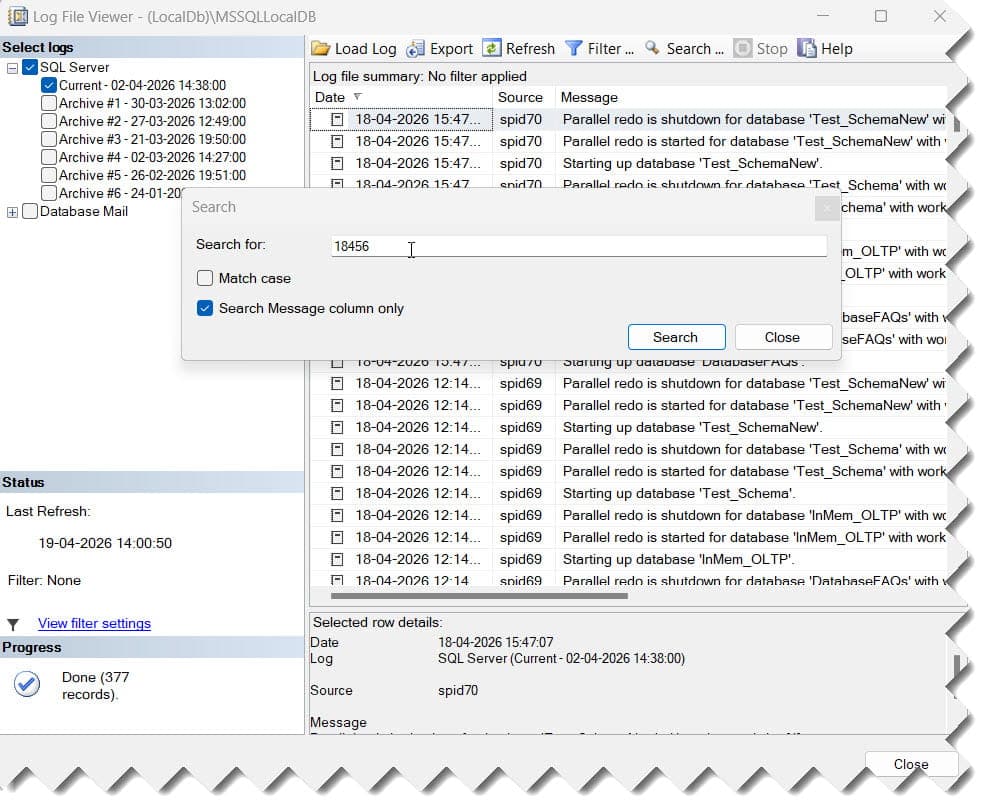
- Double-click the Current log.
- Search for the text “18456”. You will see an entry that looks like this:Error: 18456, Severity: 14, State: 8. Check out the screenshot below for your reference.
Phase 3: Step-by-Step Fixes for Common Scenarios
Once you have your State Code, follow these authoritative steps to resolve the most common blockers.
1. Enabling Mixed Mode Authentication (State 58)
If you are trying to use a SQL Login (like sa) but your server is set to “Windows Only,” the connection will fail every time.
- The Fix:
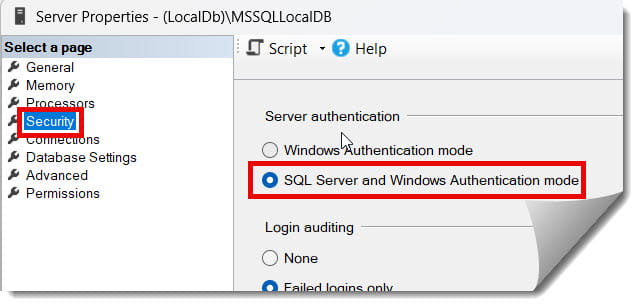
- Right-click the Server Name in Object Explorer and select Properties.
- Go to the Security page.
- Select SQL Server and Windows Authentication mode.
- Crucial: You must restart the SQL Server service for this to take effect. Check out the screenshot below for your reference.
2. Enabling a Disabled Login (State 7)
Sometimes, during a security audit, accounts are disabled for compliance.
- The Fix:
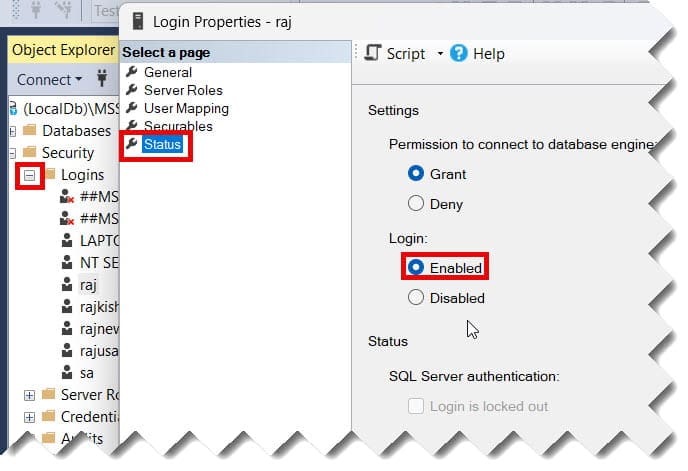
- Go to Security > Logins.
- Right-click the user and select Properties.
- Navigate to the Status page.
- Ensure Login is set to Enabled.
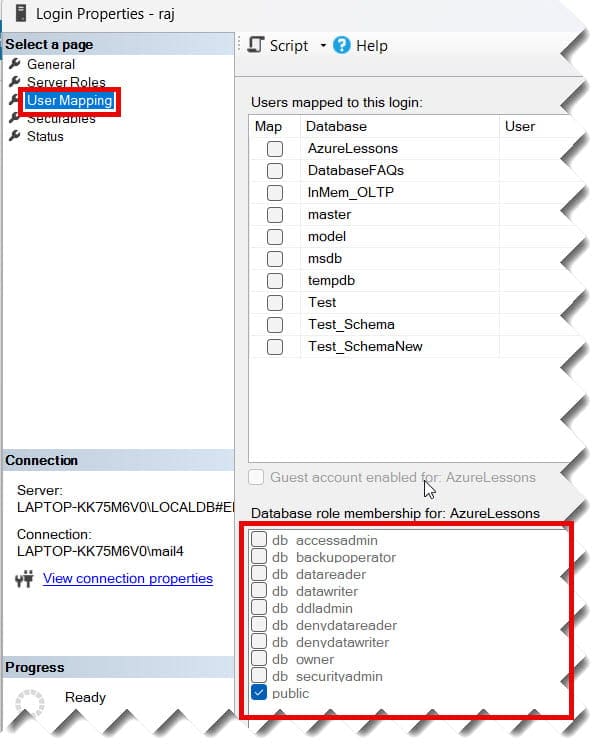
3. Fixing Incorrect Database Access (State 11/12)
If your application for a retail giant in Minneapolis connects fine but can’t see its data, you likely have a mapping issue.
- The Fix:
- In the Login Properties, go to User Mapping.
- Ensure the user is mapped to the correct database.
- Check that they have the appropriate role (like
db_datareaderordb_datawriter).
Best Practices for Preventing Login Failures
The best way to handle Error 18456 is to prevent it through strict standards.
- Use Windows Authentication: Whenever possible, avoid SQL Logins. Integrated Windows Authentication (Active Directory) is more secure and avoids “password rot.”
- Audit Default Databases: If you delete a database that was set as a user’s “Default Database,” their login will fail with State 38. Always update default databases before a deletion.
- Monitor the Error Log: I recommend setting up an Azure Monitor or SQL Agent Alert to ping your team in Phoenix whenever multiple 18456 errors occur in a short window. This is often a sign of a “Brute Force” attack.
Conclusion
SQL Server Error 18456 is a common but multifaceted hurdle. By understanding that the server is “hiding” the answer in the State Code, you can move from frustration to resolution. Whether it’s a simple password typo or a complex authentication mode mismatch, the Error Log is your primary tool.
You may also like the following articles:
- SSMS Cannot Run When Setup Is In Progress
- SSMS Cannot Connect To Server
- SQL Error Code
- Generate Insert Statements From Table SQL Server

After working for more than 15 years in the Software field, especially in Microsoft technologies, I have decided to share my expert knowledge of SQL Server. Check out all the SQL Server and related database tutorials I have shared here. Most of the readers are from countries like the United States of America, the United Kingdom, New Zealand, Australia, Canada, etc. I am also a Microsoft MVP. Check out more here.