
In this article, I will take you on a deep dive into how to use SSMS like a professional. We will cover installation, navigation, and the expert workflows I use to manage complex database environments.
How to Use SSMS
SSMS is an integrated environment for managing any SQL infrastructure. It’s not the database itself (that’s SQL Server); rather, it is the “dashboard” or “cockpit” you use to communicate with the database.
SSMS remains the industry standard for:
- Database Administration: Configuring security, backups, and replication.
- Development: Writing and debugging T-SQL (Transact-SQL) scripts.
- Monitoring: Analyzing performance and resource bottlenecks.
- Cloud Integration: Seamlessly managing Azure SQL and Fabric databases alongside on-premises servers.
Installation and Initial Setup
Before you can run a single query, you need the software. In 2026, SSMS is distributed as a standalone, free download from Microsoft.
- Download: Navigate to the official Microsoft Learn page. Ensure you are getting the 2026 release (v22 or v23, depending on the current month).
- Visual Studio Components: Don’t be alarmed if the installer mentions the “Visual Studio Shell.” SSMS is built on the VS framework, which provides its familiar IDE feel.
- Permissions: You will need Administrator rights on your machine (e.g., your Windows 11 workstation) to complete the installation.
- Verification: Once installed, launch it from the Start menu. You’ll be greeted by the “Connect to Server” dialog—this is your gateway.
Navigating the Interface: The Four Pillars
When you first open SSMS, it can feel overwhelming. I divide the interface into four “pillars”.
Pillar 1: Object Explorer (The Tree)
Located on the left by default, this is a hierarchical view of all objects on your server.
- Databases: Where your data lives.
- Security: Logins, Roles, and Credentials.
- Server Objects: Linked Servers and Triggers.
- Management: SQL Server Logs and Maintenance Plans.

Pillar 2: The Query Editor (The Canvas)
This is where the magic happens. It’s a full-featured text editor designed for T-SQL. In 2026, this includes GitHub Copilot integration, which can suggest entire join structures based on your comments.

Pillar 3: The Results Pane (The Output)
Below the editor, you’ll see the results of your queries. You can toggle between:
- Results to Grid: A spreadsheet-style view (most common).
- Results to Text: For quick copy-pasting into emails or logs.
- Messages: Where “Row(s) affected” or error messages appear.

Pillar 4: Solution Explorer (The Library)
If you are working on a large project, you can use Solution Explorer to organize your scripts into projects, just like a software developer.

Connecting to a Server: The Details
You’ll encounter two main types of authentication.
| Authentication Type | Usage Case | Security Level |
| Windows Authentication | Standard for internal office networks; uses your current login. | High (Kerberos-based) |
| SQL Server Authentication | Common for remote servers or specific app service accounts. | Medium (Requires username/password) |
| Microsoft Entra (MFA) | Required for Azure SQL Database connections. | Highest (Includes 2FA) |
Pro Tip for Connections:
If you are connecting to a local instance for training, use . (a single period) or (local) as the Server Name. It saves you from typing the full computer name.
Tutorial: Your First Five Tasks in SSMS
“Don’t just look at the tool; use it.” Here is the exact sequence I use to set up a new environment.
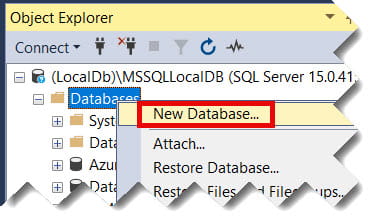
Task 1: Create a New Database
- Right-click the Databases node in Object Explorer.
- Select New Database…
- Name it (e.g.,
CorporateSales_USA). - Expert Note: I always check the “Options” tab to ensure the Recovery Model is set to “Simple” for my dev environments to save disk space.
Task 2: Writing a Query
Click the New Query button on the toolbar (or press Ctrl+N).
Always start by ensuring you are in the correct database context. Use the dropdown in the top-left toolbar or type:
SQL
USE CorporateSales_USA;
GO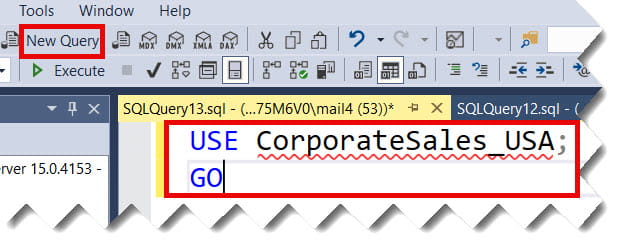
Task 3: Executing and Parsing
- Parse (
Ctrl+F5): This checks your syntax without actually running the code. Use this before running long scripts! - Execute (
F5): This runs your highlighted code. If nothing is highlighted, it runs the entire page.
Task 4: Filtering Objects
If you are working in a database with 5,000 tables (common in ERP systems), don’t scroll.
- Right-click the Tables folder.
- Select Filter > Filter Settings.
- Enter a “Name contains” value (e.g.,
Invoice).
Task 5: Viewing the Execution Plan
To see how SQL Server is actually finding your data, click Include Actual Execution Plan (Ctrl+M) before running your query. This opens a graphical tab that tells you if you’re missing an index—a lifesaver for performance tuning.
Advanced Tips
Once you’ve mastered the basics, use these “hidden” features to speed up your workflow:
- The Clipboard Ring (
Ctrl+Shift+V): SSMS stores the last 20 things you copied. You can cycle through them to find that one specificWHEREclause you copied ten minutes ago. - Vertical Block Selection (
Alt + Shift + Arrow): Need to add a comma to the end of 50 lines? HoldAltand drag your cursor vertically to type on multiple lines at once. - Registered Servers: If you manage 50 servers across different US data centers, use the Registered Servers window (
Ctrl+Alt+G) to group them. You can even run a single query against an entire group of servers simultaneously.
Troubleshooting Common Errors
Even the best of us hit walls. Here is how I handle the “Top 2” errors in SSMS:
- Network-Related or Instance-Specific Error: Usually means the SQL Server Service isn’t running on the target machine. Open “Services.msc” on the server and check the status of
SQL Server (MSSQLSERVER). - Login Failed for User: Double-check your Authentication type. If you are trying to use Windows Auth on a machine outside the domain, it will fail 100% of the time.
Conclusion:
SQL Server Management Studio is more than a tool; it’s an entire ecosystem. By knowing the Object Explorer and becoming proficient in the Query Editor, you’re not just managing data—you’re driving the business logic of your organization.
Use the Properties window to explore settings, and always keep your Execution Plans visible. The more you “see” how SQL Server thinks, the better your queries will become.
You may also like the following articles:
- How To Check SSMS Version
- How to Check Object Level Permissions in SQL Server
- SQL Server Permissions
- Find Table In SQL Server

After working for more than 15 years in the Software field, especially in Microsoft technologies, I have decided to share my expert knowledge of SQL Server. Check out all the SQL Server and related database tutorials I have shared here. Most of the readers are from countries like the United States of America, the United Kingdom, New Zealand, Australia, Canada, etc. I am also a Microsoft MVP. Check out more here.