
The GRANT SELECT command is arguably the most frequently used tool. In this article, I will show you how to execute the GRANT SELECT statement with precision, covering both the T-SQL syntax and the SQL Server Management Studio (SSMS) interface.
SQL Server Grant Select On Table
Method 1: The T-SQL Way
T-SQL is faster, scriptable, and leaves an audit trail.
The Basic Syntax
The fundamental structure of the command is straightforward:
SQL
GRANT SELECT ON [SchemaName].[TableName] TO [UserName];Granting Select on a Specific Table
Imagine you have a table named QuarterlySales in the Sales schema, and you want to grant access to a user named Analyst_Mark.
SQL
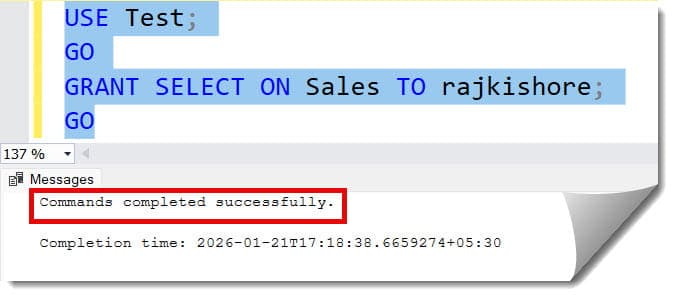
USE Test;
GO
GRANT SELECT ON Sales TO rajkishore;
GO
After executing the above query, I got the expected output as shown in the screenshot below.
Granting Select on Multiple Tables
You cannot grant permissions on multiple specific tables in a single GRANT statement by comma-separating the table names. You must either run separate statements or grant at the Schema level.
Method 2: Granting at the Schema Level
If you want a user to be able to see every table within a schema, granting at the schema level is much more efficient than table-level grants.
SQL
GRANT SELECT ON SCHEMA::UK TO rajkishore;After executing the above query, I got the expected output as shown in the screenshot below.
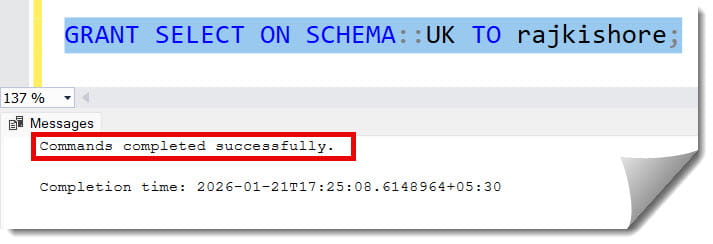
Why do this? If you add a new table to the UK schema next month, rajkishore will automatically have SELECT access to it without you needing to run another script.
Method 3: Using SQL Server Management Studio (GUI)
For those who prefer a visual interface—SSMS provides an intuitive way to manage permissions.
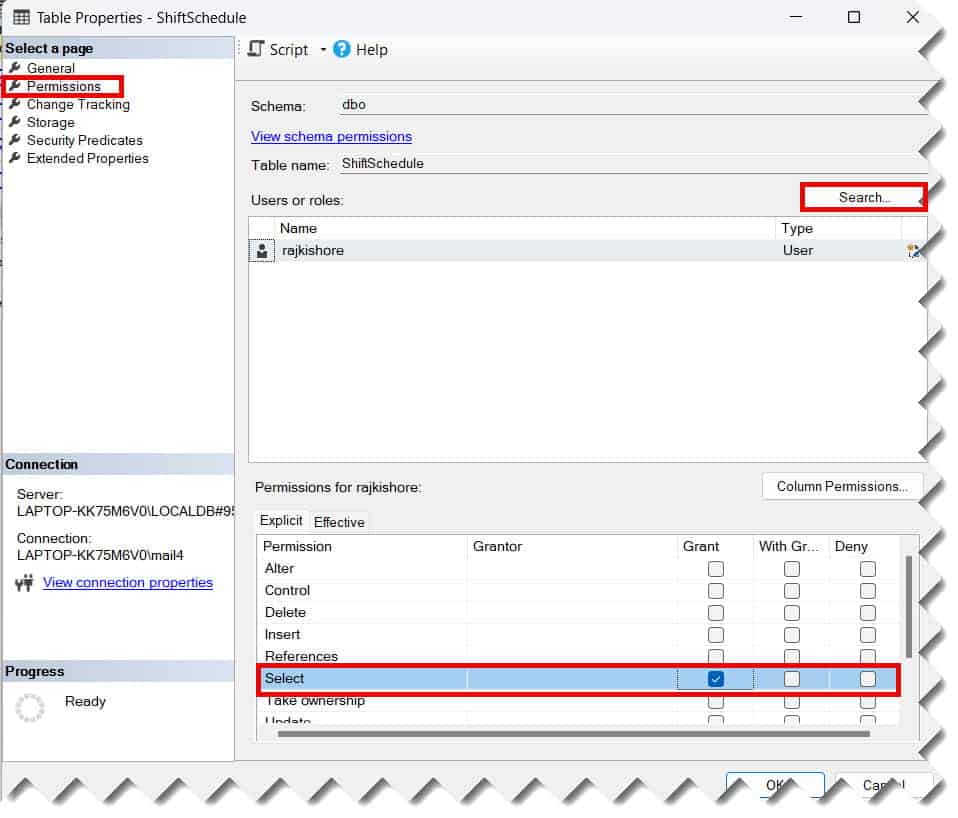
- Navigate to the Table: In Object Explorer, expand your database, then Tables.
- Open Properties: Right-click the specific table (e.g.,
dbo.Employees) and select Properties. - Select Permissions: On the left-hand pane, click on Permissions.
- Add a User: Click the Search button to find the user or role you want to grant access to.
- Check the Box: In the bottom list of permissions, find Select and check the box under the Grant column.
- Save: Click OK. Check out the screenshot below for your reference.
Advanced Scenarios: Column-Level Permissions
One of the most powerful (yet underutilized) features in SQL Server is the ability to grant SELECT on specific columns only. This is vital for HIPAA or PCI-DSS compliance in the USA.
Suppose you have an Employees table that contains names and Social Security Numbers (SSN). You want a junior analyst to see names but not the SSN.
SQL
GRANT SELECT ON dbo.Employees (EmployeeID, FirstName, LastName) TO Junior_Analyst;When the Junior_Analyst runs SELECT * FROM dbo.Employees, they will receive a permission denied error. They must explicitly name the columns they have access to.
Granting with the “Grant Option”
Sometimes, you want to delegate authority. For example, you are the Lead DBA, and you want the Team Lead to be able to grant SELECT access to their own team members.
You use the WITH GRANT OPTION clause:
SQL
GRANT SELECT ON Sales.Invoices TO TeamLead_usa WITH GRANT OPTION;This allows TeamLead_usa to run the GRANT SELECT command for other users. Use this sparingly, as it can lead to “permission sprawl” that is difficult to audit later.
Summary of Permission States
When managing access, it is important to understand the three states a permission can be in.
| State | Description | Result |
| GRANT | Explicitly allows the action. | User can read the data. |
| REVOKE | Removes an explicit grant or deny. | User’s access is removed (unless they have it via a role). |
| DENY | Explicitly forbids the action. | User cannot read data, even if they are in a role that allows it. |
Pro Tip: In SQL Server, a
DENYalways trumps aGRANT. If a user is grantedSELECTvia their individual account but deniedSELECTvia a group membership, they will be blocked.
Best Practices
- Avoid Individual Grants: Whenever possible, grant
SELECTto a Database Role rather than a specific user. Then, add users to that role. This makes offboarding much easier. - Audit Regularly: Use system views like
sys.database_permissionsandsys.objectsto generate reports on who has access to sensitive tables. - Use Schemas for Security Boundaries: Group your tables logically. It is much easier to manage one schema grant than 100 individual table grants.
- Document Everything: Always wrap your
GRANTstatements in a script and save them in your version control system (like GitHub or Azure DevOps).
Verifying the Permissions
After running your GRANT statement, you should always verify that it worked as expected. You can do this by impersonating the user (if you have the permissions) or by querying the system catalog.
To check permissions via T-SQL:
SQL
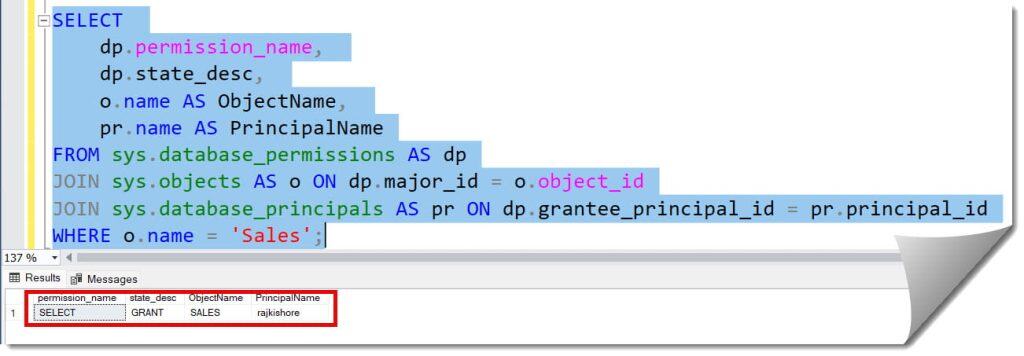
SELECT
    dp.permission_name,
    dp.state_desc,
    o.name AS ObjectName,
    pr.name AS PrincipalName
FROM sys.database_permissions AS dp
JOIN sys.objects AS o ON dp.major_id = o.object_id
JOIN sys.database_principals AS pr ON dp.grantee_principal_id = pr.principal_id
WHERE o.name = 'Sales';
After executing the above query, I got the expected output as shown in the screenshot below.
Troubleshooting Common Errors
“Permission Denied in Database”
If you grant SELECT on a table but the user still can’t access the database, check if they have the CONNECT permission on the database itself. A user cannot query a table if they can’t get through the front door of the database.
“The User Does Not Exist”
Ensure that you have created a Database User for the Server Login. Many beginners forget that a Login (at the server level) needs a corresponding User (at the database level) to hold permissions.
Schema Resolution Issues
If a user tries to query SELECT * FROM QuarterlySales and gets an “Object not found” error, ensure they are using the two-part name: SELECT * FROM Sales.QuarterlySales. Unless the table is in the dbo schema, the schema prefix is required.
Conclusion
Knowing the GRANT SELECT command is the first step toward becoming a proficient SQL Server administrator. By focusing on granular, table-level or schema-level permissions, you protect your organization’s data from unauthorized access.
You may also like the following articles:
- How To Check Database Role Permissions In Sql Server
- SQL Server Permissions
- SQL Server Check User Permissions On Table

After working for more than 15 years in the Software field, especially in Microsoft technologies, I have decided to share my expert knowledge of SQL Server. Check out all the SQL Server and related database tutorials I have shared here. Most of the readers are from countries like the United States of America, the United Kingdom, New Zealand, Australia, Canada, etc. I am also a Microsoft MVP. Check out more here.