
In this ultimate guide, I will show you exactly how to force-refresh your IntelliSense cache using multiple methods, troubleshoot underlying configuration blocks, and optimize your SSMS settings so you can keep coding without missing a beat.
Refresh IntelliSense Cache SQL Server
Why Does IntelliSense Fail to Recognize New Objects?
To appreciate the fix, you need to understand how SSMS manages autocomplete under the hood.
When you establish a connection to an instance of SQL Server—whether it is a local developer instance on your workstation or an Azure SQL Managed Instance—SSMS kicks off a background thread. This thread queries the system catalogs (sys.objects, sys.columns, sys.schemas, etc.) and builds an in-memory dictionary of every table, view, stored procedure, column, and data type you have permission to see.
This mechanism works perfectly until you modify the schema. Actions that break the cache include:
- Running a
CREATE TABLEorALTER TABLEstatement in your current session. - A teammate running a migration script that updates the database remotely.
- Switching database contexts using the
USE [DatabaseName]command without updating the editor state.
The Three Fastest Ways to Refresh the IntelliSense Cache
Method 1: The Universal Keyboard Shortcut (The Pro Move)
This is the fastest, non-disruptive method available. It is the shortcut.
- Ensure your active cursor is inside the text editor window exhibiting the red underlines.
- Press and hold
Ctrl+Shift, then tap theRkey. - Look at the bottom-left corner of the SSMS status bar. You will briefly see a message indicating that the IntelliSense cache is updating.
Within a couple of seconds, the parsing engine completes its background refresh, and the false red underlines under your new tables or columns will instantly vanish.
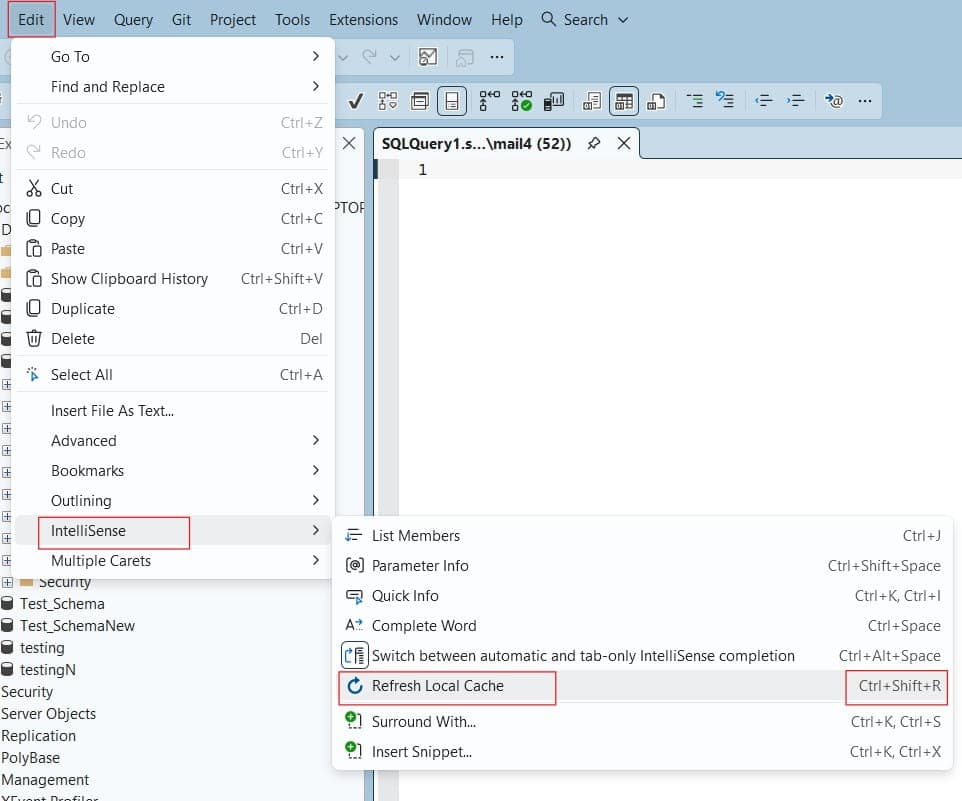
Method 2: The SSMS Menu Bar Navigation
If you prefer using your mouse, you can trigger the refresh via the application menu.
- Navigate to the top application menu in SSMS.
- Click on Edit.
- Hover your mouse over the IntelliSense cascading menu option.
- Click on Refresh Local Cache.
Check out the screenshot below for your reference
Method 3: The Query Window Disconnect/Reconnect
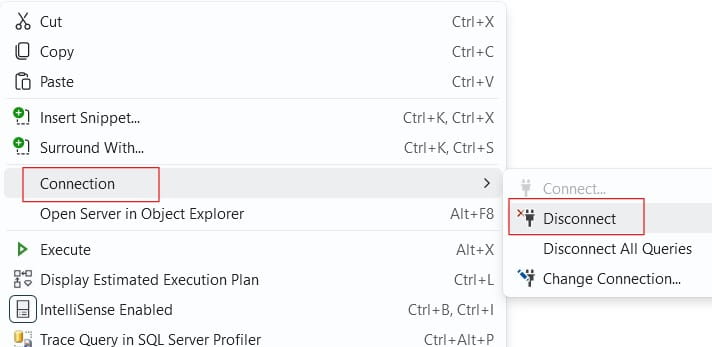
If, for some strange reason, the keyboard shortcut and menu option are greyed out (which can happen during highly unstable network latency scenarios over enterprise VPNs), you can force a hard refresh by recycling the specific query window tab connection.
- Right-click anywhere in the blank space of your current query editor.
- Hover over Connection and select Disconnect.
- Right-click again, hover over Connection, and select Connect…
- Re-enter your credentials or authenticate via Microsoft Entra ID / Windows Authentication.
Re-establishing the connection tears down the existing editor state and rebuilds the background cache from scratch. Check out the screenshot below for your reference.
SSMS IntelliSense Refresh Comparison
To give you a quick operational overview, here is a comparison matrix showing how these methods perform across different working environments.
| Method | Execution Speed | Scope of Impact | Best Used For |
Ctrl + Shift + R | Instant (< 2 seconds) | Active Query Session | Immediate local schema changes you just executed. |
| Menu Navigation | Moderate (3-5 seconds) | Active Query Session | Visual confirmation when shortcuts are overridden by host OS macro tools. |
| Connection Cycle | Slow (5-10 seconds) | Single Tab State | Clearing deeper parsing glitches or recovering from VPN drops. |
Troubleshooting Persistent IntelliSense Issues
What happens if you press Ctrl + Shift + R and the red underlines stubbornly refuse to disappear? Throughout my career auditing database environments for large corporations across the United States, I have diagnosed dozens of workstations where IntelliSense was fundamentally broken.
If a simple refresh fails to solve your problem, work your way through this authoritative troubleshooting checklist.
1. Verify that IntelliSense is Globally Enabled
It is entirely possible that IntelliSense was accidentally disabled inside your global application preferences.
To verify this setting:
- Go to Tools > Options.
- In the left-hand tree view, expand Text Editor > All Languages (or Transact-SQL).
- Click on IntelliSense.
- Ensure the checkbox for Enable IntelliSense is fully checked.
- Additionally, check the box for Underline errors to ensure visual cues are active.
Check out: SSMS IntelliSense Not Working for more details.
2. Check the Maximum File Size Limitation
To prevent SSMS from consuming gigabytes of RAM on your laptop when opening massive migration scripts, Microsoft places a strict file size cap on the IntelliSense engine.
By default, if a script file exceeds 1 MB, the parsing engine automatically shuts down completely for that specific tab to preserve system performance. If you are working with large data-loading scripts or extensive stored procedures, check the size of your script. You can adjust this limit under Tools > Options > Text Editor > Transact-SQL > IntelliSense by tuning the script size threshold.
3. Review SQL Server Permissions and User Roles
This is a silent killer in enterprise environments with strict security baselines, such as healthcare systems in Boston or financial applications in Charlotte.
If your database user account does not have sufficient rights to view system metadata, the IntelliSense background thread will return an empty result set or throw a silent access exception. At a minimum, your account requires the VIEW DEFINITION permission at the database or schema level to read the structural metadata required to generate autocomplete recommendations.
SQL
-- If you suspect permission blocks, have your security admin verify your access:
GRANT VIEW DEFINITION TO [YourUserAccount];
4. Confirm Database Compatibility Level
If you are supporting a legacy system—such as a manufacturing system that is still running a database set to a compatibility level of 90 (SQL Server 2005)—IntelliSense will not function. SSMS requires a minimum database compatibility level of 100 (SQL Server 2008) or higher to reliably parse and track metadata objects via modern catalog views.
Frequently Asked Questions
Does refreshing the IntelliSense cache impact server performance?
No, it does not. The background queries executed by SSMS to rebuild your local cache target highly optimized system catalog views. The execution takes milliseconds on the server side and transmits a tiny payload of text data over the network to your local computer. It is entirely safe to run in high-volume production environments.
Will refreshing the cache fix autocomplete for newly added linked servers?
IntelliSense has native limitations when dealing with cross-server queries. While it perfectly maps local objects within your active database instance, its ability to parse deep schemas over distributed queries using linked servers (e.g., [LinkedServer].[Database].[Schema].[Table]) is highly restricted. A cache refresh will rarely fix missing autocomplete lists for external servers.
Can I automate the IntelliSense cache refresh?
There is no native setting to make SSMS automatically refresh the cache every time a CREATE statement is executed within the text editor. The design philosophy places the control explicitly in the developer’s hands via the Ctrl + Shift + R macro to ensure background network requests are completely predictable.
Summary Checklist for Seamless Autocomplete
The next time you deploy database code and run into a wall of distracting red underlines, protect your workflow by moving through this rapid-fire recovery sequence:
- [ ] Select the text editor window that is out of sync.
- [ ] Execute the
Ctrl + Shift + Rkeyboard macro to force a reload. - [ ] Wait two seconds for the status bar message to clear.
- [ ] If errors persist, confirm that your current script file is under the 1 MB file size threshold.
- [ ] Double-check that you have been granted
VIEW DEFINITIONrights on the newly deployed database schema.
By mastering how the schema cache interacts with your local SSMS installation, you eliminate a major source of friction and focus on what matters most: writing high-quality, high-performance database code.
You may also like the following articles:

After working for more than 15 years in the Software field, especially in Microsoft technologies, I have decided to share my expert knowledge of SQL Server. Check out all the SQL Server and related database tutorials I have shared here. Most of the readers are from countries like the United States of America, the United Kingdom, New Zealand, Australia, Canada, etc. I am also a Microsoft MVP. Check out more here.