
A finance director once forwarded me a screenshot of her new sales dashboard. Every region showed a share of revenue of exactly 0 percent, except the largest one, which showed 100. The query looked fine. It divided each region’s sales by total sales and multiplied by 100. The columns held whole numbers, and SQL Server did what it does with whole numbers: it threw away the decimals before the multiplication.
That is the most common trap when you learn how to find percentage of total in SQL. The idea is simple: divide each part by the whole. Getting it right means choosing the right way to compute the whole, handling integer math and zero totals, and deciding what “total” means after filters and groups. This guide builds the answer step by step in T-SQL, then covers performance and secure reporting in SQL Server and Azure SQL Database.
Create a Practice Table
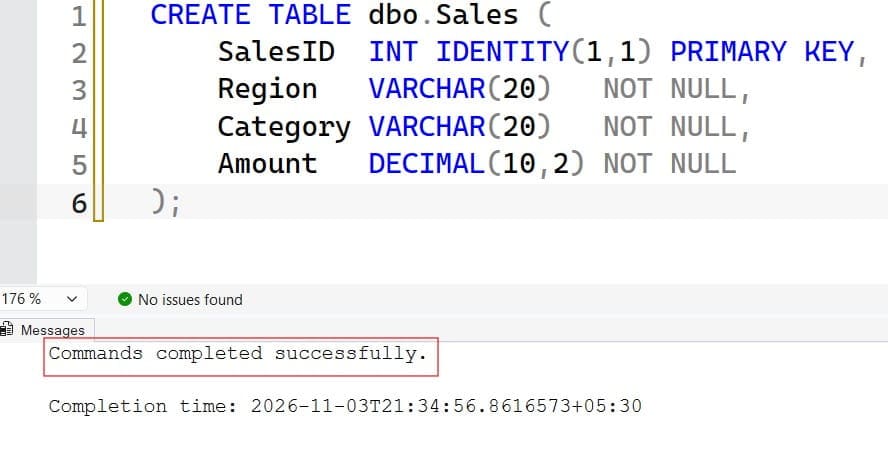
A schema is the structure of your tables. Use a small sales table so you can check every result by hand.
CREATE TABLE dbo.Sales (
    SalesID  INT IDENTITY(1,1) PRIMARY KEY,
    Region   VARCHAR(20)   NOT NULL,
    Category VARCHAR(20)   NOT NULL,
    Amount   DECIMAL(10,2) NOT NULL
);

INSERT INTO dbo.Sales (Region, Category, Amount)
VALUES
 ('West',  'Hardware', 1200.00),
 ('West',  'Software',  800.00),
 ('East',  'Hardware',  600.00),
 ('East',  'Software', 1400.00),
 ('South', 'Hardware',  500.00),
 ('South', 'Software',  500.00);
After executing the above query, I got the expected output as shown in the screenshot below.
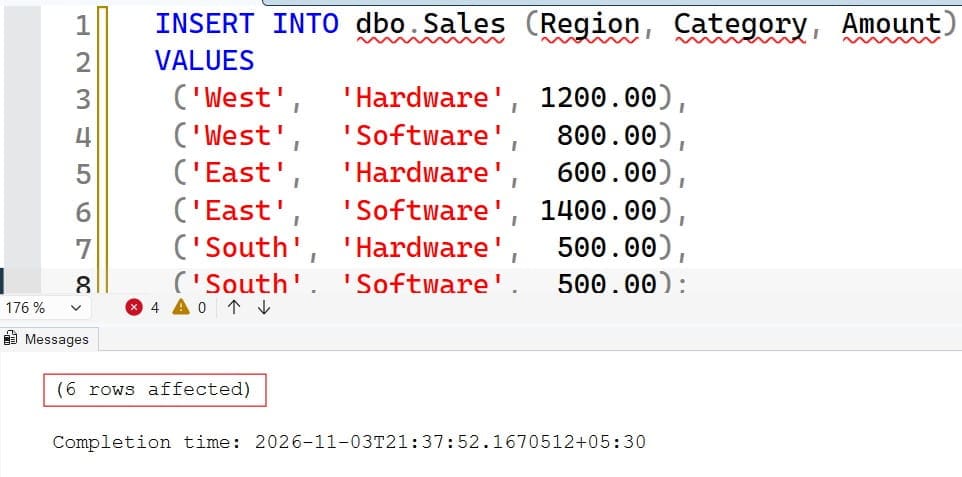
Run this only in a test database, because it inserts rows. The grand total is 5,000. Region totals are West 2,000, East 2,000, and South 1,000, so the expected shares are 40, 40, and 20 percent. Category totals are Hardware 2,300 (46 percent) and Software 2,700 (54 percent). Knowing the answers up front lets you verify each query.
Pro Tip: In my experience, a six-row table with totals you can add in your head catches more percentage bugs than a million-row production table. I always verify the logic on tiny data first.
The Basic Idea and the Integer Division Trap
A percentage of total is part / total * 100. In T-SQL, the data type of the operands decides how division behaves. If both sides are integers, SQL Server performs integer division and drops the remainder.
SELECT 1200 / 5000 * 100      AS WrongPercent,   -- 0
       1200 * 100.0 / 5000    AS RightPercent;   -- 24.000000
After executing the above query, I got the expected output as shown in the screenshot below.

The first expression divides 1200 by 5000 and gets 0 because both are integers, then multiplies 0 by 100. The second multiplies by 100.0 first, which makes the whole expression decimal. Always start with 100.0 or cast a value to DECIMAL before dividing. For more on conversions, see the CAST function.
This is exactly what broke the finance dashboard. In our table Amount is already DECIMAL, but in many real tables the measure is an INT count.
How to Find Percentage of Total in SQL With a Subquery
The oldest method computes the total in a separate query. A scalar subquery returns a single value and can be used inside another query. See SQL subqueries.
SELECT
    SalesID,
    Region,
    Amount,
    CAST(Amount * 100.0 / (SELECT SUM(Amount) FROM dbo.Sales) AS DECIMAL(5,2)) AS PctOfTotal
FROM dbo.Sales
ORDER BY SalesID;
After executing the above query, I got the expected output as shown in the screenshot below.
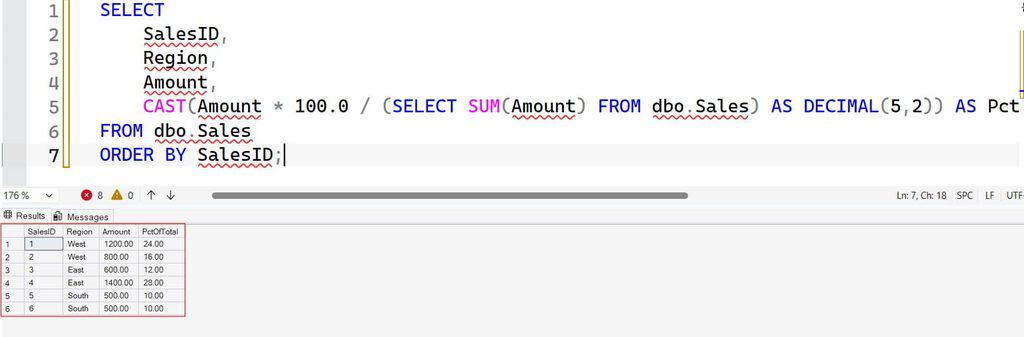
The inner SELECT SUM(Amount) calculates 5,000 once, and each row divides by it. Results are 24.00, 16.00, 12.00, 28.00, 10.00, and 10.00. They add up to 100.
This approach works on any SQL Server version and is easy to read. The trade-off is that SQL Server reads the table for the main query and again for the total. On small tables that is trivial. On big tables the second scan adds cost. For the SUM function itself, see how to use SUM in SQL Server.
Use a Window Function for the Cleanest Result
A window function calculates across a set of rows without collapsing them. With SUM(Amount) OVER (), the empty parentheses mean “the whole result set.” Read more in window functions in SQL Server and the OVER clause.
SELECT
    SalesID,
    Region,
    Amount,
    CAST(Amount * 100.0 / SUM(Amount) OVER () AS DECIMAL(5,2)) AS PctOfTotal
FROM dbo.Sales
ORDER BY SalesID;
After executing the above query, I got the expected output as shown in the screenshot below.
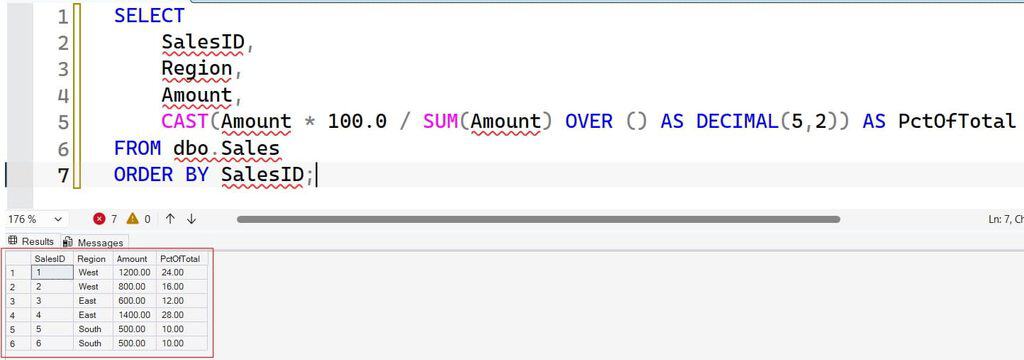
This returns the same numbers as the subquery version. SQL Server calculates the total in the same pass and attaches it to every row. The query is shorter, and it avoids repeating the table name. This is the method I recommend for most reports.
Protect Against Divide-by-Zero
If the total is zero, for example when a filter returns no sales or all amounts net to zero, you get a divide-by-zero error. Use NULLIF, which returns NULL when two values are equal, so the division returns NULL instead of failing. See NULLIF vs. COALESCE.
SELECT
    Region,
    Amount,
    CAST(Amount * 100.0 / NULLIF(SUM(Amount) OVER (), 0) AS DECIMAL(5,2)) AS PctOfTotal
FROM dbo.Sales;
After executing the above query, I got the expected output as shown in the screenshot below.
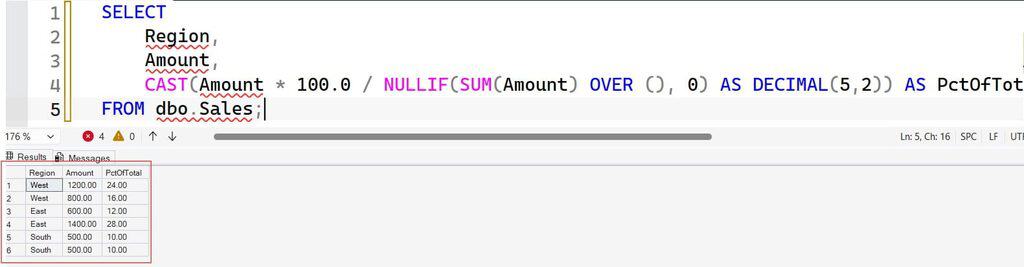
When the total is 0, the denominator becomes NULL and the percentage is NULL. Decide whether the report should show NULL, 0, or a message. Wrap with COALESCE if you want zero.
Pro Tip: I once watched a nightly report fail because a single region had no sales on a holiday. Adding
NULLIFto every denominator is now a habit, not an afterthought.
Percentage of Total by Group
Business questions usually ask for shares by region or category, not by row. Combine GROUP BY with a window function over the grouped results. See how to use GROUP BY in SQL Server.
SELECT
    Region,
    SUM(Amount) AS RegionSales,
    CAST(SUM(Amount) * 100.0 / SUM(SUM(Amount)) OVER () AS DECIMAL(5,2)) AS PctOfTotal
FROM dbo.Sales
GROUP BY Region
ORDER BY RegionSales DESC;
After executing the above query, I got the expected output as shown in the screenshot below.
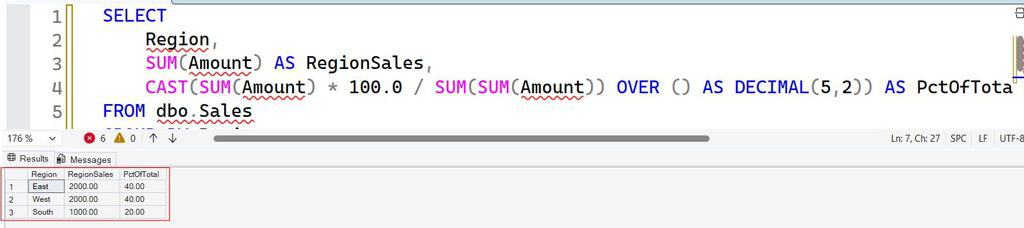
The inner SUM(Amount) is the group total. The outer SUM(... ) OVER () adds those group totals together to get the grand total. This works because window functions run after GROUP BY. The result is West 40.00, East 40.00, and South 20.00.
The nested SUM(SUM(...)) looks odd the first time you see it. If it confuses your team, use a CTE (common table expression), a named temporary result you can query immediately. Compare it with a temp table in CTE vs. temp table.
WITH RegionTotals AS (
    SELECT Region, SUM(Amount) AS RegionSales
    FROM dbo.Sales
    GROUP BY Region
)
SELECT
    Region,
    RegionSales,
    CAST(RegionSales * 100.0 / SUM(RegionSales) OVER () AS DECIMAL(5,2)) AS PctOfTotal
FROM RegionTotals
ORDER BY RegionSales DESC;
After executing the above query, I got the expected output as shown in the screenshot below.
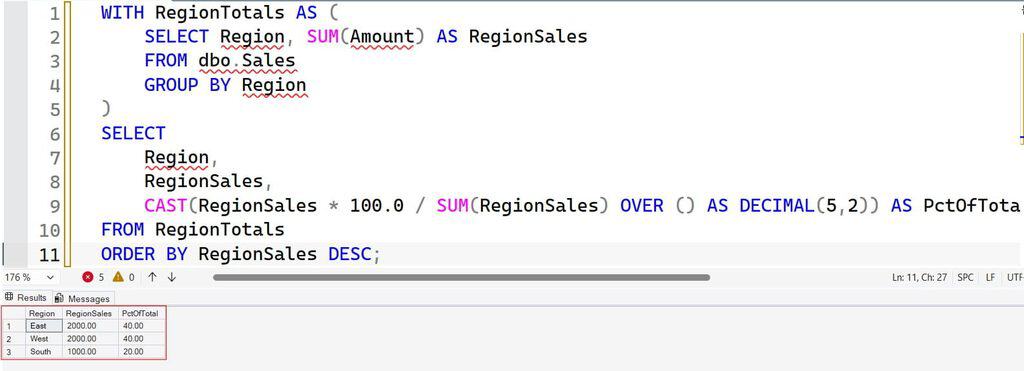
It returns the same result in two clear steps: aggregate first, then calculate the share.
Pro Tip: I use the CTE version when the query will be maintained by someone else. Two readable steps beat one clever expression that nobody wants to touch.
Percentage Within a Group
Sometimes the “whole” is a subgroup. For example, you want each category’s share within its region. Add PARTITION BY to the window, which restarts the calculation for each group. See PARTITION BY.
SELECT
    Region,
    Category,
    SUM(Amount) AS CategorySales,
    CAST(SUM(Amount) * 100.0
         / SUM(SUM(Amount)) OVER (PARTITION BY Region) AS DECIMAL(5,2)) AS PctOfRegion
FROM dbo.Sales
GROUP BY Region, Category
ORDER BY Region, Category;
With PARTITION BY Region, the denominator is that region’s total. The output is East Hardware 30.00 and Software 70.00, South 50.00 and 50.00, and West Hardware 60.00 and Software 40.00. Each region’s percentages add to 100.
Be clear about which total you are using. The three versions you may need are percent of the grand total, percent of the group, and percent of a filtered set. Label the column so readers know, for example PctOfRegion rather than just Pct.
Combine Percentages With Filters Correctly
Filters change the denominator. This catches many people. A WHERE clause runs before window functions, so the total only includes the filtered rows.
-- Percent of Hardware sales only (denominator excludes Software)
SELECT Region,
       SUM(Amount) AS HardwareSales,
       CAST(SUM(Amount) * 100.0 / SUM(SUM(Amount)) OVER () AS DECIMAL(5,2)) AS PctOfHardware
FROM dbo.Sales
WHERE Category = 'Hardware'
GROUP BY Region;
Here the total is 2,300, not 5,000. If you want each region’s Hardware sales as a share of all sales, calculate the percentage first and filter afterward:
WITH Shares AS (
    SELECT Region, Category, Amount,
           Amount * 100.0 / SUM(Amount) OVER () AS PctOfGrandTotal
    FROM dbo.Sales
)
SELECT Region, Category, CAST(PctOfGrandTotal AS DECIMAL(5,2)) AS PctOfGrandTotal
FROM Shares
WHERE Category = 'Hardware';
The CTE calculates shares against all 5,000, then the outer WHERE filters the rows. The difference between WHERE before and after the window is explained further in HAVING vs. WHERE.
Pro Tip: When a stakeholder says “the numbers don’t add up,” I ask one question: “Percent of what?” Nine times out of ten the filter changed the denominator.
Add a Cumulative Percentage
A running total of percentages shows how fast sales accumulate, which supports Pareto-style questions like “which regions make up 80 percent of revenue?”
WITH RegionTotals AS (
    SELECT Region, SUM(Amount) AS RegionSales
    FROM dbo.Sales
    GROUP BY Region
)
SELECT
    Region,
    RegionSales,
    CAST(SUM(RegionSales) OVER (ORDER BY RegionSales DESC, Region
                                ROWS UNBOUNDED PRECEDING) * 100.0
         / SUM(RegionSales) OVER () AS DECIMAL(5,2)) AS CumulativePct
FROM RegionTotals
ORDER BY RegionSales DESC, Region;
The window with ORDER BY and ROWS UNBOUNDED PRECEDING adds up values from the first row to the current one. With ties between West and East, the tie-breaker Region keeps the order stable. The result is West 40.00, East 80.00, and South 100.00. Always specify the ROWS frame explicitly; the default frame can behave differently with ties and is usually slower.
Format and Round the Results
Keep percentages numeric in the database and format them in the application when possible. If you need text in T-SQL, use CAST and CONCAT:
SELECT Region,
       CONCAT(CAST(SUM(Amount) * 100.0 / SUM(SUM(Amount)) OVER () AS DECIMAL(5,1)), '%') AS Share
FROM dbo.Sales
GROUP BY Region;
For more on rounding, see formatting numbers to two decimal places. Be aware that rounded values may not sum to exactly 100. Three shares of 33.33 add to 99.99. That is normal. If an exact 100 is required, adjust the largest item or round only at display time and explain that totals may differ slightly.
Make It Fast and Reusable
A window over the whole result must see every row to compute the total, so these queries scan or aggregate the data they use. Three habits keep them fast:
- Aggregate before windowing. The grouped version works on a few rows after
GROUP BY, not thousands of detail rows. - Index the columns involved. An index on
Regionthat includesAmountlets SQL Server read a narrow structure. See how to create an index in SQL Server. Check the execution plan first, because every index slows inserts and updates. - Pre-aggregate for dashboards. If a report reads hundreds of millions of rows, store daily or monthly totals in a summary table and calculate percentages from that.
For large analytic tables, a columnstore index, which stores data by column and compresses it, can speed aggregations. Test it against your workload first. For more tips, see SQL query optimization tips.
Package the logic in a view so every report uses the same definition of “percent of total.” See SQL Server views.
CREATE OR ALTER VIEW dbo.vw_RegionShare
AS
SELECT
    Region,
    SUM(Amount) AS RegionSales,
    CAST(SUM(Amount) * 100.0 / NULLIF(SUM(SUM(Amount)) OVER (), 0) AS DECIMAL(5,2)) AS PctOfTotal
FROM dbo.Sales
GROUP BY Region;
Pro Tip: In my experience, definitions drift when ten reports each calculate their own percentage. A single view makes the denominator an agreed business rule.
Frequently Asked Questions
How do I calculate percentage of total in SQL Server?
Divide each value by the total and multiply by 100.0, for example Amount * 100.0 / SUM(Amount) OVER (). The empty OVER () makes the window cover the whole result, so every row gets the grand total.
Why does my percentage of total return 0?
You are probably dividing two integers, and SQL Server drops the decimals. Multiply by 100.0 before dividing or cast one value to DECIMAL.
How do I calculate percentage within each group?
Use PARTITION BY in the window, such as SUM(Amount) OVER (PARTITION BY Region). The denominator then becomes each group’s total, and the percentages in each group add to 100.
How do I avoid divide-by-zero errors?
Wrap the denominator in NULLIF(total, 0). When the total is zero, the result becomes NULL instead of an error, and you can replace it with COALESCE if you prefer zero.
Is a subquery or a window function better for percent of total?
Both give the same answer. The window function is shorter and calculates the total in the same pass, while a scalar subquery works on every version and is easy to read. For large tables, compare execution plans.
You learned how to find percentage of total in SQL using subqueries, window functions, grouped totals, and PARTITION BY, and how to avoid integer division and divide-by-zero errors. Name your denominator clearly, verify results against a hand-calculated total, and give report users read-only access through a view. I hope you found this article helpful.
You May Also Like
- How to use the AVG function in SQL Server
- How to use the COUNT function in SQL Server
- RANK vs. DENSE_RANK in SQL
- SQL Server FLOOR function
- How to group by date in SQL Server

After working for more than 15 years in the Software field, especially in Microsoft technologies, I have decided to share my expert knowledge of SQL Server. Check out all the SQL Server and related database tutorials I have shared here. Most of the readers are from countries like the United States of America, the United Kingdom, New Zealand, Australia, Canada, etc. I am also a Microsoft MVP. Check out more here.