
An HR analyst once sent me a headcount report that looked fine until the Legal director spotted the problem. Legal had three open roles and no employees, and the department was missing from the report entirely. A second department showed one extra person who didn’t exist. The query was short, and both mistakes came from two small choices: an INNER JOIN and a COUNT(*).
That is why the SQL query to count employees in each department deserves more care than its size suggests. The basic version is three lines. A reliable version has to handle empty departments, unassigned employees, inactive staff, NULLs, and growing tables. This guide builds the query step by step in T-SQL, then covers performance, reusable objects, and secure access in Azure SQL Database or SQL Server, so you can ship a headcount report you can trust.
Set Up the Employee and Department Tables
A schema is the structure of your tables and how they relate. Start with two tables: one row per department, and one row per employee.
CREATE TABLE dbo.Departments (
    DepartmentID   INT IDENTITY(1,1) PRIMARY KEY,
    DepartmentName VARCHAR(100) NOT NULL UNIQUE
);

CREATE TABLE dbo.Employees (
    EmployeeID   INT IDENTITY(1,1) PRIMARY KEY,
    FullName     VARCHAR(150) NOT NULL,
    DepartmentID INT NULL
        REFERENCES dbo.Departments(DepartmentID),
    HireDate     DATE NOT NULL,
    IsActive     BIT NOT NULL DEFAULT 1
);
After running the query above, I got the expected output shown in the screenshot below.
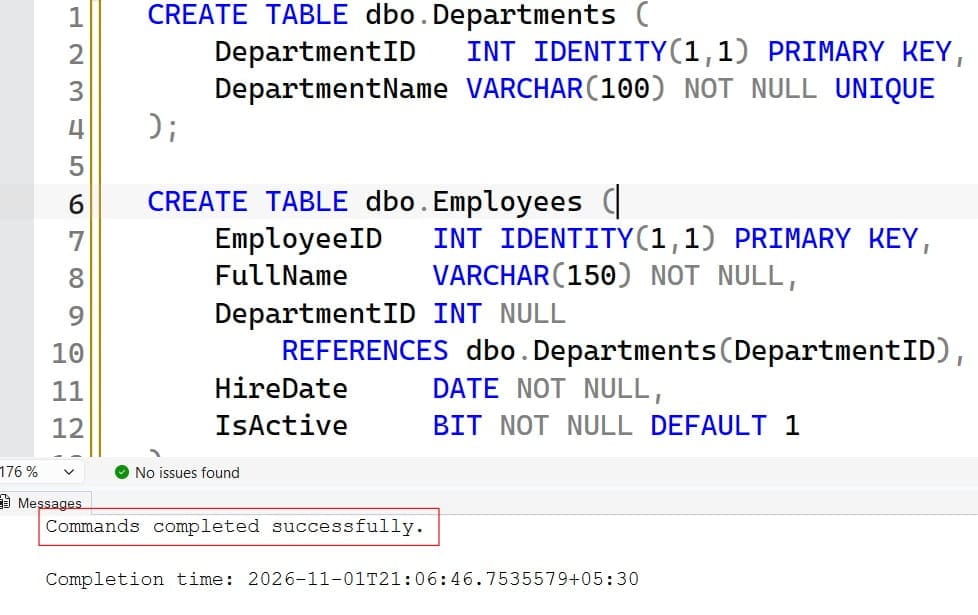
DepartmentID in Employees is a foreign key, a rule that stops an employee from pointing to a department that does not exist. It allows NULL here on purpose, because new hires are sometimes unassigned. Review the basics in creating a table with a primary key and foreign keys in SQL Server.
Now load sample data. Run this only on a test database, because it inserts rows.
INSERT INTO dbo.Departments (DepartmentName)
VALUES ('Engineering'), ('Sales'), ('HR'), ('Legal');

INSERT INTO dbo.Employees (FullName, DepartmentID, HireDate, IsActive)
VALUES
 ('Ava Chen',   1, '2022-03-01', 1),
 ('Ben Ortiz',  1, '2023-06-15', 1),
 ('Cara Singh', 1, '2021-01-10', 0),
 ('Dan Weber',  2, '2024-02-20', 1),
 ('Eli Brooks', 2, '2020-09-05', 1),
 ('Fay Nolan',  3, '2023-11-30', 1),
 ('Gus Reyes', NULL, '2026-10-01', 1);
After running the query above, I got the expected output shown in the screenshot below.
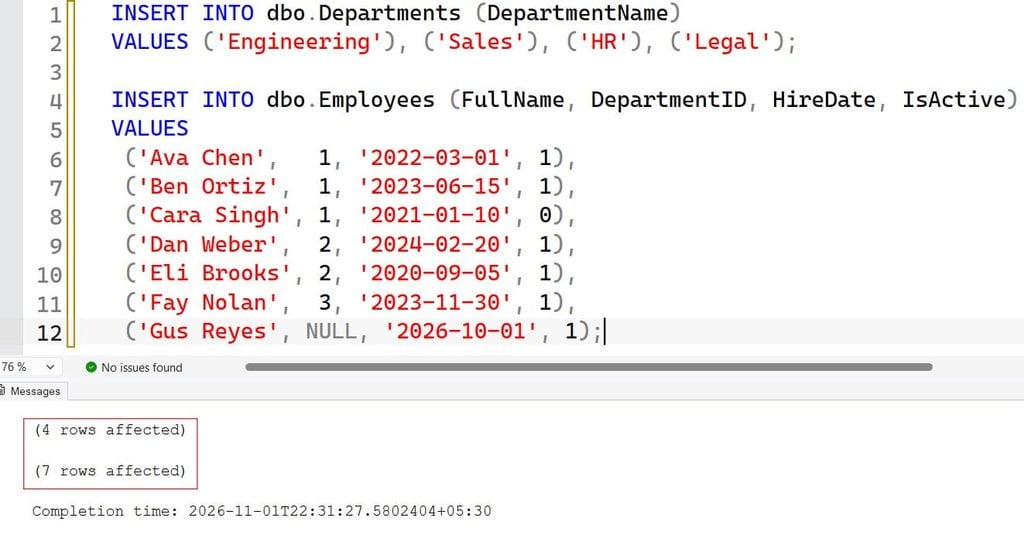
This gives you Engineering with three people (one inactive), Sales with two, HR with one, Legal with none, and one employee with no department. Those edge cases are deliberate. Each one breaks a careless query.
Pro Tip: In my experience, a tiny seed dataset with an empty department, a NULL department, and an inactive employee finds more headcount bugs than a million random rows. I build one before writing any report query.
Basic SQL Query to Count Employees in Each Department
The core idea is GROUP BY plus COUNT. GROUP BY splits rows into buckets, and COUNT is an aggregate function that returns one number per bucket. For the fundamentals, see how to use GROUP BY in SQL Server and the COUNT function.
SELECT
    DepartmentID,
    COUNT(*) AS EmployeeCount
FROM dbo.Employees
GROUP BY DepartmentID;
After running the query above, I got the expected output shown in the screenshot below.
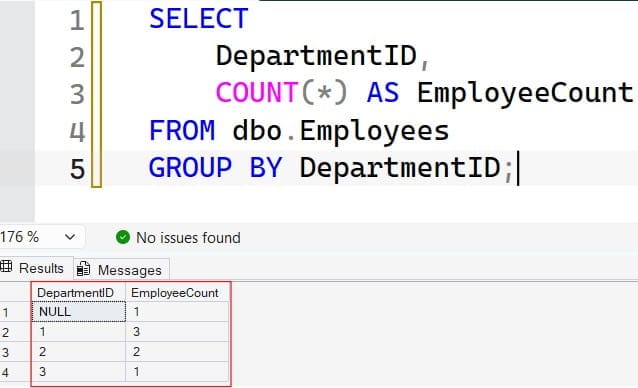
This groups employees by DepartmentID and counts the rows in each group. It works, but the output is just numbers. Also, the group with a NULL DepartmentID appears as its own row, which is correct but confusing without a label.
To show department names, join to Departments. A join combines rows from two tables based on a matching column. See this inner join tutorial.
SELECT
    d.DepartmentName,
    COUNT(e.EmployeeID) AS EmployeeCount
FROM dbo.Departments AS d
INNER JOIN dbo.Employees AS e
    ON e.DepartmentID = d.DepartmentID
GROUP BY d.DepartmentName
ORDER BY EmployeeCount DESC;
After running the query above, I got the expected output shown in the screenshot below.
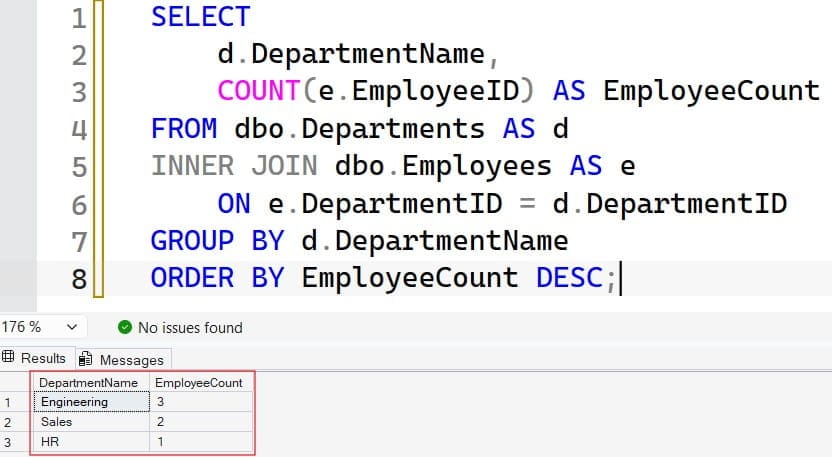
The aliases d and e shorten the table names; read about SQL aliases if they are new. ORDER BY ... DESC puts the largest department first; see ORDER BY in SQL Server.
This query is the one that hid the Legal department. An INNER JOIN returns only departments that have matching employees, so empty ones vanish.
Pro Tip: I treat any headcount report built on an
INNER JOINas suspect until I have tested it with an empty department. That single test catches the most common version of this bug.
SQL Query to Count Employees in Each Department, Including Empty Ones
Use a LEFT JOIN, which keeps every row from the left table even when there is no match on the right. Read more in SQL LEFT JOIN.
SELECT
    d.DepartmentName,
    COUNT(e.EmployeeID) AS EmployeeCount
FROM dbo.Departments AS d
LEFT JOIN dbo.Employees AS e
    ON e.DepartmentID = d.DepartmentID
GROUP BY d.DepartmentName
ORDER BY d.DepartmentName;
After running the query above, I got the expected output shown in the screenshot below.
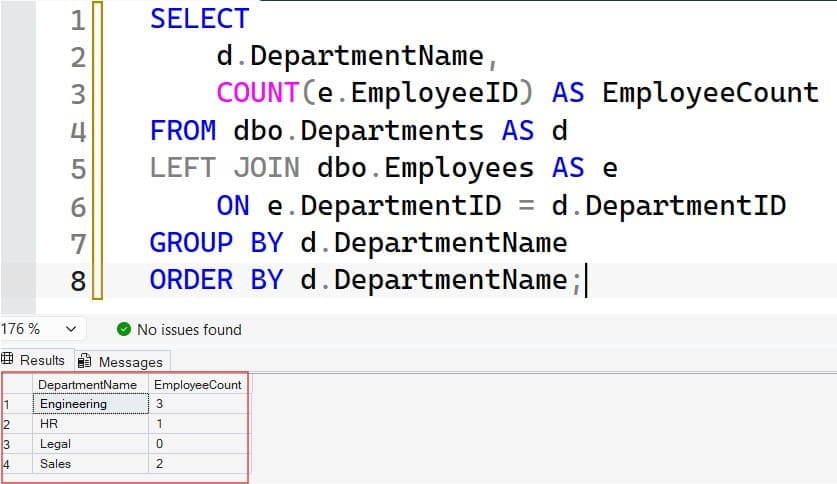
Legal now appears with a count of 0. The key detail is COUNT(e.EmployeeID). When you count a specific column, SQL Server skips NULLs, and a department with no employees produces a single row where every e. column is NULL. If you wrote COUNT(*) instead, that one placeholder row would count as 1, and Legal would show one employee.
| Expression | What it counts | Legal result |
|---|---|---|
COUNT(*) | Every row in the group | 1 (wrong) |
COUNT(e.EmployeeID) | Non-NULL employee IDs | 0 (correct) |
COUNT(DISTINCT e.EmployeeID) | Unique non-NULL IDs | 0 (correct) |
You rarely need DISTINCT here because EmployeeID is already unique. It matters when your join can repeat employees, for example when joining to a table of project assignments. See COUNT DISTINCT for details, and how SQL treats NULL for why the counts behave this way.
Pro Tip: I make
COUNT(column_from_the_right_table)a habit in every left-join count. It reads as the intent, which is to count matches, and it prevents the phantom row problem.
Filter Active Employees Without Breaking the Join
Most reports should count only active staff. The trap is where you put the filter. Putting it in WHERE quietly turns the LEFT JOIN back into an inner join.
-- Wrong: Legal disappears again
SELECT d.DepartmentName, COUNT(e.EmployeeID) AS EmployeeCount
FROM dbo.Departments AS d
LEFT JOIN dbo.Employees AS e ON e.DepartmentID = d.DepartmentID
WHERE e.IsActive = 1
GROUP BY d.DepartmentName;
After running the query above, I got the expected output shown in the screenshot below.
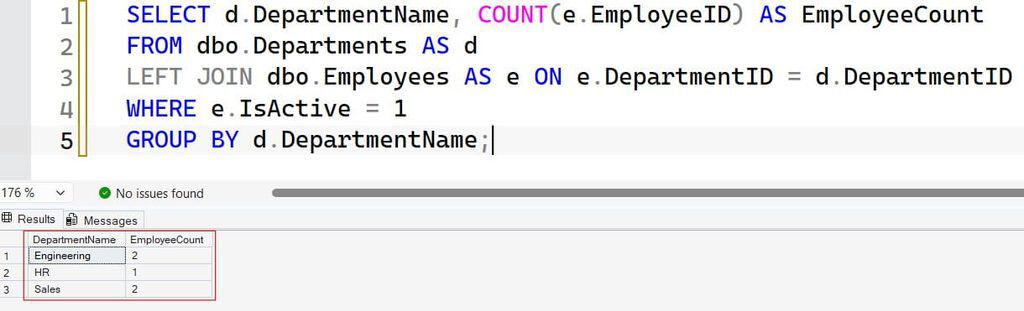
Why does this fail? WHERE runs after the join. For Legal, e.IsActive is NULL, and NULL = 1 is not true, so the row is removed. Move the condition into the ON clause so it applies before unmatched rows are added back.
SELECT
    d.DepartmentName,
    COUNT(e.EmployeeID) AS ActiveEmployees
FROM dbo.Departments AS d
LEFT JOIN dbo.Employees AS e
    ON e.DepartmentID = d.DepartmentID
   AND e.IsActive = 1
GROUP BY d.DepartmentName
ORDER BY ActiveEmployees DESC;
After running the query above, I got the expected output shown in the screenshot below.
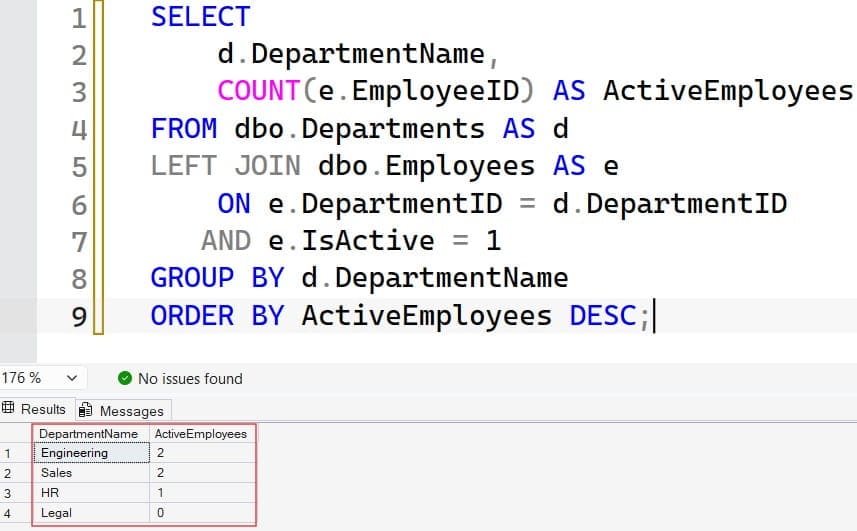
With the sample data, the result is Engineering 2, Sales 2, HR 1, and Legal 0. Cara Singh is inactive, so she is excluded. For a refresher on filtering rules, read JOIN vs. WHERE.
Pro Tip: In my experience, “my left join lost rows” is almost always a right-table filter sitting in
WHERE. When I review code, that is the first place I look.
Find Departments Above or Below a Size
To show only departments that meet a size rule, use HAVING. It filters groups after aggregation, while WHERE filters rows before it. The difference is explained in HAVING vs. WHERE.
SELECT
    d.DepartmentName,
    COUNT(e.EmployeeID) AS ActiveEmployees
FROM dbo.Departments AS d
LEFT JOIN dbo.Employees AS e
    ON e.DepartmentID = d.DepartmentID
   AND e.IsActive = 1
GROUP BY d.DepartmentName
HAVING COUNT(e.EmployeeID) >= 2;
After running the query above, I got the expected output shown in the screenshot below.
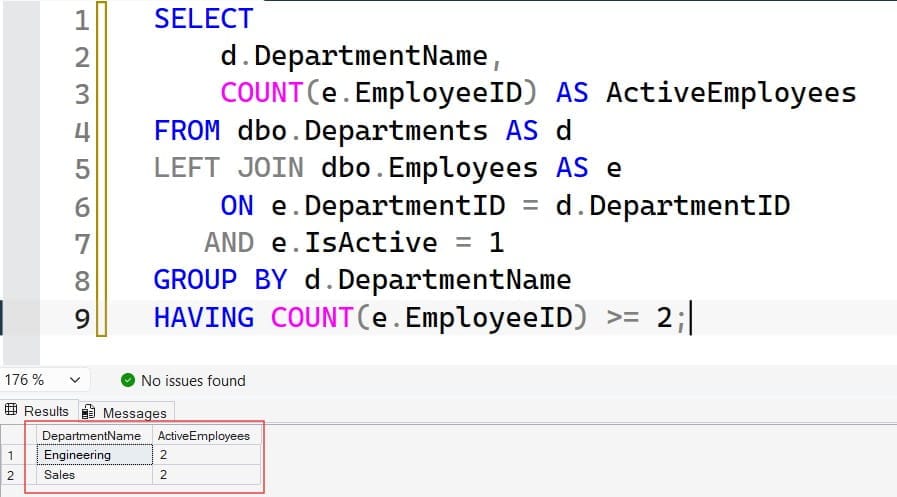
This returns only departments with at least two active employees. Change the condition to = 0 to list empty departments, which is useful for cleaning up stale data. To get just the biggest department, combine the count with the TOP clause.
Show Unassigned Employees and Percentages
Gus Reyes has no department, so he does not appear in any of the queries above. A report that silently drops people is a data quality problem. Handle it explicitly with COALESCE, which returns the first non-NULL value; see the COALESCE function.
SELECT
    COALESCE(d.DepartmentName, 'Unassigned') AS DepartmentName,
    COUNT(*) AS ActiveEmployees,
    CAST(100.0 * COUNT(*) / SUM(COUNT(*)) OVER () AS DECIMAL(5,1)) AS PercentOfTotal
FROM dbo.Employees AS e
LEFT JOIN dbo.Departments AS d
    ON d.DepartmentID = e.DepartmentID
WHERE e.IsActive = 1
GROUP BY COALESCE(d.DepartmentName, 'Unassigned');
Here the left table is Employees, so no employee can be lost. Using COUNT(*) is safe, because every row represents a real employee. The expression SUM(COUNT(*)) OVER () is a window function, which calculates across rows without collapsing them. It sums all group counts to give the total headcount, so each department’s share is easy to compute. Learn more in window functions in SQL Server and the OVER clause.
The trade-off: this version will not show empty departments, because it starts from Employees. If you need both empty departments and unassigned employees, use a FULL OUTER JOIN or UNION ALL the two result sets. I usually run the unassigned check as a separate data-quality query instead.
Pro Tip: I add an “Unassigned” row to headcount reports on purpose. Finance trusts a report more when its total matches the payroll count.
Make the Query Reusable and Fast
Once the logic is correct, save it. A view is a stored query you select from like a table. Read about SQL Server views.
CREATE OR ALTER VIEW dbo.vw_DepartmentHeadcount
AS
SELECT
    d.DepartmentID,
    d.DepartmentName,
    COUNT(e.EmployeeID) AS ActiveEmployees
FROM dbo.Departments AS d
LEFT JOIN dbo.Employees AS e
    ON e.DepartmentID = d.DepartmentID
   AND e.IsActive = 1
GROUP BY d.DepartmentID, d.DepartmentName;
Now every report reads from one definition, so “headcount” means the same thing everywhere. The view exposes only counts, not employee names, which also limits what a report user can see.
Add an Index
An index is a sorted structure that helps SQL Server find rows without reading the whole table. For counting by department, an index on the foreign key column helps. See how to create an index in SQL Server.
CREATE NONCLUSTERED INDEX IX_Employees_Department_Active
ON dbo.Employees (DepartmentID)
INCLUDE (IsActive);
The index lets SQL Server count rows from a narrow, sorted structure instead of scanning full employee rows. INCLUDE (IsActive) carries the filter column so the query does not need extra lookups. The trade-off is slightly slower inserts and updates, plus extra storage. On a table with a few hundred rows, you won’t notice a benefit. It starts to matter at hundreds of thousands of rows or more.
Check the actual execution plan before and after, and keep statistics current. For more tuning ideas, see SQL query optimization tips.
Pro Tip: I enable Query Store in Azure SQL Database before tuning anything. It keeps runtime history, so I can show that an index helped instead of assuming it did.
Frequently Asked Questions
What is the SQL query to count employees in each department?
Join employees to departments, then use GROUP BY on the department name with COUNT. For example, SELECT d.DepartmentName, COUNT(e.EmployeeID) FROM Departments d LEFT JOIN Employees e ON e.DepartmentID = d.DepartmentID GROUP BY d.DepartmentName. The left join keeps empty departments.
Why does my query show 1 for a department with no employees?
You are using COUNT(*) after a LEFT JOIN. The unmatched row still counts as a row. Use COUNT(e.EmployeeID) so NULLs are skipped.
How do I count only active employees?
Put the active condition in the ON clause of the left join, such as AND e.IsActive = 1. If you put it in WHERE, departments with no active employees disappear.
How do I list departments with more than five employees?
Add a HAVING COUNT(e.EmployeeID) > 5 clause after GROUP BY. HAVING filters after the counts are calculated, which WHERE cannot do.
How can I make this query faster?
Index the DepartmentID column in Employees, keep statistics current, and read the actual execution plan to confirm the index is used. For repeated reports, store the logic in a view so every consumer uses the same tuned query.
You now know how to write a SQL query to count employees in each department using GROUP BY, LEFT JOIN, COUNT on the right column, and HAVING, and how to avoid the empty-department and NULL traps. Test every headcount query with an empty department and an unassigned employee, and give report users read access to a view, not the employee table. I hope you found this article helpful.
You May Also Like
- SQL SELECT query examples
- How to use the SUM function in SQL Server
- How to use the AVG function in SQL Server
- How to use the MAX function in SQL Server
- SQL cheat sheet

After working for more than 15 years in the Software field, especially in Microsoft technologies, I have decided to share my expert knowledge of SQL Server. Check out all the SQL Server and related database tutorials I have shared here. Most of the readers are from countries like the United States of America, the United Kingdom, New Zealand, Australia, Canada, etc. I am also a Microsoft MVP. Check out more here.